Cost Tree Filters: Group and Focus Azure Spend
Overview
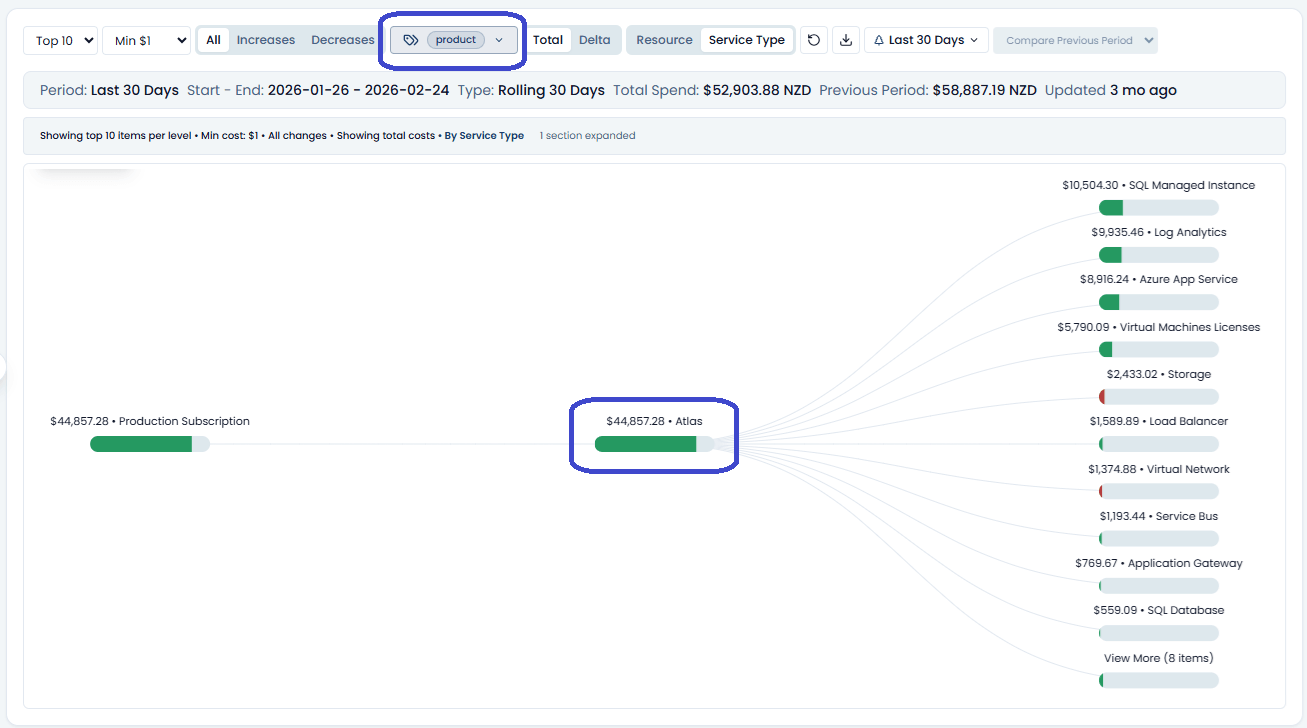
Cost Tree filtering and grouping turn a large Azure billing tree into a focused investigation view. Use them to isolate a resource family, service type, resource group, team, department, product, environment, region, or any other ownership model that matters to your organization.
This is where tags become useful instead of decorative. A rare and welcome event.
Search
Use search when you already know part of the thing you are looking for:
- resource name
- service name
- meter name
- resource group
- tag value
- product or owner label
Search narrows the visible Cost Tree before Change Drivers ranks top increases and decreases. If you search for storage, the Change Drivers view explains the visible storage-related changes, not the entire subscription.
Service type and resource group filters
Use the filter control when you want a checklist rather than a free-text search. The list is searchable and is built from the Cost Tree nodes in the selected period.
The filter changes with the selected view:
- In Resource view, the filter is Filter by resource group.
- In Service Type view, the filter is Filter by service type.
This is useful when a dashboard spend chart already tells you the service family that changed. For example, if Application Gateway increased on the daily spend chart, open Cost Tree in Service Type view and filter to Application Gateway. The tree then shows where that service spend is landing.
Filter selections can also be opened from dashboard chart clicks. When a dashboard link includes a service type, Cost Tree opens in Service Type view and applies that service type filter automatically.
Top N per level
The Top N control limits how many items are shown at each level of the hierarchy.
Use a lower number when you need a clean summary. Use a higher number when you are hunting for smaller contributors that still matter.
Hidden items are grouped behind View More controls so the tree stays navigable.
Minimum cost threshold
The minimum cost threshold hides low-value noise.
In Total mode, this primarily filters by current-period cost. In Delta mode, Spotto checks current and comparison-period cost so meaningful decreases are not hidden just because the current cost is now low.
Direction filters
In Delta mode, use the direction filter to focus the question:
- All changes: show increases and decreases.
- Increases only: show added cost.
- Decreases only: show reduced cost.
The same filter scope is used by Change Drivers.
Grouping modes
Cost Tree can show the hierarchy in different orders, such as resource-group-first or service-first.
Use resource-group-first when ownership follows Azure resource groups. Use service-first when you want to understand which service families are driving spend across many groups.
Grouping does not change the underlying spend. It changes the route you use to inspect it.
Cloud tags
Cloud tags are the tags already present on Azure resources. They are useful when teams consistently tag resources with keys such as:
EnvironmentProductDepartmentOwnerCostCenterRegion
When cloud tags are consistent, Cost Tree can filter and roll up spend in the same language the business uses.
Spotto virtual tags
Spotto tags let you add or normalize tagging inside Spotto without requiring every Azure resource tag to be perfect first.
Use Spotto virtual tags when:
- Azure tags are missing or inconsistent.
- You need a business grouping that is not stored in Azure.
- You want to roll up spend by product, department, region, platform team, application, customer, or cost center.
- You need to correct tag naming drift, such as
Env,Environment, andenvironment. - You want a stable investigation model before cloud tagging cleanup is complete.
For example, you might create a Spotto tag that maps several resource groups to Product: Cortex, or one that groups shared networking resources under Department: Platform.
See Tagging for the broader Spotto tagging model.
Using tags with Change Drivers
Tag filters are applied before Change Drivers builds its ranked list and Sankey.
That means you can ask targeted questions:
- What changed for
Product: Cortex? - Which department caused the increase?
- Did production storage increase while development decreased?
- Which region changed most after a rollout?
The answer panel, top increases, top decreases, offsets, and Sankey all reflect the filtered tag scope.
Multi-subscription filtering
When multiple subscriptions are selected, tag and search filters apply across the merged view.
This is useful for portfolio-level questions, but it depends on consistent naming. If one subscription uses Department: Finance and another uses Dept: FinOps, those will not roll up together unless you normalize them with Spotto tags.
Practical workflow
- Start with the period and subscription scope.
- Switch to Delta mode if you are investigating change.
- Apply a tag filter for the business scope, such as product or department.
- Use the service type or resource group filter when the chart, dashboard, or investigation already points to a specific category.
- Search for a service or resource family if needed.
- Use grouping to choose the investigation path.
- Open Change Drivers to summarize the largest increases, decreases, reasons, and offsets for that filtered scope.
Common issues
A tag filter returns no results
Likely causes:
- The tag does not exist in the selected period.
- The tag exists on different resources than expected.
- The selected subscriptions use different tag names or values.
How to fix:
- Clear the filter and search for the tag value.
- Check a single subscription first.
- Normalize the business grouping with Spotto virtual tags.
The rollup does not match the business owner
Likely causes:
- Shared resources are tagged to a platform team, not the consuming product.
- Resource groups mix multiple products.
- Azure tags reflect deployment ownership, not cost ownership.
How to fix:
- Decide whether the question is about technical ownership or financial ownership.
- Use Spotto virtual tags to represent the rollup you need.
- Re-run the Cost Tree and Change Drivers view with the normalized tag filter.