Perimeter Insights: Public IP Risk Review
Overview
Perimeter Insights in Spotto is a public endpoint exposure view for understanding how internet-facing traffic can enter your Azure or AWS environment. It shows which public IP addresses are assigned, what they are attached to, where they live, whether Spotto has configuration evidence of exposure, and which items need risk or ownership review.
It is built for the recurring question: "What is exposed to the internet, why does it exist, and who owns it?" The answer should not require four portal tabs and a brave spreadsheet.
Feature overview
Perimeter Insights lists public IP addresses across the selected Azure subscriptions and AWS accounts and adds operational context:
- Risk level for each public IP address. Select the risk pill to see the reason.
- Configuration evidence for public RDP, SSH, HTTPS, database, Kafka, and other ingress when detected. AWS findings show possible or unknown reachability because routing, network ACLs, host firewalls and client authorization are not verified.
- Assignment context, including associated service, resource, resource type, resource group, and region.
- Resource links that help you move from a public IP row to the attached resource or Azure context when Spotto has enough relationship data.
- Governance signals, including missing tags and other public IP concerns.
- Breakdowns by service, region, and concern so patterns are visible before you drill into individual rows.
For AWS, select an AWS account in the same selector. Review the source coverage notice, then inspect security group rules, load balancer listener evidence, and public database access. The exposure details distinguish possible reachability from verified reachability. An omitted discovery family can hide endpoints, so resolve missing evidence before treating an empty inventory as complete.
Public MSK broker addresses retain their Kafka cluster context and public port evidence. Other allowed public port ranges and protocols also appear as ingress findings. These findings call for source-range, client-authorization and private-access review; they do not establish unauthenticated access. A collected security-group family can be complete while the assessment remains partial because managed prefix-list members or listener evidence cannot be assessed.
Why use this? (Jobs, pains, gains)
Jobs to be done
- When I review cloud perimeter risk, I want to see every public IP address and its attachment, so I can separate intended entry points from accidental exposure.
- When public management ports are open, I want to find RDP or SSH exposure quickly, so the team can remove, restrict, or justify it.
- When ownership is unclear, I want to see missing tags and service context together, so follow-up work lands with the right team.
- When someone asks "how does traffic get in?", I want service and region breakdowns, so the answer is based on inventory rather than memory.
Common pains
- Azure public IPs are easy to list, but harder to connect to service intent, resource ownership, and exposure risk.
- Load balancers, application gateways, NAT gateways, and network interfaces all make "is this public IP expected?" a contextual question.
- Public IPs without tags create the usual ownership problem: everyone agrees they matter, nobody remembers who deployed them.
- Public HTTPS can be normal; public RDP or SSH usually deserves a much louder conversation.
Turn the evidence into a decision
Select the labelled briefcase Business Value button beside Notes. The brief combines live public IP, confirmed exposure, broad management exposure, and ownership-tag facts with a reduction plan.
Live facts remain deterministic. Generate tailors only the narrative for permitted users and saves it to the exact scope. Clear removes that saved narrative and immediately restores the standard Business Value content without deleting Customer Context or changing live facts. Regenerate when evidence changes. Above 100 subscriptions, the curated live brief remains available without tailoring.
Current position and priority work
Review confirmed and broadly reachable exposures first, especially management or customer-data paths. Assign ownership and business justification to remaining public endpoints, then remove or restrict those without a valid need.
Business outcomes
Perimeter review makes public exposure intentional. It helps retain required customer-facing services while reducing avoidable attack surface and establishing ownership for every externally reachable endpoint.
Cost of delay
Unnecessary or weakly restricted endpoints can increase the likelihood and blast radius of unauthorized access. Unknown ownership and missing context can delay containment when an exposed resource needs urgent attention.
Decision required
Agree which endpoints are required, which controls are mandatory, who owns each exception, and when unnecessary exposure will be removed.
Validate with stakeholders
When you can manage Company Notes, select any question in the portal to retain the answer in the relevant Customer Context note.
- Which public endpoints support a documented business service?
- What authentication, filtering, monitoring, and response controls protect them?
- Who owns each exposure and accepts its residual risk?
Key capabilities
Where to find it
In the Spotto Portal sidebar, open Security -> Posture -> Perimeter Insights.
Use the company and subscription selector at the top of the page to choose the subscriptions you want to review. Perimeter Insights combines the selected subscriptions into one inventory table.
Review the perimeter summary
The summary cards show:
- Public IPs: total public IP addresses, split into assigned and unassigned counts.
- Potential Active Exposure: public endpoints with HTTPS, management, database, Kafka, or other ingress evidence that remains actionable or unverified. Proven inactive or disconnected paths are excluded; their configured rules remain in the inventory. Several rules on one endpoint count once.
- For Azure, exposure evidence is split into HTTPS, broad admin (RDP or SSH open to the internet, the AzureCloud service tag, or a source Spotto cannot read), and restricted admin (RDP or SSH open only to restricted public ranges or a narrower Azure service tag).
- Follow-Up Items: Basic SKU public IPs, dynamic unused public IPs, and unresolved assigned attachments.
- Missing Tags: public IP addresses with no tags.
Use insight cards for immediate priorities
Perimeter Insights generates plain-language insight cards from the selected data. Select a card to filter the table to the rows behind it. Examples include:
- Public management exposure detected when broad-source RDP or SSH evidence remains potentially active or unverified.
- Management access uses public allowlists when potentially active or unverified RDP or SSH is limited to restricted public source ranges or a narrower Azure service tag, such as
AzureFrontDoor.Backend. - No public RDP or SSH exposure detected when no management-port evidence remains potentially active in the selected dataset. Proven inactive or disconnected rules remain visible in the inventory.
- Public HTTPS listeners found when HTTPS configuration evidence remains potentially active or unverified.
- Public service ingress needs review when Kafka or other public ingress evidence is present. Select the insight to filter those endpoints.
- Load balancer edge IPs need intent review when load balancer public IPs are attached but listener exposure evidence is not present.
- Unused public IP capacity found when unassigned public IPs exist.
- Governance tags are missing when public IPs have no tags.
Understand risk levels
For Azure, Spotto reads the configured rules, resolves supported destination paths, and uses complete, current evidence to assess workload state. Public and backend ports are separate: public TCP/52565 forwarded to TCP/3389 remains potential RDP exposure.
Fresh AWS scans can also trace supported public addresses through network interfaces to EC2 instances, and load balancer listeners through registered instance targets. Classic Load Balancers retain their public and backend ports. Application and Network Load Balancers include captured forwarding rules and target-group registrations. A translated backend management port remains a finding even when its public port is different.
Both sides of a forwarding rule are checked. A standard public SSH, RDP or HTTPS port remains a finding when it forwards to a different backend port.
- A running or unresolved destination retains conservative exposure risk.
- A stopped or deallocated workload reduces the exposure to Medium; review the configuration before restarting it.
- A proven detached NIC or rule with no backend becomes a Low cleanup finding.
- A missing collection, unresolved reference, transitional state, future observation or evidence older than 48 hours cannot authorize a downgrade.
Each exposure considers all its linked destinations. One inactive backend cannot lower another running backend's risk. Independent concerns, including Basic SKU, can keep a cleanup row at Medium. Older reports retain their existing assessment until a successful scan supplies the new evidence.
A load balancer public IP used for outbound traffic is not an unused resource just because it has no inbound rules. Spotto retains its outbound dependency. When the frontend has no inbound rules and no exposure findings, the row shows No inbound rules and is not counted as an unverified destination. Missing or unreadable outbound-rule evidence also prevents cleanup advice.
When the same frontend also forwards inbound traffic to a verified deallocated VM, that inbound finding can become Medium while the outbound dependency continues to block cleanup advice.
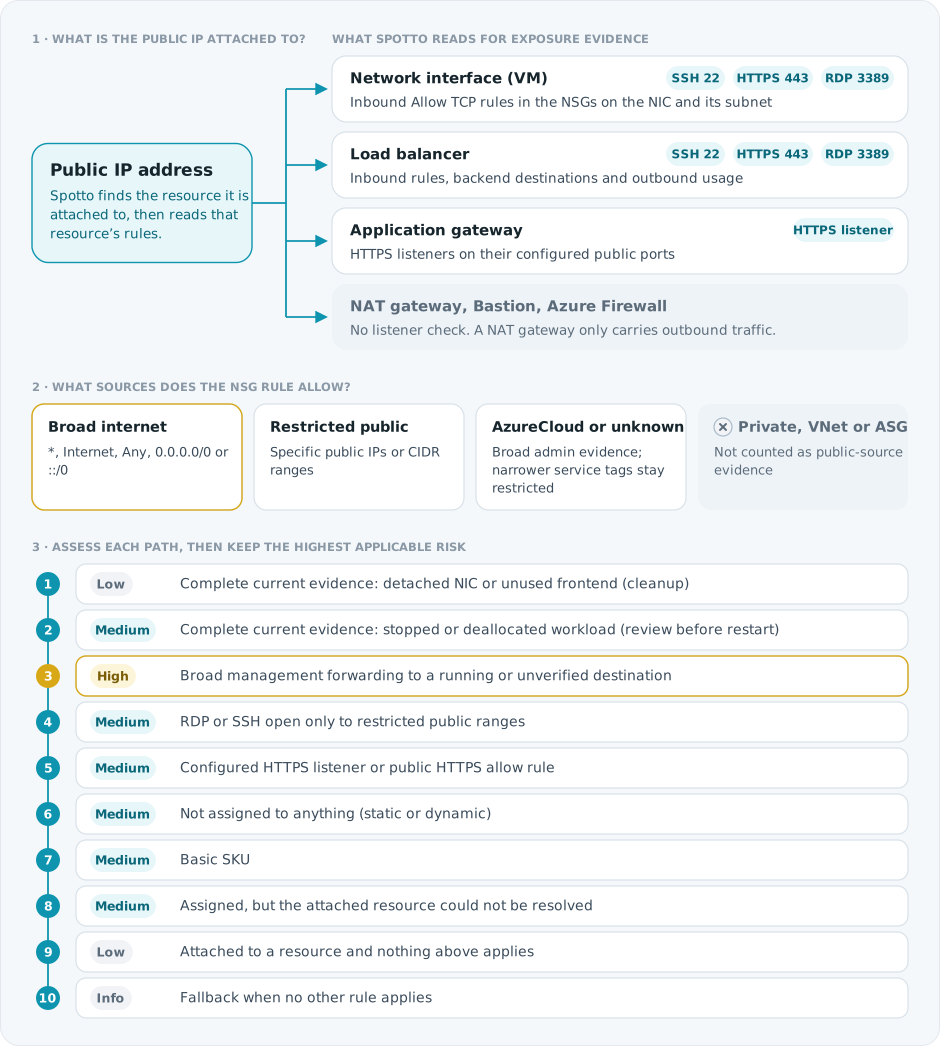
Risk is a triage signal, not a final verdict. Each row shows a text risk label, not just a color; select it to see the reason.
Inspect public IP assignment and exposure
The inventory table includes:
- Exposure: configured exposure labels, grouped by kind, or None detected when Spotto has no exposure evidence. Select a label to see the finding in plain words (for example, "Internet traffic to RDP on port 3389 is forwarded to vm-web-01 (Running)."), where its traffic goes, the recommended next step with further options, and the NSG rule, source ranges and ports behind it.
- Risk: risk level. Select it to see the risk reason.
- IP Address: public IP address and public IP resource name.
- Attachment and Destination: the attached resource with a View Rules button showing the rule count, and a one-line preview of where traffic goes, such as "RDP → vm-web-01 · Running". View Rules opens a traffic path diagram, from the internet through the public IP and load balancer to each rule's destinations, coloured by risk, above a table of rules with public and backend ports. Rules that reach the same destinations are grouped, and scale-set instances are counted under their scale set.
- Location: Azure region and resource group.
- SKU: SKU, tier, allocation method, and IP version.
Missing tags are shown by the Missing Tags card and the Governance tags are missing insight rather than a table column.
Use resource links for follow-up
When relationship data is available, Perimeter Insights links the public IP row to the relevant resource context:
- Open the public IP resource when you need to confirm SKU, allocation method, DNS label, or Azure-level ownership.
- Open the attached resource when the issue belongs to a network interface, VM, application gateway, load balancer, NAT gateway, or another edge component rather than the IP object itself.
- Destination links open the resource's Relationships tab at depth 2, so the load balancer, network interfaces and VMs around it are visible in one click.
- Use the resource group and subscription context to route the follow-up to the right service owner.
- If a row is assigned but unresolved, treat the link gap as part of the review. Confirm the attachment in Azure before deleting or changing anything.
The useful distinction is simple: sometimes you remediate the public IP, and sometimes the public IP is only the signpost.
Filter by risk, service, and search
Use filters to narrow the inventory:
- Search by IP address, resource name, service, region, resource group, risk reason, exposure, concern, tag key, or tag value.
- Filter by risk level: All Risk Levels, High, Medium, Low, or Info.
- Filter by associated service, such as application gateway, load balancer, network interface, or unassigned.
- Filter by destination state: running workload, inactive workload, disconnected cleanup, or unverified destination.
The table shows how many rows match the current filters.
The destination-state counts measure public endpoints. A configured path is not a live traffic trace. Remediation options are review advice; confirm current attachments and dependencies before changing or deleting resources.
Destination coverage explains whether observations are missing, incomplete, expired or unsupported. An unassigned address or a service outside the supported workload-path assessment does not imply a broken destination. Older reports retain their existing risk assessment until a fresh scan supplies usable evidence.
When a scan includes complete Azure scale-set instance and network-interface evidence, load balancer paths can identify individual instances, their power states and legacy inbound NAT-pool destinations. Stopped or deallocated destinations can receive lower priority while their configured management rules remain visible. Missing instances, inconsistent attachments or changes during collection leave the destination unverified. Existing reports need a fresh scan to gain this coverage.
For AWS, complete current evidence can reduce management exposure to Medium when every linked EC2 instance is stopped, or identify a detached unmanaged network interface or empty registered target group for Low-priority cleanup review. One running or unresolved target prevents that reduction. Target health is separate from instance power state: an unhealthy target does not establish that its instance is stopped or safe to remove. NAT gateway addresses retain their outbound dependency.
IP, Lambda and nested load-balancer target types remain unverified until their workload evidence is supported. Redirects and fixed responses do not establish an unused load balancer. ELBv2 destination collection requires the read permissions elasticloadbalancing:DescribeRules, elasticloadbalancing:DescribeTargetGroups and elasticloadbalancing:DescribeTargetHealth; update an existing onboarding role's discovery policy if these reads are denied, then rescan. Known listener and backend-port findings remain visible when registered-target collection fails.
Export the current review
CSV and Word include destination state, configured resource paths, public/backend ports and observation evidence when the report carries connectivity data. Risk is re-evaluated at export time, so an old open page cannot retain an expired reduced risk.
Filtered exports describe the selected rows. Their findings do not establish that the rest of the subscription has no exposure. Evidence that expires before export is reassessed before the filters are applied.
Use the Export menu to download the currently filtered public IP inventory as CSV or as a Word report. The CSV includes risk, risk reason, subscription, IP address, name, exposure, associated service, associated resource, resource group, location, SKU, allocation, use, concerns, and missing tag status.
The Word report opens with the case for acting and the headline numbers, then one card per exposed endpoint with the finding in plain words and the first action to take, a traffic path diagram for each exposed endpoint, the endpoints without tags, and the scope. The inventory and the full rule evidence, with every remediation option, follow as reference.
Recommended review workflow
1. Scope the subscriptions
Select the subscriptions that belong to the environment you are reviewing. For example, review production separately from development if the risk threshold and service ownership differ.
2. Start with High risk rows
Filter risk to High and review public management exposure first. These rows have RDP or SSH open to the broad internet, which usually deserves immediate remediation unless there is a documented exception.
3. Review Medium risk cleanup and intent
Switch to Medium. Some rows will be normal public services or approved admin allowlists; the goal is to confirm intent and remove leftovers.
4. Choose a remediation path
Do not treat every public IP finding as "delete the IP". Use the attachment and exposure context to choose the least disruptive fix.
| Finding | Review first | Common remediation options |
|---|---|---|
| Public RDP or SSH | Confirm whether public management access is still required and who owns it. | Remove the VM public IP, restrict inbound NSG rules to approved source ranges, move administration behind Azure Bastion, use just-in-time VM access, or use private connectivity through VPN/ExpressRoute. |
| Public HTTPS | Confirm whether the listener is an intended public service and whether TLS, WAF, and ownership are current. | Keep it public with documented ownership, move traffic behind Application Gateway or Front Door where appropriate, restrict source ranges for non-public services, or retire the listener if it is no longer used. |
| Unassigned public IP | Check whether it is reserved for a near-term change, disaster recovery plan, or documented static address dependency. | Delete it, reassign it to the intended resource, or tag it with owner, purpose, and review date if it must be retained. |
| Basic SKU public IP | Check service compatibility, inbound/outbound behavior, and change windows before migration. | Plan a move to Standard SKU where supported, replace the dependent edge resource if required, or document the exception with an owner and retirement date. |
| Assigned but unresolved | Validate the attachment in Azure and check whether inventory is still syncing. | Wait for sync if the resource is new, correct missing relationship data, or investigate stale/deleted dependencies before making changes. |
| Missing tags | Confirm the owner, environment, and service purpose. | Add tags directly, use Spotto Tagging for repeatable fixes, or route the item to the owning team with the exported CSV. |
5. Check service and region patterns
Use the By Service and By Region breakdowns to spot clusters. A concentration of public IPs on one service or in one region can point to a shared gateway pattern, a deployment habit, or a cleanup target.
6. Fix ownership gaps
Review the Missing Tags card and select the Governance tags are missing insight to filter the table to untagged public IPs. Public entry points should have enough metadata to identify the owner, environment, and service purpose. Mystery internet doors are not a governance strategy.
7. Export the filtered view
Export the filtered inventory for remediation tickets, change records, security review notes, or service owner follow-up.
Technical reference
| Component | Details |
|---|---|
| Inputs | Public endpoint reports for each selected Azure subscription or AWS account, including resource metadata, assignment evidence, associated service/resource data, exposure evidence, concerns, location, SKU, allocation method, IP version, and tags. |
| Outputs | Summary cards, insight cards, service/region/concern breakdowns, a searchable and filterable public IP inventory table, and CSV/Word exports. |
| Defaults | Data is fetched per selected subscription and cached briefly in the Portal. The table page size is 25 rows. Risk filtering defaults to All Risk Levels and service filtering defaults to All Services. |
How it differs from Azure-native views
Azure is the system of record for public IP addresses, but public IP review is usually spread across resource lists, networking blades, security rules, load balancer configuration, application gateways, and tags.
Perimeter Insights is optimized for the operating workflow:
- Combine public IP inventory with assignment and exposure context.
- Separate confirmed management-port exposure from ordinary public edge attachments.
- Highlight public IPs with missing governance tags.
- Review multiple subscriptions from one table and export the filtered result.
It does not replace packet capture, firewall log analysis, or application-layer security testing. It gives you a perimeter inventory and risk triage layer so you know where to look first.
How it works (high level)
- You select one or more Azure subscriptions or AWS accounts.
- On each subscription or account sync, Spotto builds a public IP address report from stored provider configuration; the diagram above describes the Azure assessment.
- The Portal combines the reports for the selected subscriptions and accounts and calculates summary counts, breakdowns, insights, and risk labels.
Coverage and limitations
- Not a live traffic monitor: Perimeter Insights shows public IP inventory, assignment, and exposure evidence from Spotto's data. It does not show live packet flows.
- Configuration evidence, not a reachability test: Spotto reads allow rules and listeners. It does not test whether a higher-priority deny rule, Azure Firewall, or an upstream device blocks the traffic, so confirm in the provider before you act.
- Azure ports: NSG and load balancer evidence classifies destination services SSH (22), HTTPS (443), and RDP (3389). Load balancer rules may expose these services on different public ports; configured UDP RDP is also retained. Application Gateway uses the listener's explicit HTTPS protocol and configured public port, including ports other than 443.
- Azure destination evidence: Workload state and disconnected cleanup use supported NIC and load balancer paths, including Uniform scale-set instances and legacy NAT pools when complete current evidence is available. Flexible scale-set VMs use the ordinary VM inventory. Application Gateway, firewall and other unresolved destinations retain conservative risk when usable destination evidence is unavailable.
- Evidence-driven exposure: None detected means Spotto does not have exposure evidence in the selected dataset; review the source coverage notice before drawing a conclusion. It does not prove a service is unreachable from every network path.
- HTTPS can be intentional: Public HTTPS listeners are treated as review items because they often represent valid public services.
- Assignment can be unresolved: Some assigned public IPs may not have a resolved attachment if the relationship data is incomplete or still syncing.
- AWS coverage: AWS inventory includes Elastic IPs, public EC2 and network interface addresses (including IPv6), internet-facing load balancers, and publicly accessible RDS instances. A DNS-only endpoint may have a hostname and no literal IP address.
- Incomplete inventory stays visible: Per-account coverage lists missing regional discovery families and evidence sources. Empty partial or unavailable reports do not establish a clean perimeter. Older AWS reports without coverage metadata are treated as incomplete until refreshed.
- AWS attachment identity: Endpoint identities preserve their owner ARN for tracking. AWS resource detail links follow the provider's portal capabilities; attachment text and prioritized WorkItems retain the resource context.
- AWS destination evidence: Supported ENI, EC2 and load-balancer instance-target paths use the original collection time. Missing, failed, targeted-only, stale or conflicting evidence cannot authorize reduced priority or cleanup. Older reports require a fresh scan to supply these paths.
- AWS remediation: Depending on the finding, options include restricting security group source ranges, using private connectivity or Session Manager, and protecting suitable public services with AWS WAF. Review suitability before changing resources.
Related Spotto workflows
- Use Security to review Azure secure score and security recommendations that may relate to exposed resources.
- Use Cloud Resources to inspect the resource inventory behind a public IP attachment and review related recommendations.
- Use Relationship Graph to understand how public IPs, network interfaces, subnets, load balancers, and application gateways connect.
- Use Tagging when missing or inconsistent tags make public IP ownership unclear.
Troubleshooting
No public IP addresses found
What you're seeing: The page shows No public IP addresses found.
Likely causes:
- The selected subscriptions do not have public IP address data available.
- The subscriptions have not completed their first sync.
- You selected subscriptions that genuinely have no public IP addresses.
How to fix:
- Confirm at least one subscription is selected.
- Check that the selected subscriptions are connected and syncing in Spotto.
- Refresh after the next ingestion cycle.
No public IPs match these filters
What you're seeing: The table shows No public IPs match these filters.
Likely causes:
- The search term is too specific.
- The selected risk level or service filter excludes the rows you expected.
How to fix:
- Clear the search box.
- Reset risk to All Risk Levels.
- Reset service to All Services.
Public IP address data could not be loaded
What you're seeing: The page shows Public IP address data could not be loaded.
Likely causes:
- Temporary API or network issue.
- The selected company or subscriptions are not available in your current session.
How to fix:
- Refresh the page.
- Re-select the subscriptions.
- If it continues, capture the time, company, and subscription IDs and contact support.
Some accounts or source evidence unavailable
What you're seeing: A notification says Some subscriptions unavailable and lists subscription names.
Likely causes:
- Spotto loaded public IP data for some selected subscriptions but failed to load others.
- One or more subscriptions are temporarily unavailable or still syncing.
How to fix:
- Review the rows that did load.
- Retry after the unavailable subscriptions finish syncing.
- If the same subscriptions fail repeatedly, contact support with the listed subscription names.
A public IP has no exposure evidence, but it is attached to a load balancer
What you're seeing: A public IP is attached to a load balancer, but the exposure field says None detected. Likely causes:
- The public IP is attached, but listener exposure evidence is not present in the selected dataset.
- The load balancer may be intentionally public, but the traffic intent still needs validation.
How to fix:
- Review the associated resource and service owner.
- Check listener, security rule, and backend configuration in Azure or AWS.
- Add ownership/environment tags if they are missing.
Looking to enhance your cloud setup for cost efficiency, performance, reliability, or security?
Talk to a cloud specialist. Email us or schedule a 30-minute consultation and let's optimize your cloud environment together.
Book a Free Consultation