Azure Regulatory Compliance Scoreboard Guide
What this view shows
Open Security -> Posture -> Governance and select Regulatory Compliance. The scoreboard combines the Azure subscriptions you can read for the company; use the shared subscription selector to choose several subscriptions or select all at once. Deselecting every subscription shows a selection prompt. Parent-company views also combine readable child companies and identify subscriptions whose evidence is missing or unavailable.
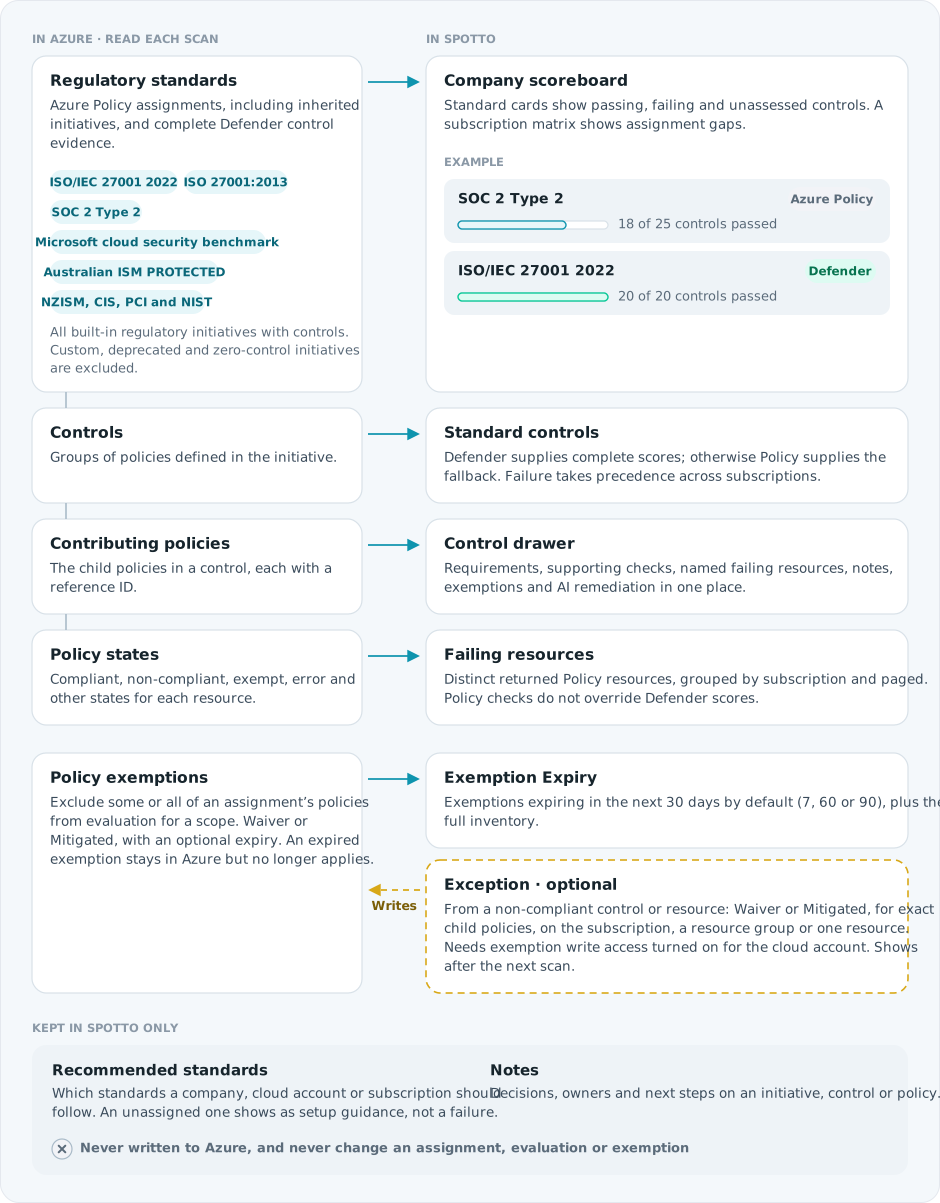
This is a technical view of Defender for Cloud and Azure Policy evidence. It is not a certification, attestation, audit conclusion, or legal opinion. Missing or unavailable evidence is never treated as compliant.
The headline counts controls, with passed controls out of passed plus failed controls. Controls that are not assessed automatically appear separately. Defender supplies the score when its standard and controls are complete; otherwise complete Azure Policy control evidence supplies the fallback. Each standard identifies its source; subscriptions can use different sources. The landing highlights the standard with the most failing controls, shows passing, failing and unassessed controls in a ring, and lists its worst controls as direct links. The subscription matrix compares standards and highlights expected but unassigned standards in amber.
Read the company score
A control is counted once across the selected subscriptions. A failed outcome takes precedence over a passed outcome; a control passes when at least one subscription passes it and none fails it. Selecting additional subscriptions can therefore change the score without changing any individual subscription's evidence.
All built-in Azure Policy regulatory initiatives with controls are eligible, including assigned NZISM, CIS, PCI and NIST standards. Deprecated, custom and zero-control initiatives are excluded. Defender standards whose names are not mapped to a Policy initiative still appear under their Defender name.
The 30-day trend uses daily subscription observations on the same control measure. Changes to assessment source, control coverage or contributing subscriptions interrupt comparison. Sparse history or unavailable evidence can leave gaps. A dash means a resource count is unknown; a value such as 12+ is a known minimum.
Select a standard to open Controls, Subscriptions and Exemptions, each with a count. Controls shows failures first; its status selector also shows all, passing or unassessed controls. Search and the counted Domain selector narrow the list. Select a control's resource count to open its impacted-resource list directly. Named subscription markers identify each outcome without relying on color. The subscription tree shows company and management-group context; select a subscription's failing-control action to filter the controls. Group rows organize subscriptions rather than repeating the company score. Use arrow keys to navigate and expand tree rows, and Enter or F2 to enter a row's controls. Exemption filters appear when records are available, with expiry windows and Show Expired.
In a control drawer, the resource-detail note identifies how many subscriptions have usable detail. The control total comes from the standard's assessment; supporting Azure Policy checks can overlap, so adding their counts does not produce the control total. Expand a subscription group to see its resources. The largest available group opens first, and subscriptions with unavailable or unlinked detail appear last. An unavailable group does not mean the subscription has no failures.
Include regulatory compliance in SDM reports
The Regulatory Compliance section uses the report's selected subscriptions and shows controls passed, change since the last issued report and failing controls. Both portal exports and scheduled reports use the same evidence. A fully passing estate and confirmed absence of standards remain visible. The section is hidden only when no selected subscription has usable scoreboard evidence; the report author receives the missing-subscription details.
Movement requires complete evidence with the same source, control universe and contributing subscriptions. When that basis changes, the report explains why comparison is unavailable. Missing evidence is never reported as an improvement or a newly passing control.
Read the evidence states
| State | Meaning |
| --- | --- |
| Complete | The required source completed for this scan. Spotto keeps this state quiet: no success banner and no evidence timestamp. A complete empty result is different from unavailable evidence. |
| Partial | Some evidence is usable, but one or more queries, pages, joins, or metadata sources were incomplete. |
| Unavailable | Azure denied or did not expose the required evidence. Do not interpret empty rows as a clean result. |
| Stale | Evidence exists but is older than the current collection window. |
| Not collected | Spotto has not produced this evidence for the selected subscription yet. |
The scoreboard and drawer use Passed, Failed and Not assessed. Underlying Azure evaluation states are retained in evidence exports, including compliant, non-compliant, exempt, error, conflicting, unknown, protected, not started, and not registered. A zero non-compliant count only describes the evaluated rows that are available; it does not repair missing coverage. See Azure Policy compliance states for Microsoft's definitions.
Assigned, recommended, and evaluated
A standard is assigned when its initiative is effective at the subscription, directly or through a management group. It is evaluated when Azure returns compliance results for its controls and resources. A recommended standard is customer intent recorded in Spotto. If it has no effective assignment, it appears as an optional setup recommendation, not a failed control. Use its Azure definition or documentation link to review the initiative; assignment happens in Azure, not Spotto. Azure identifies regulatory controls from initiative metadata, as described in Microsoft's regulatory compliance documentation.
Manage recommended standards
Select Manage Standards above the scoreboard. The dialog saves one standard preference at a time:
-
Choose the company, cloud account, or subscription scope.
-
Select the standard family and, when needed, a preferred Azure definition.
-
Choose Recommended to show the standard as customer guidance, or Optional to suppress an inherited recommendation at this more-specific scope.
-
Add an optional note, up to 512 characters, and select Save.
The recommendation shows whether it came from a manual setting or the company survey, which scope supplied it, and whether it is explicit or inherited. Subscription settings take precedence over cloud-account settings, which take precedence over company settings. You need Governance management access to change these preferences; read-only users can still view them.
Investigate a control
-
Select a worst-control chip or open a standard and select a control. Its drawer explains the scored outcome and control requirements when available.
-
Review Failing Policy checks for supporting Azure Policy checks, failing resource counts and the subscriptions where each check was evaluated. Expand the other checks to inspect passed or unassessed checks.
-
Select View Impacted Resources to jump to Which resources are failing?, grouped by subscription, with resource names, types, groups and failing check names. Each page contains up to 25 distinct failing resources per subscription.
-
Select a resource name to open its Spotto resource page. Missing or partial evidence is explicit; a Defender-only control may have no linked Policy checks or resources.
-
Use View notes in the drawer body, or Plan remediation with AI, Create exemption and Export evidence in its footer. When several assignments contribute, choose the action's subscription and assignment. Subscription menus offer scoped actions; a resource's actions menu offers Exempt this resource, retaining the exact returned resource and child-policy references.
-
Review coverage before acting. Supporting Policy checks can disagree with Defender and do not override its scored outcome. Exported evidence includes only the displayed resource pages.
Saved assignment/control links resolve to the current standard drawer. Notes and exemptions remain tied to their original assignment and control; hierarchy views remain read-only. Requirements load independently, so missing metadata does not hide available checks or resources.
The browser does not send raw resource configuration, exemption justification, ticket content, named approvers, or unrestricted artifacts in general page telemetry.
Collaborate with notes
In Notes, choose the initiative, selected control, or one of its contributing policies, then add a decision, owner, evidence gap, or next step. Notes show their author and relative creation time.
Select Draft With AI for an editable starting point based on the current initiative, control, and non-compliant policies. If text is already present, AI improves that draft. AI cannot save the note; review it and select Save Note yourself. Governance view access can read notes; Governance manage access is required to add or delete one. Deleting a note asks for confirmation and permanently removes it.
Deleting an Azure cloud account from Spotto permanently removes the regulatory notes for its subscriptions. This affects Spotto's records only.
Notes are deliberately separate from two Azure-native concepts:
-
An Azure Policy exemption changes how an assigned policy is evaluated for a bounded scope. Create one with Create exemption.
-
An Azure Policy attestation records formal compliance evidence for a policy that uses the
Manualeffect, with a state, comments, evidence links, owner, assessment date, and expiry. Spotto does not publish notes as attestations. See Azure Policy's Manual effect and attestations.
Keeping discussion in Spotto avoids accidentally turning an internal comment into formal Azure compliance evidence.
Decide between remediation and an exemption
Remediate the resource when the control should apply and can be met. Use an exemption only when a reviewed exception is justified:
-
Waiver: the non-compliant state is temporarily accepted.
-
Mitigated: the policy intent is met through another approved method.
Spotto never exempts a whole initiative from a control row, and a resource-group target must contain a resource from the returned evidence. The request fields follow the Azure Policy exemption structure.
Broader subscription or resource-group exemptions affect more resources. Record a clear owner, risk decision, compensating control where relevant, ticket reference, and an expiry whenever the exception is temporary.
Create and monitor an exemption
-
Open a failing control and select Create exemption, or open a resource's actions menu and select Exempt this resource. The Create Azure Policy Exemption dialog opens when current evidence and permissions allow the action.
-
Choose the target, Waiver or Mitigated, and enter a display name and justification.
-
Optionally add a future expiry, ticket reference, requester, and approver.
-
Select Review Request, then check the exact target, category, child-policy references, expiry, and justification.
-
Select Request Exemption. The dialog closes once the request is queued. Queued and in progress do not mean Azure has created the exemption.
-
Spotto shows a notification when Azure reports success or failure. A successful request does not start a scan; the exemption appears after the next scheduled or manual scan.
Display names are limited to 128 characters and justifications to 512. Ticket, requester, and approver fields each allow 256 characters. Expiry is optional but must be in the future.
Draft With Spotto requests an editable AI draft based on the selected control or resource. AI cannot submit the exemption; you confirm it.
Use the standard’s Exemptions tab and Show Expired to inspect its captured exemption records.
Required Azure access
Regulatory evidence stays readable when exemption creation is off. Creating an exemption needs all of the following:
-
Spotto exemption-management access for the signed-in user.
-
Policy exemption write access turned on for the cloud account, with its write credentials configured. The cloud account must use a service principal connection, not delegated access.
-
Microsoft.Authorization/policyExemptions/writeat the exemption target. -
Microsoft.Authorization/policyAssignments/exempt/actionat the policy assignment scope. For an initiative inherited from a management group, that is the management group.
Spotto does not test the two Azure actions in advance; Azure checks them when the request runs. See Azure Policy exemption permissions.
Troubleshooting
No regulatory initiatives
Check the evidence coverage state and selected subscriptions. A complete empty result means no scoreable standards were found; unavailable or partial coverage cannot prove absence. An older scan may not contain scoreboard evidence yet. Review the named gaps and run the normal cloud-account sync. Recommended-but-unassigned standards appear as expected cells in the subscription matrix.
The scoreboard and Policy evidence disagree
What you're seeing: The control drawer shows a Defender outcome that differs from its Azure Policy outcome.
How to fix: Check the source label and subscription. The headline uses complete Defender evidence when available, while the same drawer shows supporting Azure Policy checks and resources for investigation. Review both sources and their scan times before deciding on remediation.
The trend is unavailable
What you're seeing: A card has no trend yet, or reports an assessment or evidence-coverage change.
How to fix: Allow daily scan history to accrue, review named evidence gaps, or narrow the subscription selection when the history exceeds the request budget. The current score remains visible when only the trend is unavailable.
Control details are unavailable
What you're seeing: What does this control require? says the control description is unavailable.
How to fix: Continue reviewing the supporting Policy checks and resource evidence. Some controls have no linked Policy description. Refresh the standard after a sync if evidence was unavailable; missing descriptive text does not change the scored outcome.
Exemption request returns 403
A Spotto 403 means the signed-in user lacks the product entitlement. It is distinct from Azure rejecting the cloud service principal. Ask a Governance administrator for exemption management access.
Create exemption is unavailable
What you're seeing: The Create exemption action in the control drawer is unavailable.
How to fix: Read the reason beside the action. The usual causes are that policy exemptions are not enabled for the cloud account, its write credentials are not configured, or the cloud account uses delegated access. See Required Azure access.
A regulatory note cannot be saved or deleted
What you're seeing: Save Note or Delete Note is unavailable, or the API rejects the action.
How to fix: Confirm that your role has Governance manage access. A failed save keeps the draft in the note field so you can retry.
Draft With AI does not fill the note field
What you're seeing: The AI request fails, is cancelled, or completes after you move to another subscription or initiative.
How to fix: Return to the intended note target and retry Draft With AI. Suggestions are bound to the company, subscription, initiative, and target that started the request, so a response cannot land in a different customer's note. You can still write and save the note manually.
Exemption fails after queueing
Review the error message. Confirm the target write action and the assignment-scope action are both granted; for an inherited initiative, check the exact management-group scope. Spotto only creates exemptions on built-in initiatives whose Azure Policy category is Regulatory Compliance, and every child-policy reference must still be part of the assigned initiative. Wait for Azure RBAC propagation and retry the retained request.
Evidence or capability changed (409)
The assignment, child-policy references, target evidence, request identity, or known Azure capability changed, so Spotto refreshes the summary, scoreboard and drawer evidence. Your form values are kept; review the refreshed evidence and submit again.
Evaluation or exemption is stale
Azure Policy evaluation and exemption discovery are asynchronous. Run the Azure cloud-account sync again, review any coverage warning, and wait for Azure's evaluation cycle. An expired exemption remains visible but is not active.
Looking to enhance your cloud setup for cost efficiency, performance, reliability, or security?
Talk to a cloud specialist. Email us or schedule a 30-minute consultation and let's optimize your cloud environment together.
Book a Free Consultation