Cost Tree Delta Mode: Explain Spend Changes
Overview
Delta mode changes Cost Tree from "what costs money now?" to "what moved between periods?" It uses the same hierarchy, but the investigation focus becomes cost change rather than total spend.
Use Delta mode when the question starts with "why did this change?"
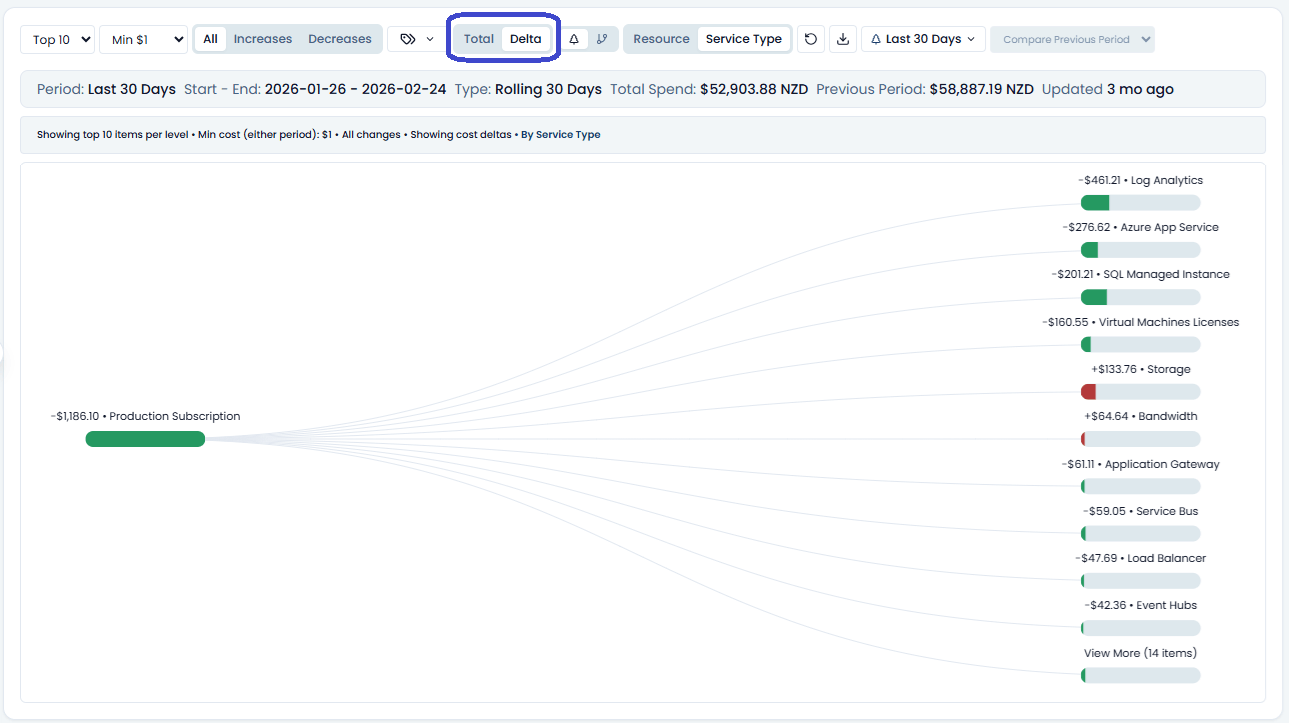
How to read Delta mode
Each node compares the selected period with the comparison period.
- A positive change means the selected period cost more than the comparison period.
- A negative change means the selected period cost less than the comparison period.
- In the UI, increases are shown with increase indicators and decreases are shown with decrease indicators. The text label and sign matter; do not rely on color alone.
If you are using custom comparison, remember that the signs depend on the order of the periods. See Comparing periods for the bad-month versus good-month workflow.
Sorting by movement
In Total mode, Cost Tree prioritizes high spend.
In Delta mode, Cost Tree prioritizes large movement. That means a resource that went from $0 to $500 can appear above a resource that still costs more overall but barely changed.
This is intentional. Delta mode is not asking "what is largest?" It is asking "what moved?"
Minimum cost in Delta mode
The minimum cost filter behaves differently in Delta mode. Spotto keeps an item visible if it is significant in either the current period or the comparison period.
That matters for savings. If a resource dropped from $1,000 to $0, a current-period-only threshold would hide it. Delta mode keeps it visible because the previous cost is part of the story.
Increases and decreases filters
Use the change filter to reduce noise:
- All changes shows increases and decreases.
- Increases only shows items that added cost.
- Decreases only shows items that reduced cost.
Use Increases only when you need to explain a bill increase. Use Decreases only when you need to verify savings, decommissions, or reduced usage.
The same filters work for month-over-month and day-over-day comparisons. If you select a daily snapshot, Increases only focuses the tree on services and resources that cost more than the comparison day.
Drill into change reasons
When change-analysis metadata is available, node details can explain likely reasons such as:
- usage increased or decreased
- effective rate changed
- SKU or meter changed
- a new resource or meter appeared
- a resource or meter disappeared
These reasons are generated from billing and resource context. Treat them as investigation evidence, not a replacement for checking the resource, deployment history, or owner context.
When Delta mode is not enough
Delta mode is detailed, but it can still be dense in large subscriptions. If you want a summarized explanation, switch to Change Drivers. Change Drivers uses the same filtered tree but ranks the largest increases and decreases into an answer panel and Sankey view.