Cost Tree: Compare Azure Spend Periods
Overview
Cost Tree period comparisons show how one Azure cost period differs from another. Use them when you need to explain variance, compare a bad month with a good baseline, compare one day with another day, or understand how spend changed over time.
The most important rule is simple: Delta values are calculated as selected period minus comparison period.
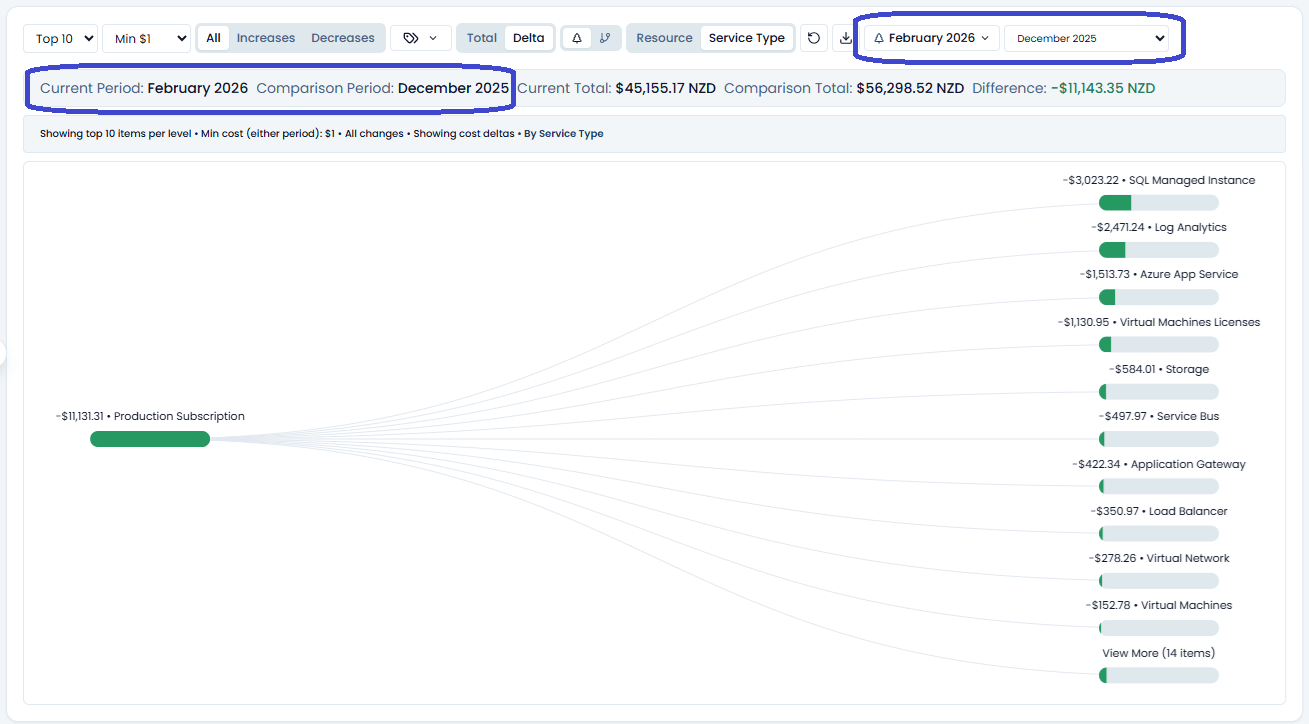
Comparison modes
Previous period
Use Previous period when you want the normal "this period compared with the immediately prior period" view.
This is best for:
- regular month-over-month review
- checking whether the latest billing period moved up or down
- quick operational checks where the previous period is a fair baseline
Custom comparison
Use Custom comparison when you want to choose the comparison period yourself.
This is best for:
- comparing this month with a known-good month
- comparing a bad month with a normal month
- comparing one daily snapshot with another day from the last 30 days
- skipping an incident, migration, rollout, or partial billing period that would make the previous period misleading
Custom comparison is available for calendar months, daily calendar snapshots, and billing periods. Rolling periods, such as Last 30 Days, are designed for quick checks and do not support custom comparison selection.
Daily comparisons
Use Daily Calendar when you need to explain a short-lived spike or confirm whether a change started on a particular day. Daily snapshots are built for the rolling last 30 days, so the calendar only offers days where Cost Tree data is available.
When you select a daily snapshot, Spotto defaults the comparison to the previous available day. This makes the first Delta view a day-over-day comparison.
To compare two specific days:
- Open Select Billing Period.
- Choose a day from Daily Calendar.
- Open the comparison control.
- Choose the comparison day from the calendar.
- Switch to Delta mode if it is not already active.
For example, if spend spiked on June 18, select June 18 and compare it with June 17. A +$200 service means that service cost $200 more on June 18 than on June 17.
Compare a bad month with a good month
If you want positive values to mean "extra spend compared with normal":
- Select the bad or high-cost month as the current period.
- Select the good or baseline month as the comparison period.
- Switch to Delta mode.
- Sort, filter, or open Change Drivers to find the largest positive contributors.
For example, if May was unusually expensive and February was normal, compare May minus February. A +$500 node means May spent $500 more than February for that item.
If you reverse the periods, the signs reverse. That is not wrong; it just changes the question from "what got more expensive?" to "what was cheaper before?"
When skipping a month helps
Skipping a month is useful when the immediately previous period is not a good baseline.
Common cases:
- A deployment or migration happened last month.
- A cost incident created a temporary spike.
- A subscription was only partially active.
- Billing data was delayed or incomplete.
- A seasonal workload made the previous month unusual.
In those cases, compare the period you care about with a cleaner baseline. This gives a better variance story than forcing every investigation through adjacent months.
What period comparisons can prove
Period comparisons can tell you:
- which resources, services, meters, and groups changed between the two periods
- whether the movement was an increase or decrease
- how much each visible item contributed to the period-level delta
- whether increases were partly offset by decreases
Period comparisons cannot prove:
- the exact hour or minute the change started
- whether the change happened gradually or as a single step
- which deployment, ticket, or activity event caused the change
For exact timing, use dashboard daily trends, Cost Analysis, resource metrics, and resource activity alongside Cost Tree. Cost Tree explains the selected period difference; it does not replace an operational timeline.
Multi-subscription comparisons
When multiple subscriptions are selected, Spotto only offers periods that exist across all selected subscriptions. This keeps comparison totals valid, but it can hide a period if one subscription is missing that snapshot.
If a period is missing:
- Switch to a single subscription to check whether the period exists there.
- Choose a different comparison period that exists for all selected subscriptions.
- Wait for billing sync if the missing period is recent.
Next steps
- Use Delta mode to understand sorting, colors, and filters.
- Use Change Drivers to summarize the largest increases, decreases, reasons, and offsets.