Spotto Portal Setup: Create Account and Connect
Overview
This guide takes you from a new Spotto account to a connected Azure or AWS environment.
How Spotto works
Spotto reads your Azure, analyses it in your data region, and puts the results where your team works.
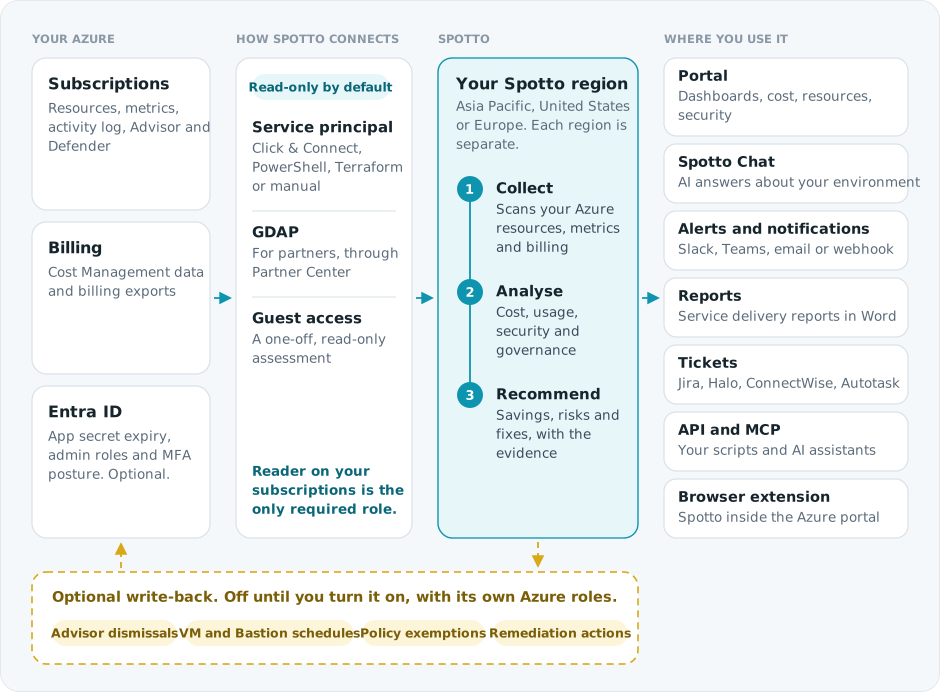
- Connect Azure explains how to choose a setup path, and Permissions Spotto Needs shows what each extra read role unlocks.
- Connect AWS (preview) explains the read-only IAM role, how to deploy it across accounts or an organization, and how to add billing exports.
- Azure Write Permissions covers the optional write-back roles.
- Once connected, press Ctrl+K for Global Search to jump to pages, companies, subscriptions, and supported current-page resources or recommendations.
- Spotto Chat answers page-level and environment-wide questions and can pull in current Microsoft guidance.
Prerequisites
Before you begin, make sure you have:
- The Azure subscriptions you want Spotto to analyse.
- Someone who can grant Reader on those subscriptions, and admin consent if you add Entra ID read.
- For AWS (preview), someone who can create IAM roles in the AWS accounts you want to connect. See Connect AWS to Spotto.
Getting Started
Start by creating an account and choosing your data region, then connect a cloud.
Troubleshooting
I can’t access the Spotto Portal
What you're seeing: You can’t sign in or the Portal won’t load. Likely causes: Wrong region, missing MFA step, or an account in a different environment. How to fix:
- Confirm you’re using the correct Portal URL for your region/account.
- Complete MFA setup if prompted.
- If access still fails, contact us with your email address and selected region.