Spotto Partner Access And Consent
Granular Delegated Admin Privileges setup is currently in beta, including the approval handoff link described on this page.
Use this page when someone asks what they are approving. It covers the Microsoft approval you grant in your own partner tenant, the separate approval each customer grants in their own tenant, and how to pass either approval to a Global Administrator who does not use Spotto.
This page is written so you can send it to a customer's security reviewer as-is.
What Each Approval Grants
Spotto asks for two separate Microsoft approvals: one in your partner tenant when a partner admin selects Authorize Profile during GDAP setup, and one in each customer tenant.
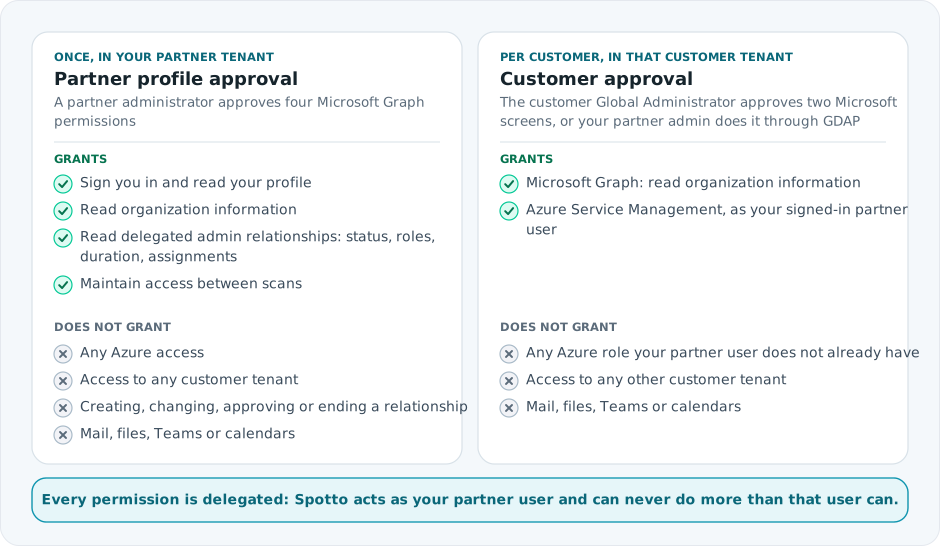
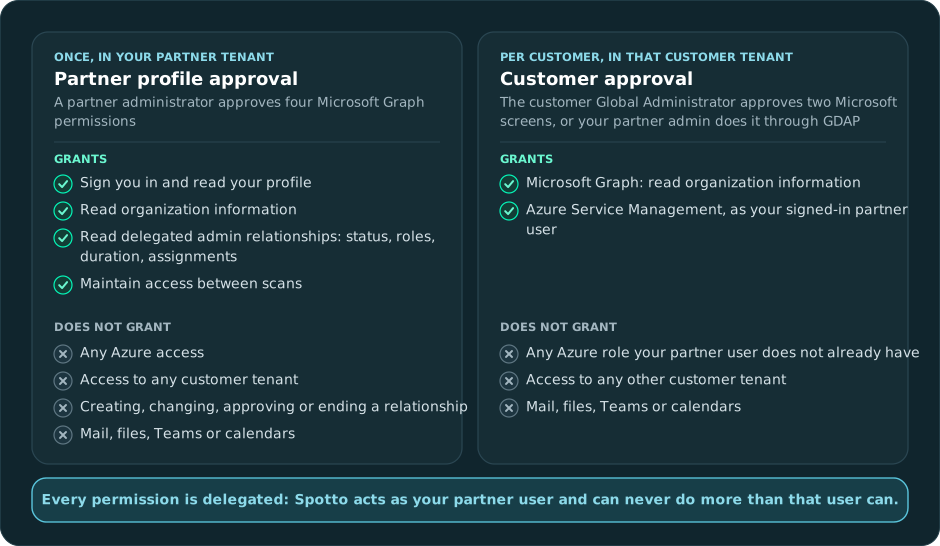
The four partner-tenant permissions are all read-only Microsoft Graph permissions:
| Permission on the consent screen | Why it is needed |
|---|---|
Sign you in and read your profile (User.Read) | Identifies which partner user authorized the profile |
Read organization information (Organization.Read.All) | Confirms the profile was authorized against the partner tenant you typed in, not a different tenant |
Read all delegated admin relationships (DelegatedAdminRelationship.Read.All) | Checks that a customer relationship is still active before a scan runs |
Maintain access to data you have given it access to (offline_access) | Lets scheduled scans run without a partner admin signing in every hour |
What Approving The Partner Profile Does Not Grant
Azure access is a separate grant, described in How Azure Access Actually Works, and approving the partner profile is not consent on behalf of your customers. The approval is also not standing access: removing the enterprise application in your partner tenant, or removing the profile in Spotto, ends it.
What Is Still Required Before Spotto Can Read One Customer
After the partner profile is approved, Spotto still cannot read a single customer tenant until all of the following are true for that customer:
- An active GDAP relationship exists between your partner tenant and that customer, approved by that customer.
- A partner security group is assigned to that relationship with the approved roles.
- A Global Administrator or Cloud Application Administrator has granted the Spotto application Microsoft Graph and Azure Service Management consent inside that customer's own tenant.
- A Spotto admin has configured a cloud account for that customer with its tenant ID, relationship ID, and security group ID.
- A Spotto admin has explicitly selected which subscriptions Spotto may read. Spotto only stores the subscriptions chosen on that screen.
Any customer can end this at any time by removing the delegated admin relationship in Microsoft 365 admin center, or by removing the Spotto application consent in their own tenant.
About "Read All Delegated Admin Relationships"
On the Microsoft consent screen, DelegatedAdminRelationship.Read.All is displayed as Read all delegated admin relationships. That wording reads broader than what it does, so it is worth stating plainly.
What is accurate:
- It applies only to your own partner tenant's delegated admin relationships. It cannot read another partner's relationships.
- It returns relationship metadata only: the customer tenant, relationship status, requested roles, duration, and access assignments. It does not return customer data, resources, costs, or user content.
- Spotto only ever looks up the specific relationship IDs a partner admin has entered in Spotto. There is no "list every relationship" call in the product.
- Microsoft Graph does not currently offer a narrower, per-relationship version of this permission. Reading the status of one relationship requires this permission, so this is the least-privileged option Microsoft makes available.
What we will not claim: the permission itself is tenant-wide, so the limit to specific relationship IDs is a property of how Spotto is built, not something Microsoft enforces on the token. The strong guarantee is the one above it: this permission grants no access to any customer tenant, and no Azure access. Reading a customer's environment requires that customer's own consent inside their own tenant.
Customer Tenant Consent
Each customer tenant must separately approve the Spotto application for Microsoft Graph and Azure Service Management before validation can pass. Microsoft presents these resource-specific grants on separate approval screens. Spotto offers a customer approval link only when live validation reports an explicit consent-required or interaction-required outcome.
Two people can grant it:
| Who grants it | What they need | Effect on your GDAP roles |
|---|---|---|
| Your partner admin, acting through the delegated relationship | To be in the assigned GDAP security group and under Admin Agents, with Cloud Application Administrator or Application Administrator among the approved GDAP roles | Cloud Application Administrator must be included in the relationship when it is first requested |
| The customer's own Global Administrator, in their own tenant | A Global Administrator account in the customer tenant. No Spotto login is needed if you send them an approval handoff link | Cloud Application Administrator is not needed in the GDAP relationship |
Decide which of these two you will use before you request the GDAP relationship. Roles cannot be added to a relationship after the customer approves it, so if you might ever need to grant consent yourself, Cloud Application Administrator has to be in the original request.
Hand The Approval To A Global Administrator
Microsoft approvals need an administrator, who is often not the person doing the Spotto setup. Instead of borrowing an admin account, generate a single-use approval link. It works for both the partner tenant approval and a customer tenant approval.
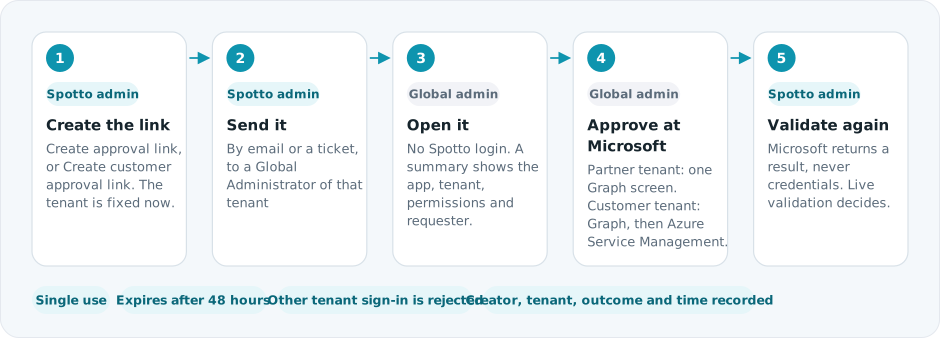
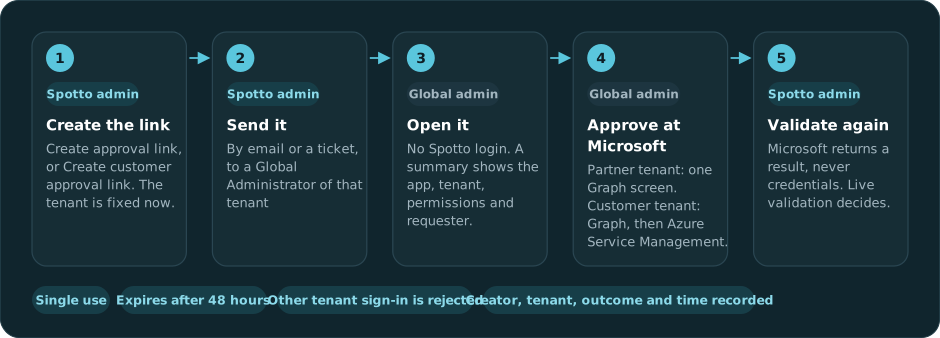
To create the link, you need to be a Spotto admin in the relevant company:
- For the partner approval, switch to the partner root company and open the authorization profile, then select Create approval link.
- For a customer approval, switch to that customer company and open its GDAP cloud account setup, then select Create customer approval link.
Confirm the tenant shown is the one that should approve before you copy the link.
Spotto records that Microsoft reported the approval completed, but Microsoft's callback does not identify the approving administrator, and the record is not proof that the permissions still work. Return to Spotto and select Validate GDAP Access again; live Microsoft Graph and Azure Resource Manager validation is authoritative.
Treat the link as sensitive while it is unused. Anyone holding it can open the approval page, but they still cannot approve anything without signing in as an administrator of the named tenant and passing Microsoft's own consent screen.
Who Does What
| Person | Responsibility |
|---|---|
| Spotto admin in the partner root company | Creates the authorization profile, generates approval links, and configures each customer cloud account |
| Partner Global Administrator | Approves the four Graph permissions in the partner tenant, once |
| Customer Global Administrator | Approves the GDAP relationship, and grants the Spotto Graph and Azure Service Management consents in the customer tenant unless the partner does so through the relationship |
| Customer security reviewer | Reviews this page, the requested GDAP roles, and any Azure RBAC the customer assigns |
Questions Customers Ask
Does approving this give Spotto access to our Azure bill or our virtual machines? No. The partner approval grants no Azure access whatsoever. Azure access is granted separately, per customer, and is described in How Azure Access Actually Works.
Can our partner read other customers' data through this? The partner approval covers the partner's own tenant only, and each customer's data requires that customer's own approval inside their own tenant.
Can we revoke it? Yes. A customer can remove the delegated admin relationship in Microsoft 365 admin center, or remove the Spotto application consent in their own tenant. A partner can remove the Spotto enterprise application in the partner tenant. Scans stop when access is removed.
Does Spotto keep our passwords? No. Approval flows happen on Microsoft's own sign-in pages, and the approval handoff link is specifically built so that Microsoft returns a confirmation only, with no credentials.