Feature Sets: Control Company Availability
Feature Sets decides which groups of Spotto capabilities a company receives. It comes before user permissions: a role can't grant access to a feature the company doesn't receive.
Open a company and go to Settings -> Feature Sets. View access lets you inspect each set's state and where it comes from. Manage access lets you change and save overrides.
How a feature set is decided
Spotto starts from the system default, then applies each company's override from the top of the hierarchy down to the selected company.
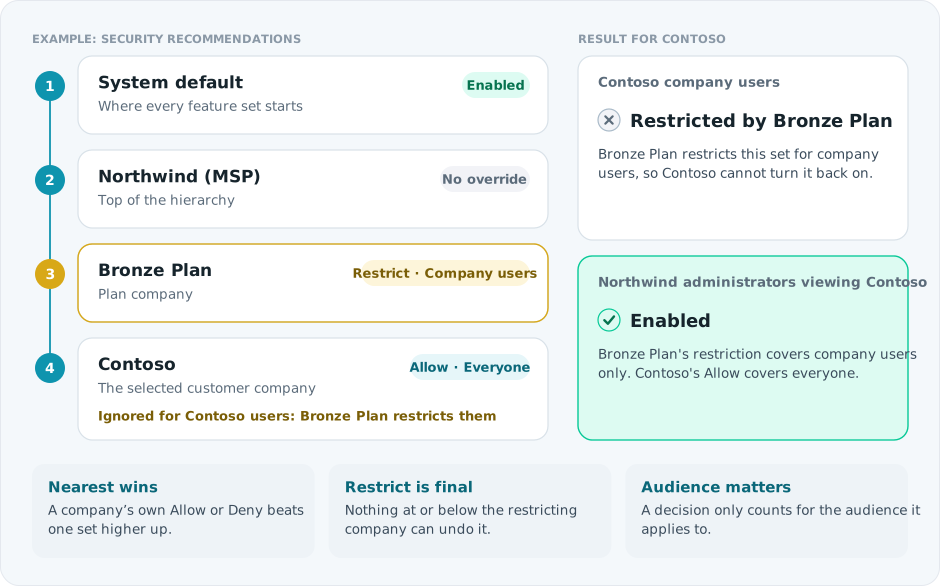
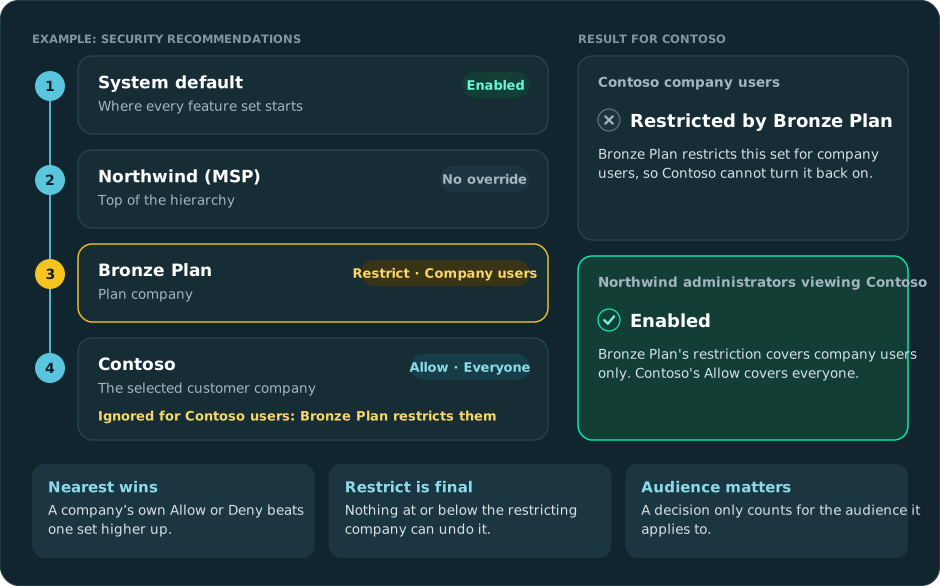
Choose an override
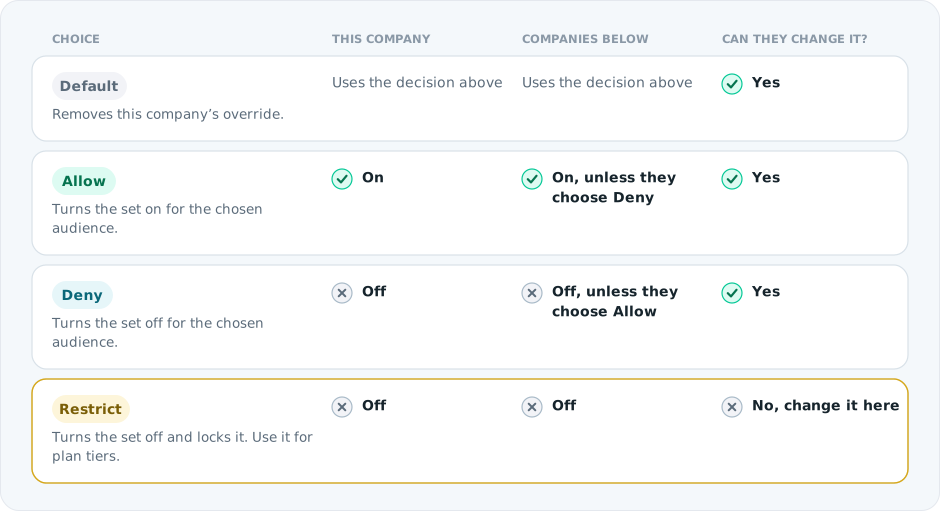
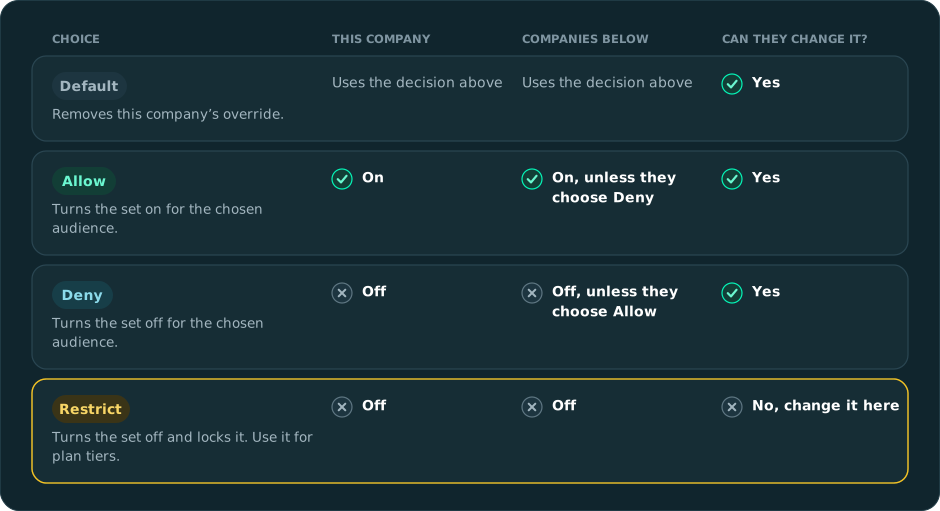
Applies To sets the audience for an override: Everyone, Company users or Parent administrators. Use the narrowest audience that fits.
For Deny, choose how the feature appears: Hidden, Teaser (a non-actionable preview) or Promo (availability information). Teaser and promo never grant data or actions; the server still decides access.
A row restricted by a parent stays in its normal position, muted and marked Restricted by company. It's read-only here. The tooltip names the company where it can be changed.
Run plan tiers
Each tier sells one outcome and includes the tier below: Bronze sees and saves on spend, Silver runs the environment well, and Gold secures it, proves it and adds self-service and AI.
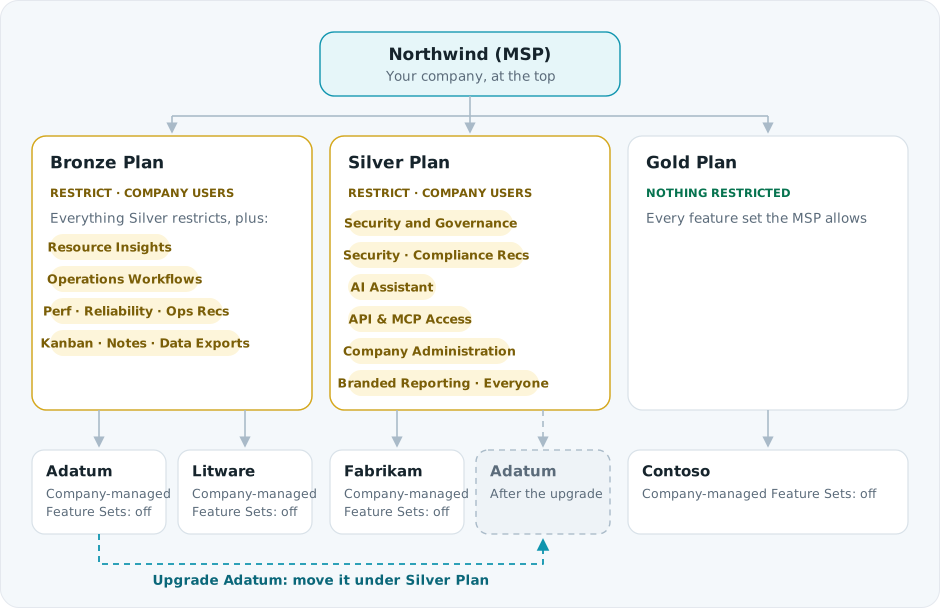
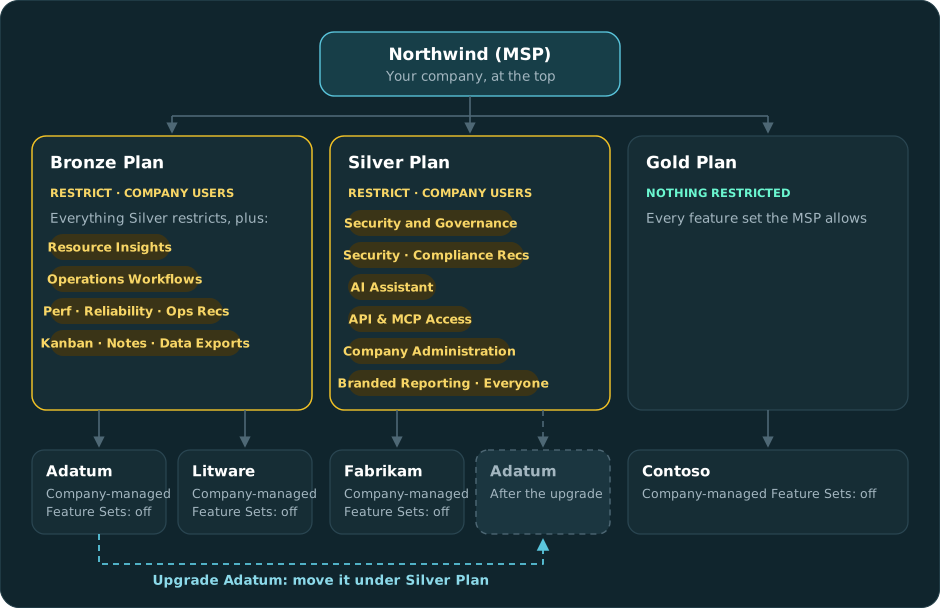
- At each plan company (for example Bronze, Silver, Gold), Restrict the feature sets
that tier leaves out. Apply it to Company users so your own team keeps the full view
of every customer. To show customers what upgrading adds, use Deny with Promo
instead.
- Restrict Branded Reporting for Everyone instead: your team produces the reports, and templates are inherited from parent companies. Without it, reports use the standard layouts.
- Restricting API & MCP Access also stops that customer's existing API keys and Spotto MCP connections. API keys and MCP now belong to this independent set. If you previously excluded them through Connectors and Access, restrict API & MCP Access separately to retain that choice.
- On each customer company, keep Company-managed Feature Sets off, so customer administrators can't manage feature sets themselves.
- To upgrade or downgrade a customer, move it under another plan company in Company Hierarchy. Don't add customer-specific overrides other than add-ons.
- Sell an add-on such as M365 Licenses on any tier: Deny it at each plan company, then Allow it on each customer that buys it. It's on by default, so set the Deny when you create the plans.
Recommendation Categories
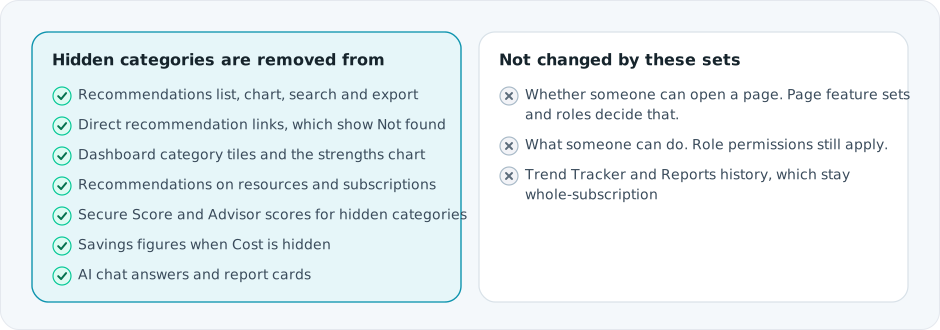
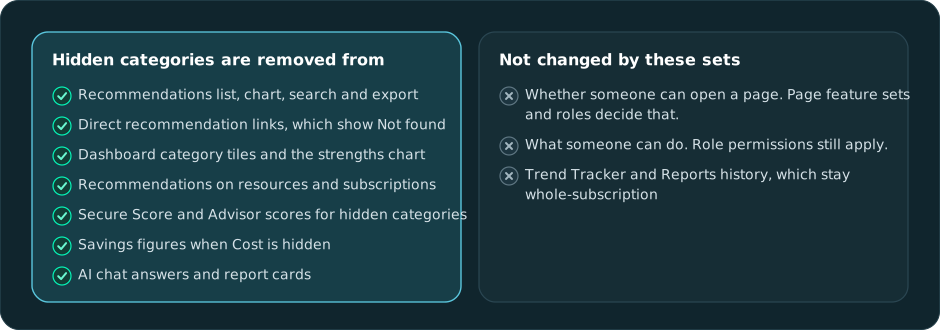
Six sets, one per category (Cost, Performance, Reliability, Security, Compliance and Operational Excellence Recommendations), control which recommendations people see on the pages they can already open. Each starts enabled, and with all six on, recommendations look exactly as they did before these sets existed.
They're independent of the page feature sets. Denying Security and Governance hides the Security page but not Security recommendations, so deny Security Recommendations as well to hide those.
Save changes
- Check the row's Effective State and Source (Default, This company or a parent).
- Choose the Company Override, then Applies To, and for Deny the presentation.
- Select Update to save every pending change, or Cancel to discard them.
Access refreshes once the update is saved.
Change history
The Change history tab lists every override change: the feature set, the action, who made it, when, and the before and after values. Entries can't be edited. Older lock and unlock events still appear, but there's no longer a lock control. If history doesn't load, select Retry rather than reading the table as empty.
Kanban Board
Kanban Board is its own feature set. Turning off Cost Optimization doesn't affect the tracked-recommendations board, and turning off Kanban Board doesn't affect recommendations or cost analysis.
Troubleshooting
| What you see | Likely cause | What to do |
|---|---|---|
| A row is restricted and can't be edited | A parent company restricted it | Check Source, then change it at that parent if descendants should have it |
| Every control is read-only | Your role can view feature sets but not manage them | Ask an administrator to review your role in Users |
| A feature set is enabled but a user still can't open the feature | Their role lacks the action, their scope doesn't include this company, or they're outside the Applies To audience | Trace it in Portal Access and Permissions |