Company Notifications: Route Spotto Updates
Company notification subscriptions send chosen Spotto events to a team. Open Settings -> Notifications for the company. You need company-notification manage access to add, edit or remove subscriptions.
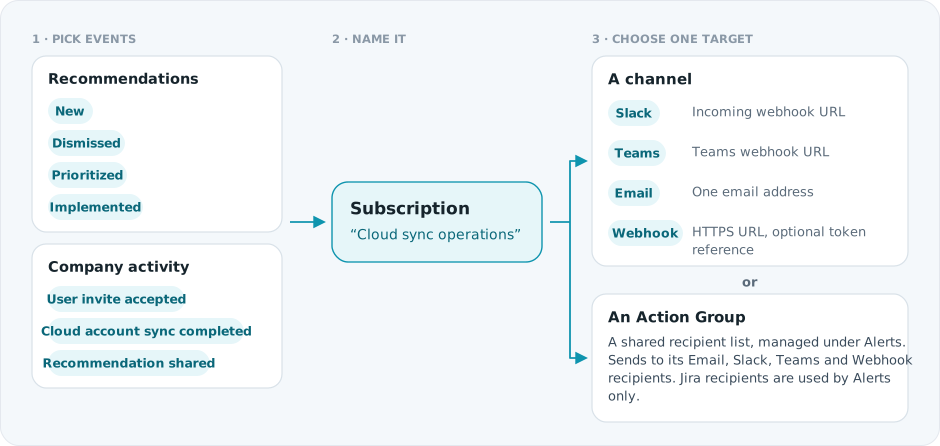
Events and targets
Pick at least one event. Select all notifications selects or clears them all. Cost anomalies aren't offered here; set those up in Cost Alerts.
Use an Action Group as the target when the same people should get both alerts and company notifications, so you maintain the recipient list in one place.
Treat webhook URLs and token references as credentials. Keep them out of tickets, screenshots and chat.
Add, edit or remove a subscription
- Select Add Notification.
- Name it, for example
Cloud sync operations. - Choose Channel or Action Group, then the destination.
- Pick the events, then create it.
Select a row to edit it, then save with Update. Use the row's delete action to remove it.
Give different teams their own subscriptions. An operations channel rarely needs every recommendation update.
Personal notifications
Your own email preferences (new recommendations, critical alerts, monthly reports and marketing) are under your profile's Settings -> Notifications. They don't change the company subscriptions on this page.
Troubleshooting
| What you see | Likely cause | What to do |
|---|---|---|
| Create or Update is disabled | Missing name, target, valid destination or event | Fill in each field and pick at least one event |
| A webhook receives nothing | The URL was rotated or mistyped, the destination rejects the request, or no matching event has happened yet | Check the webhook is active, re-enter the URL, and confirm the subscription includes the event |
| An Action Group can't be picked | It has no Email, Slack, Teams or Webhook recipients | Add a compatible recipient under Alerts, or use a channel |
| You can't add, edit or delete | Your role can't manage company notifications | Ask an administrator to review your role in Users |