Azure Granular Delegated Admin Privileges Setup
Granular Delegated Admin Privileges setup is currently in beta. The setup option is available in the Spotto portal, but Microsoft access validation, subscription discovery, and scan enablement still depend on the partner and customer access being ready.
Use GDAP when you manage a customer's Azure through Microsoft Partner Center and want to connect it to Spotto without creating a Spotto service principal in the customer's tenant. One partner authorization profile lives in your partner root company. Each customer company gets its own GDAP cloud account, scan history, subscriptions, and findings.
Use Automatic Azure Connect, PowerShell Script, Terraform Module, or Manual Azure Portal Setup instead when the customer wants a dedicated service principal in their own tenant, or when there is no Partner Center GDAP relationship. GDAP does not bypass the customer: they stay in control of the relationship, the delegated roles, and any Azure RBAC on their subscriptions.
How Azure Access Actually Works
GDAP access is three separate grants set up in different places, plus two Spotto consents. Getting one right does nothing for the others.
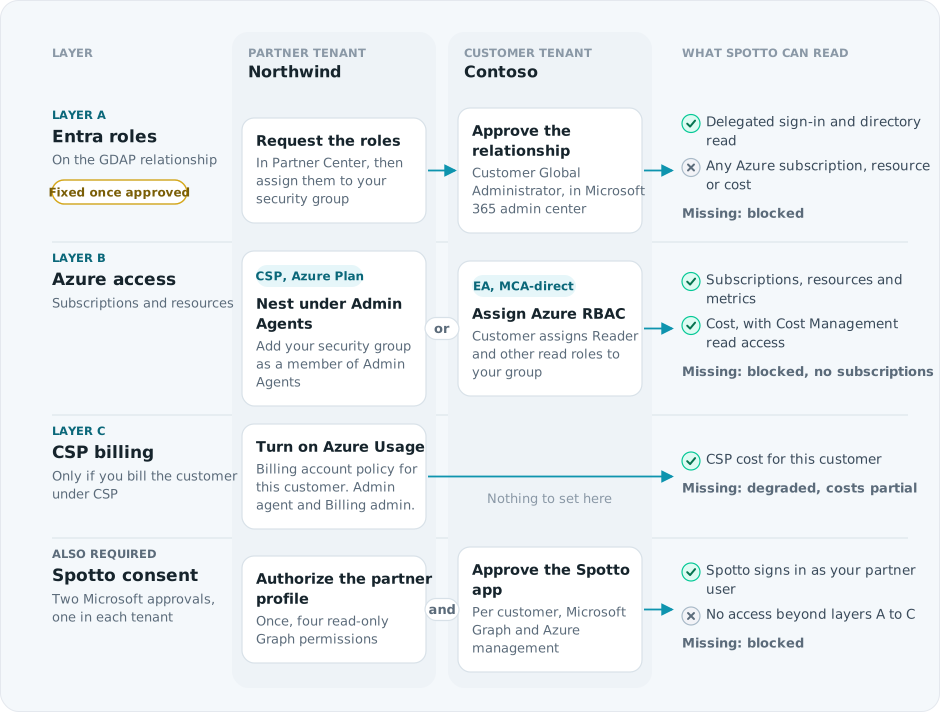
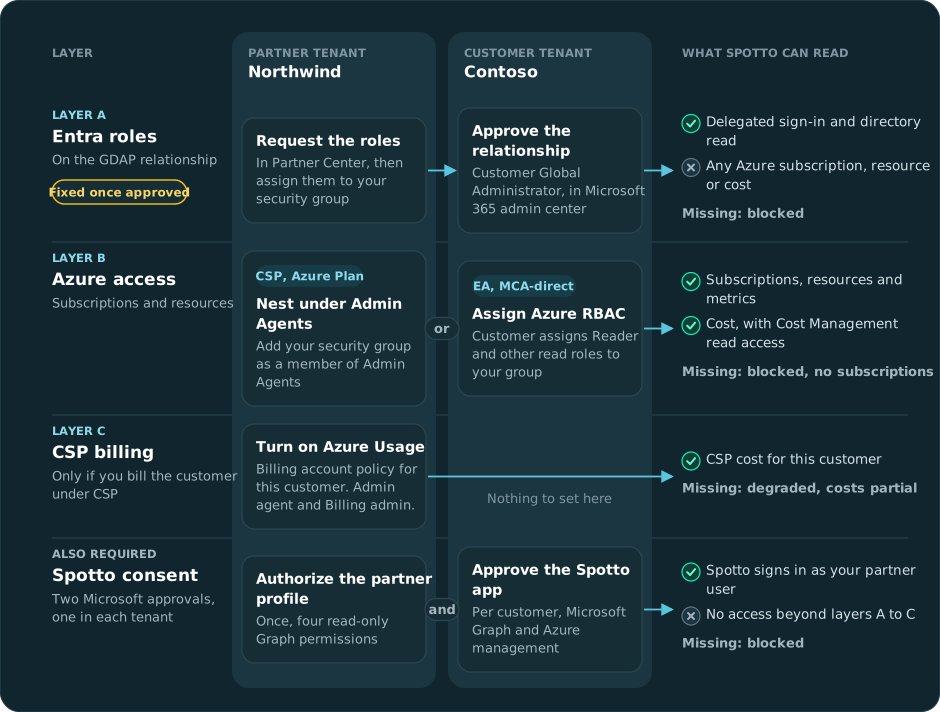
Layer B is the step most often missed. The relationship can be active, approved, and assigned, and validation still finds no subscriptions. No Entra role fixes it. Complete Layer B before your first validation.
Who Does What
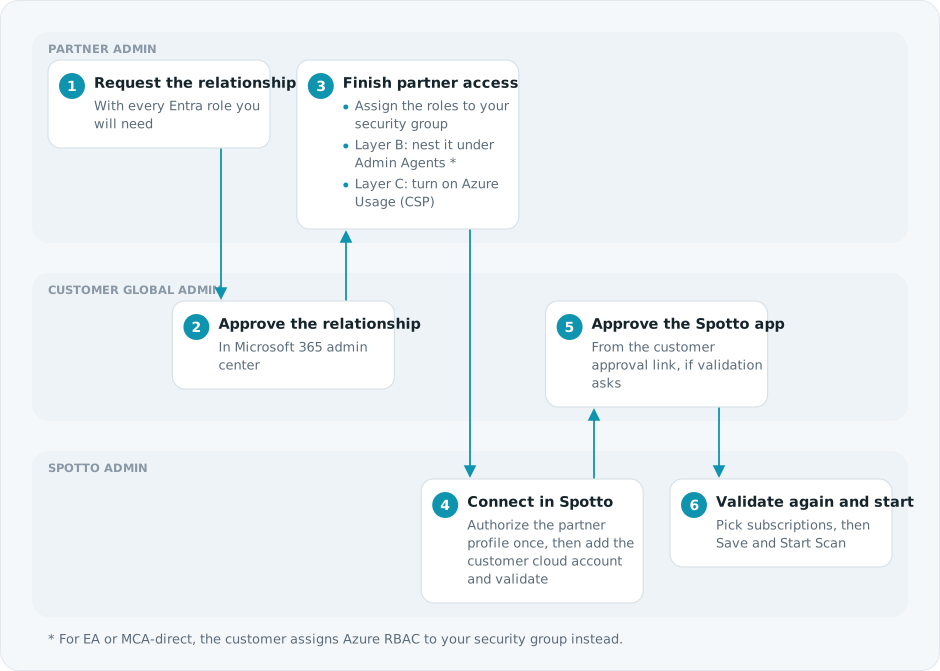
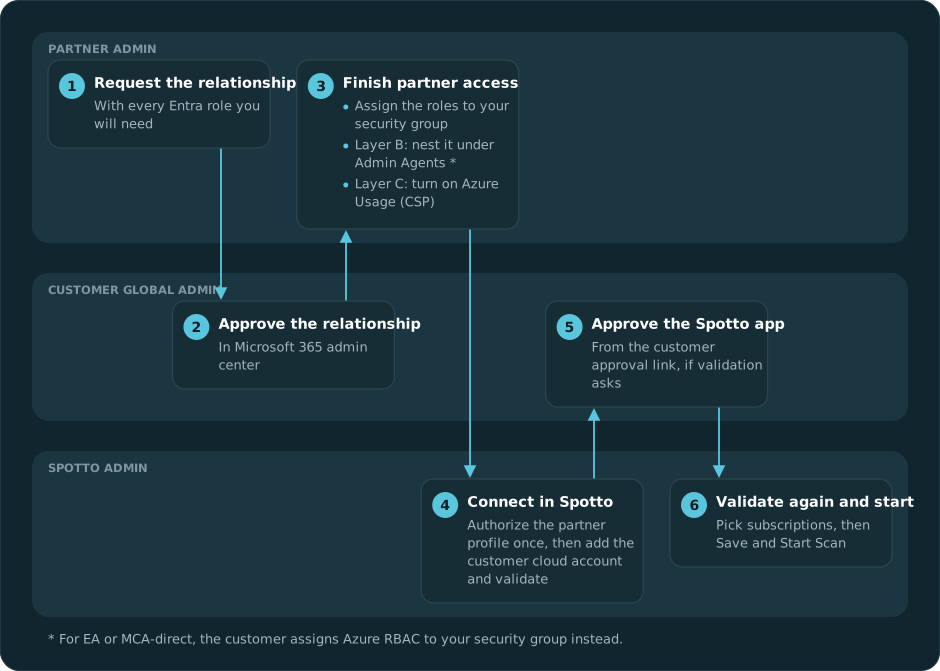
Before You Start
Decide two things before you request the relationship, because changing either later means a new relationship:
- The full set of Entra roles. See Choose The Entra Roles.
- Who will grant the customer tenant application consent. If you will grant it yourself, Cloud Application Administrator must be in the original role request. If the customer's own Global Administrator will grant it, it does not. See Partner Access And Consent.
Copy IDs, Not Display Names
Microsoft shows friendly names beside most GDAP objects. Spotto needs the identifiers, not those names.
| Spotto field | Correct value | Example | Common wrong value |
|---|---|---|---|
| Customer Tenant ID | Microsoft Entra tenant GUID | 4fdbff88-9d6b-42e0-9713-45c922ba8001 | Customer name or verified domain |
| GDAP Relationship ID - not the relationship name | The relationship's id value | 5d027261-d21f-4aa9-b7db-7fa1f56fb163-8777b240-c6f0-4469-9e98-a3205431b836 | A display name such as Contoso_GDAP_2026 |
| Security Group Object ID - not the group name | The partner group's Microsoft Entra Object ID GUID | 869713c9-0b28-4d08-8949-ae07ae1bf528 | A display name such as CPM Admins |
The tenant and security-group Object IDs are 36-character GUIDs. Microsoft Graph defines the relationship ID as a string rather than a fixed GUID schema; Microsoft's current examples use two GUIDs joined by a hyphen. Copy it exactly instead of typing it from the relationship name.
To find the relationship ID reliably:
- Sign in to Microsoft Graph PowerShell using the partner tenant.
- Run
Connect-MgGraph -Scopes DelegatedAdminRelationship.Read.All. - Run
Get-MgTenantRelationshipDelegatedAdminRelationship | Select-Object Id, DisplayName, Status. - Match the approved relationship by
DisplayNameand customer, then copy itsIdvalue.
You can also call GET /tenantRelationships/delegatedAdminRelationships in Microsoft Graph and copy the matching object's id. Microsoft documents the same ID in its Get delegatedAdminRelationship example.
To find the security-group Object ID:
- Open the Microsoft Entra admin center in the partner tenant.
- Open Entra ID -> Groups -> All groups.
- Select the security group assigned to the GDAP relationship.
- Open Properties and copy Object ID. Do not copy Group name.
Microsoft's group management guide confirms that Object ID is the immutable identifier to copy.
Collect these values before opening Spotto:
- Partner tenant ID.
- Customer tenant ID.
- GDAP relationship ID from Partner Center.
- Partner security group ID for the group assigned to the relationship.
- Confirmation that the relationship is active and has access assignments.
- Confirmation that the customer subscriptions Spotto should scan are visible through the delegated access path.
Confirm You Can Test GDAP
Partner IDs, an associated partner ID, or Microsoft AI Cloud Partner Program membership do not by themselves mean you can create GDAP relationships. Confirm that the partner tenant can manage customers in Partner Center before using this Spotto setup path.
Check these items in Microsoft Partner Center:
- Sign in using the partner tenant that owns the customer relationship.
- Confirm the account has an active customer-management program, such as CSP, reseller, or advisor capability.
- Confirm your user has the partner role needed to manage customer admin relationships, such as Admin agent.
- Open Customers and confirm the test customer is listed or can be created.
- Open the customer's Admin relationships area and confirm you can request a new GDAP relationship.
- After the customer approves the relationship, confirm you can assign the approved roles to a partner security group.
If you cannot see customers, cannot request an admin relationship, or cannot assign roles to a partner security group, the tenant is not ready to test GDAP in Spotto. Use one of the dedicated service-principal setup paths until a Partner Center admin enables the required partner capability and access.
Microsoft Partner Center Setup
Complete these steps in Microsoft Partner Center before creating the Spotto customer cloud account.
- Sign in to Partner Center as an admin agent.
- Create or select the customer.
- Request a GDAP relationship with the customer.
- Choose the complete set of Microsoft Entra roles from Choose The Entra Roles.
- Send the approval request to the customer.
- Ask the customer global admin to approve the request.
- After approval, open the admin relationship and add the partner security group.
- Assign the approved roles to that security group.
- Complete Layer B.
- If the customer is billed through your CSP account, complete Layer C.
- Wait until the access assignment is active.
- Copy the GDAP relationship ID and assigned partner security group ID for the Spotto setup step.
Microsoft's reference pages:
- Obtain granular admin permissions to manage a customer's service
- Customer approval of partner GDAP request
- Grant granular permissions to security groups
- Workloads supported by GDAP
Layer A: Choose The Entra Roles
Choose these roles when you request the relationship, before the customer approves it.
| Microsoft Entra role | Needed | What it is for |
|---|---|---|
| Directory Readers | Required | Microsoft's documented least-privileged role for GDAP Azure access. Without it, the delegated sign-in cannot read the customer directory and nothing else works. |
| Cloud Application Administrator | Required unless the customer's own Global Administrator grants consent directly | Lets your partner admin grant the Spotto application consent inside the customer tenant. Not needed if you send the customer a consent handoff link instead. |
| Global Reader | Recommended | Directory Readers does not cover audit logs, role management and Privileged Identity Management, or app registrations. Add Global Reader if you want Spotto's identity and governance findings for this customer. |
| Security Reader | Not needed | Spotto doesn't use it. Defender for Cloud and secure score come from Azure access (layer B). |
| Reports Reader | Optional | Microsoft 365 and Entra usage and activity reporting. |
Microsoft does not allow roles to be added to a GDAP relationship after the customer has approved it. Adding a role means requesting a new relationship and asking the customer to approve again, then reassigning the security group and updating the relationship ID in Spotto. Choose the full set up front, including anything you expect to need in the next twelve months.
Reference: Obtain granular admin permissions to manage a customer's service.
Layer B: Give Spotto Access To Azure Subscriptions
Azure subscription access is granted one of two ways, depending on how the customer's Azure is billed.
If The Customer Is CSP Or Azure Plan
Azure access flows through the admin-on-behalf-of path, which depends on group nesting in your partner tenant.
- In your partner tenant, open Microsoft Entra ID and find the security group assigned to the GDAP relationship.
- Open the Admin Agents group.
- Add the assigned security group as a member of Admin Agents.
- Confirm the partner user who authorizes the Spotto profile is a member of the assigned security group.
- Wait for group membership to propagate, then validate in Spotto.
If The Customer Is Enterprise Agreement Or MCA-Direct
The admin-on-behalf-of path does not apply. The customer assigns Azure RBAC directly to your partner security group.
| Azure role | Assign at | Needed for |
|---|---|---|
| Reader | Subscription, or a management group that covers them | Required minimum. Resource inventory, Resource Graph, and Advisor. |
| Cost Management Reader | Subscription | Cost trends, budgets, and savings analysis. |
| Monitoring Reader | Subscription | Metrics, performance evidence, and rightsizing. |
| Log Analytics Reader | Subscription or workspace | Log Analytics and Application Insights evidence. |
| Security Reader | Subscription | Defender for Cloud assessments and secure score. |
| Management Group Reader | Root management group | Management group hierarchy and tenant governance context. |
| Reservations Reader and Savings plan Reader | Reservations and savings plan provider scopes | Commitment inventory, coverage, utilization, and expiry. |
Full assignment steps for each role are in Azure Cloud Account Permissions.
Layer C: Turn On CSP Billing Visibility
Only needed when you bill the customer's Azure through your CSP account and you want cost data. Do this in your own partner tenant, not the customer's.
- Open Cost Management + Billing.
- Select the billing account.
- Open Customers and choose the customer.
- Open Policies.
- Set Azure Usage to Yes.
You need to be in the Admin agent group in the partner tenant to change this policy. Without it, resource scanning and governance findings still work. More detail is in CSP Billing Prerequisites.
Creating Cost Management billing exports is not supported under GDAP. Microsoft does not permit export creation through the delegated admin path, so this is by design rather than a Spotto limitation. Use one of the service principal setup paths for a customer who needs export-based billing ingestion.
Customer Approval Checklist
Send this checklist to the customer approver with the Microsoft approval link.
The customer should confirm:
- The partner name is correct.
- The requested roles match the agreed support or management scope.
- The relationship duration is expected.
- The approval request is for the correct customer tenant.
- The customer understands they can remove the relationship or delegated access later.
If the customer's security reviewer asks what the Spotto approvals grant, send them Partner Access And Consent.
Create The Partner Authorization Profile In Spotto
Create one partner authorization profile in the partner root company for each Spotto region where customer data will be scanned.
- In Spotto, switch to the partner root company.
- Open Connectors, then select Cloud Accounts.
- Select Add Cloud Account.
- Select Show More, then choose Granular Delegated Admin Privileges.
- In Authorization profile, create or select the partner profile.
- Enter a clear profile name, such as
Partner GDAP. - Enter the partner tenant ID.
- Select Create Profile.
- Select Authorize Profile.
- Sign in with the partner identity that is allowed to use the GDAP relationship.
- Approve the Microsoft authorization and return to Spotto.
The profile must show a ready status before customer GDAP cloud accounts can be saved.
The Microsoft approval in step 11 needs an administrator. If you are not one, select Create approval link instead and send the generated link to a Global Administrator. See Hand The Approval To A Global Administrator. For exactly what this approval grants, see Partner Access And Consent.
Spotto stores the authorization profile and refresh tokens in the selected Spotto region. For example, a customer onboarded in the USA region uses the USA Spotto environment, callback URL, credential storage, and repositories. A customer onboarded in Europe uses the Europe environment and storage. Tokens are not shared across regions.
Create A Customer GDAP Cloud Account
Create a separate GDAP cloud account inside each customer company.
- In Spotto, switch to the customer company.
- Open Connectors, then select Cloud Accounts.
- Select Add Cloud Account.
- Select Show More, then choose Granular Delegated Admin Privileges.
- Select the ready partner authorization profile.
- Enter an account name that identifies the customer tenant.
- Enter the customer tenant ID.
- Enter the GDAP Relationship ID, not its display name. See Copy IDs, Not Display Names.
- Enter the partner Security Group Object ID, not its group name.
- Open Optional GDAP Details only if you also want to record the access assignment ID.
- Confirm the Spotto application consent has been granted in the customer tenant. See Grant The Customer Tenant Consent below.
- Select Validate GDAP Access.
- Review the capability results, then select the subscriptions this customer company should scan.
- Select Save and Start Scan.
Spotto only stores the subscriptions you select on this screen.
Validate GDAP Access only checks the values against Microsoft and returns the subscriptions that are readable. Nothing appears in Cloud Accounts yet. After validation is Ready, select at least one subscription and choose Save and Start Scan. That action creates the cloud account under the Spotto company currently selected in the company selector and queues its first scan.
If the MSP root company is selected, Spotto warns that the account will be saved there. Switch to the customer company before saving a customer-owned GDAP account.
Grant The Customer Tenant Consent
The customer tenant must approve the Spotto application for Microsoft Graph and Azure Service Management, on two separate Microsoft screens. Approving the GDAP relationship does not grant this, and a confirmation inside Spotto cannot grant it. Until live validation confirms both, the matching consent check stays Blocked.
The simplest path is:
- In the blocked Microsoft Graph consent or Azure management consent result, select Create customer approval link.
- Copy the link and send it to a Global Administrator in the customer's tenant.
- Ask the administrator to open the link, confirm the displayed tenant, and sign in with their Microsoft account.
- Complete both Microsoft approval screens in sequence: Microsoft Graph first, then Azure Service Management.
- Return to Spotto and select Validate GDAP Access again.
The customer administrator does not need a Spotto account. You can instead grant it yourself through the relationship if your partner user is in the assigned GDAP security group under Admin Agents and the relationship includes Cloud Application Administrator or Application Administrator. Both options are compared in Partner Access And Consent.
Spotto validates the Microsoft and Azure access path before any recurring scan is allowed. When Microsoft returns a rotated refresh token, Spotto persists the new token so long-term scanning can continue without asking the partner to reauthorize every day.
What The First Scan Checks
The setup form checks that the selected profile is authorized and that the customer tenant, GDAP relationship, and partner security group values are present. A newly authorized profile can be used for its first customer validation immediately; customer validation status is tracked separately from partner authorization status.
Validation then runs live checks in a fixed order and stops at the first blocking failure. The failing check tells you which access layer or consent to fix, so read the results top down and fix only the first blocked item.
| Order | Check shown in Spotto | Layer | What it means when it is not ready |
|---|---|---|---|
| 1 | Partner authorization | Consent | The partner profile could not obtain Microsoft tokens. Reauthorize the profile in the partner root company. |
| 2 | GDAP relationship | A | The relationship is missing, expired, terminated, or belongs to a different customer tenant. |
| 3 | Access assignment | A | The partner security group is not assigned to the relationship, or the assignment is still pending. |
| 4 | Microsoft Graph consent | Consent | Graph approval or delegated relationship access is not ready. Follow the specific reason shown; only an explicit consent or interaction-required result calls for a new approval link. |
| 5 | Azure management consent | Consent | The Azure Service Management (Azure Resource Manager) approval is checked separately from Graph. Only an explicit consent or interaction-required result calls for a new approval link. |
| 6 | Subscription discovery | B | Follow the reported reason. Use Layer B only for an explicit Azure authorization failure or No readable subscriptions result; throttling, timeout, service availability, and application configuration have separate retry/support guidance. |
| 7 | Resource Graph and Resource inventory | B | Subscriptions are visible but resources cannot be read. Usually Reader is missing or has not propagated. |
| 8 | Cost read | B | Degrades rather than blocks. Cost Management read access is missing on the subscriptions. |
| 9 | CSP partner billing cost | C | Degrades rather than blocks. CSP Azure Usage visibility is off in the partner billing account. See Layer C. |
Checks 1 to 7 can block the account. Checks 8 and 9 show as Degraded: the account still connects and scans, but cost data is incomplete.
If the first scan reports missing access, use Azure Cloud Account Permissions and Azure Cloud Account Troubleshooting to resolve the specific warning.
Ongoing Operation
After setup:
- Spotto scans GDAP customer cloud accounts only when validation passes and scheduled scanning is enabled for that account.
- Refresh tokens are stored encrypted and rotated when Microsoft returns a replacement token.
- If the customer removes the GDAP relationship or the partner removes the security group assignment, scans fail until access is restored.
Common Problems
| Symptom | Likely Cause | Fix |
|---|---|---|
| The profile cannot be selected for a customer account | The partner profile is not ready or the authorization failed | Reauthorize the profile from the partner root company. |
| Validate GDAP Access is unavailable | The partner profile is not authorized, or a required customer tenant, relationship, or security group value is missing | Complete the guidance shown below the button, then validate again. |
| GDAP relationship is blocked immediately | A relationship display name was entered instead of its ID, the ID belongs to another customer, or partner authorization cannot read it | Copy the relationship Id using Copy IDs, Not Display Names, confirm the customer tenant, then validate again. |
| The security-group field says the Object ID is invalid | A group display name such as CPM Admins was entered | In the partner tenant, open the group in Microsoft Entra and copy its 36-character Object ID GUID. |
| The customer cloud account cannot be saved | Validation has not passed, or a required account value is missing | Re-check the account name, customer tenant ID, GDAP relationship ID, and partner security group ID. |
| A consent check explicitly reports consent or interaction required | The corresponding Microsoft resource has not been approved in the customer tenant | Grant it through the relationship, or send the customer's Global Administrator an approval link. |
| Microsoft Graph reports forbidden | Consent, the assigned GDAP roles, or the relationship path may be the cause | Confirm the relationship and assigned roles, then validate again. If it repeats, contact Spotto support before sending another approval link. |
| Validation explicitly reports No readable subscriptions or Azure authorization is forbidden | Layer B is missing or has not propagated even though the relationship is active | For CSP/Azure Plan, nest the assigned security group under Admin Agents. For EA and MCA-direct, ask the customer to assign Azure RBAC. See Layer B. |
| A role is missing from the relationship | Roles cannot be added after approval | Request a new GDAP relationship with the full role set, have the customer approve it, reassign the security group, and update the relationship ID in Spotto. |
| The person doing setup cannot approve the Microsoft consent | They are not a Global Administrator | Select Create approval link or Create customer approval link, as shown, and send it to the relevant tenant administrator. See Partner Access And Consent. |
| Billing data is missing | CSP Azure Usage visibility or Cost Management read access is incomplete | Review Layer C and CSP Billing Prerequisites. GDAP billing export creation is not supported. |
| Scans stopped after working previously | The customer removed the GDAP relationship, the assignment expired, or Microsoft revoked the refresh token | Re-establish the GDAP relationship or reauthorize the Spotto partner profile. |