Portal Access: Features, Roles, and Scope
Overview
Portal access controls which companies, features, pages, and actions a user or API key can use in Spotto. It covers Spotto authorization only. Cloud-provider permissions such as Azure RBAC are separate and still matter when Spotto connects to cloud accounts.
The API is the source of truth for access decisions. The Portal uses the evaluated access state to show or disable controls, but hiding a button is not the security boundary. Server-side authorization still decides whether an action is allowed.
How Portal access works
Every request names a company, a feature, and an action. Spotto checks it in this order and stops at the first check that fails.
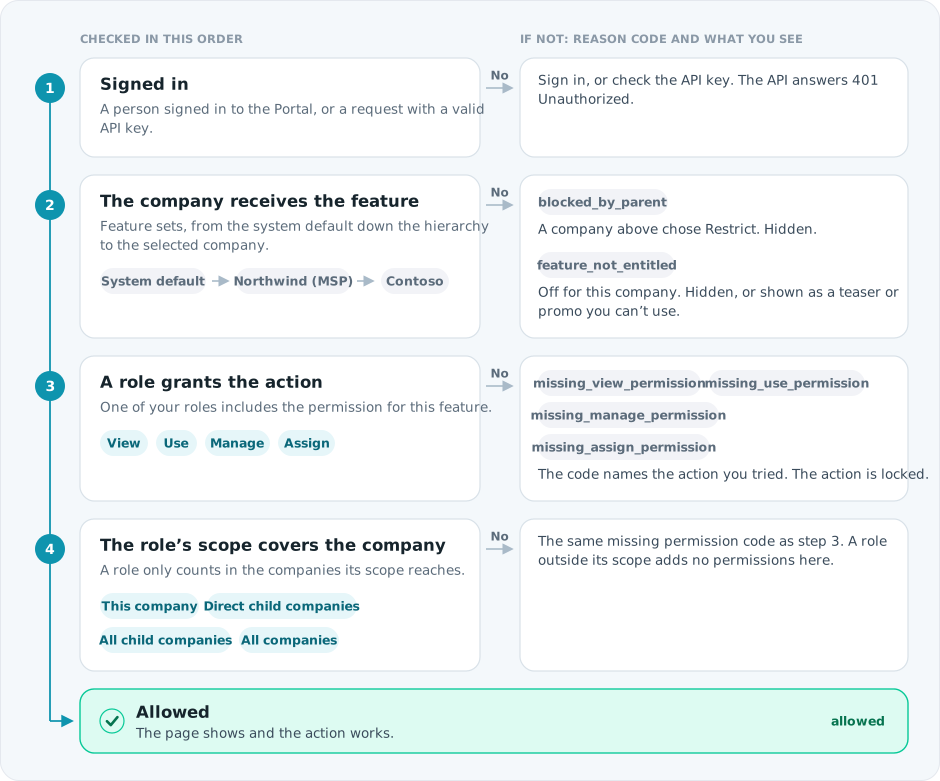
A role can't unlock a feature the company doesn't receive. For example, a user whose role includes Ask Spotto AI still can't use chat if chat is turned off for the company.
SSO and external identity
Spotto supports Azure SSO for Portal sign-in. Authentication runs through Spotto's identity layer, backed by AWS Cognito, and can federate with Azure so Microsoft Entra ID controls such as MFA, Conditional Access, and user offboarding stay in the login path.
SSO decides who can sign in. Spotto roles and scopes decide what that person can open and do. Spotto does not map Entra group membership or group claims into Portal roles: assign roles inside the Portal. This keeps Entra group changes from altering Spotto permissions automatically.
Company feature availability
Feature sets decide which features a company receives. Each feature set starts from a system default, and a company can override it with Allow, Deny, or Restrict. The nearest decision above the selected company wins, and a Restrict from a parent stops every decision below it. A Deny can hide the feature or show it as a teaser or promo. For how to change these decisions, see Feature Sets: Control Company Availability.
Roles and scope
Roles are system-defined permission bundles. Each role assignment pairs a role with a scope, measured from the company where the role is assigned:
- This company covers only that company.
- Direct child companies adds its immediate child companies.
- All child companies adds every company below it.
- All companies covers every company. It can only be assigned at the root company.
Use the narrowest scope that fits the job. For most users, choose This company. Use child-company scopes only for delegated access across a hierarchy, such as an MSP managing customers. You can't grant a role beyond your assignment authority or a broader scope than the authority remaining at the selected company. Direct-child authority granted at a parent becomes This company at its child, so it cannot be delegated onward. For invite and edit workflows, see Users: Invite and Manage Access.
Role quick reference
Customers assign roles from the Users screen or, for automation, from the API Keys screen. Start with the role that matches the person's job.
| Role | Choose this for | Assignable to |
|---|---|---|
| Company Viewer | Read-only company visibility for people who need a basic view of selected portal pages. Investigate pages are not included. | Users and API keys |
| Company Administrator | Day-to-day company administration, including users, settings, integrations, billing, cloud accounts, tags, and access. | Users and API keys |
| Company Hierarchy Administrator | Delegated administration across this company and child companies. Useful for parent-company or MSP operating models. | Users and API keys |
| Accounts Administrator | Cloud account onboarding, subscriptions, API keys, connector setup, Spotto MCP access, and sync diagnostics. | Users and API keys |
| FinOps Analyst | Cost analysis, Cost Tree, recommendations, commitments, trend tracking, storage cost analysis, and tracked savings work. | Users and API keys |
| Operations Analyst | Alerts, schedules, resources, tickets, notes, relationship graphs, service retirement, backups, and operational diagnostics. | Users and API keys |
| Security Analyst | Security posture, governance, perimeter insights, relationship graphs, review checklists, and recommendation review. | Users and API keys |
| Service Delivery Manager | Customer reporting, SDM reports, review checklists, statements of work, tracked work, tickets, notes, and service reviews. | Users and API keys |
| Feature Set Administrator | View and manage company feature-set decisions, locks, and audit history without receiving broader company administration permissions. | Users only |
| Customer Portal Viewer | Limited customer-facing portal access where the customer portal experience is enabled. | Users only |
| Portal Administrator | Spotto administration across global portal configuration, customers, users, features, and operational controls. Only assignable at the root company. | Users only |
The Feature Set Administrator role intentionally omits feature_sets.assign. It can manage customer-controlled feature sets where delegated management is enabled, but it cannot grant itself broader role or portal-administration authority.
Users and API keys
Users and API keys go through the same checks.
- Users sign in to the Portal and see pages, controls, locked states, teasers, and promos where their access allows it.
- API keys are non-interactive. A key's own role and scope decide what it can do, not the role of the person who created it. Teaser and promo states don't apply to them.
API-key creation, one-time secret display, rotation, and network restrictions are covered in API Authentication.
Locked, teaser, and promo states
If the company receives a feature but your role doesn't grant the action, the action is locked. Teaser and promo states only appear when a Deny decision chose them for a company that doesn't receive the feature. They are presentation states, not permissions: they never grant data access or write access.
Reason codes
API errors for denied access include the reason code from the diagram, so you can troubleshoot without backend logs. One more can appear: unknown_feature means the feature key isn't in Spotto's catalog. A successful check returns allowed.
Access review pages
Where enabled, the Portal has administration pages for reviewing access:
- Feature Sets shows effective availability, source, local overrides, audience, and inherited parent restrictions for customer-manageable feature sets.
- Users shows Classic and Advanced user roles and delegation scope.
- API Keys shows the authorization assigned to API keys.
Check these before changing assignments, especially in parent-child setups, where the selected company, the principal's company, and the role scope all affect the result.
Boundary with cloud permissions
Portal access decides whether a Spotto user or API key can open a Spotto page or call a Spotto API action. It does not replace cloud-provider permissions:
- A user may have Portal access to a cloud-account setup screen, but the Azure operator still needs the right Azure permissions to assign roles or grant consent.
- A company may receive a Spotto feature, but the feature can still show missing-data warnings if the cloud account lacks provider-side read permissions.
- An API key may have a Spotto role for an API action, but it still cannot recover a plaintext API-key secret after creation.
For Azure requirements, see Azure Cloud Account Permissions.
Troubleshooting
A feature is missing from the navigation
What you're seeing: The page or feature does not appear in the Portal.
Likely causes:
- The selected company does not receive the feature (
feature_not_entitled). - A parent company has restricted the feature (
blocked_by_parent). - Your role does not include view permission (
missing_view_permission).
How to fix:
- Confirm you are using the intended selected company.
- Review the feature state in Feature Sets if it is available in your environment.
- Ask an administrator to check your assigned roles and scope.
A feature appears but actions are disabled
What you're seeing: The page is visible, but buttons or controls are locked or disabled.
Likely causes:
- Your role allows view access but not use or manage access.
- Your role is assigned at another company and its scope doesn't reach this one.
- The feature is shown as a teaser or promo.
How to fix:
- Check the disabled control's reason message, if shown.
- Review your role assignment in Users.
- Ask an administrator to grant the required role with the right scope.
Access works in one child company but not another
What you're seeing: The same user can access a feature in one child company but not a sibling or deeper descendant.
Likely causes:
- The role scope only covers direct child companies.
- The second company has a different feature-set decision.
- A parent restriction applies to one branch of the hierarchy.
How to fix:
- Confirm the selected company's position in the hierarchy.
- Check whether the role uses Direct child companies or All child companies scope.
- Compare feature availability between the two company branches.
An API key receives a forbidden response
What you're seeing: An API request fails with an authorization error even though the key is valid.
Likely causes:
- The API key's role does not include the requested action.
- The key's scope does not include the target company.
- The company does not receive the feature behind the API action.
How to fix:
- Confirm the API key has not been revoked or rotated.
- Review the key's non-secret identifier, role, and scope in the admin UI.
- Check the reason code in the error, then the target company's feature availability.