Spotto Users: Invite and Manage Portal Access
Overview
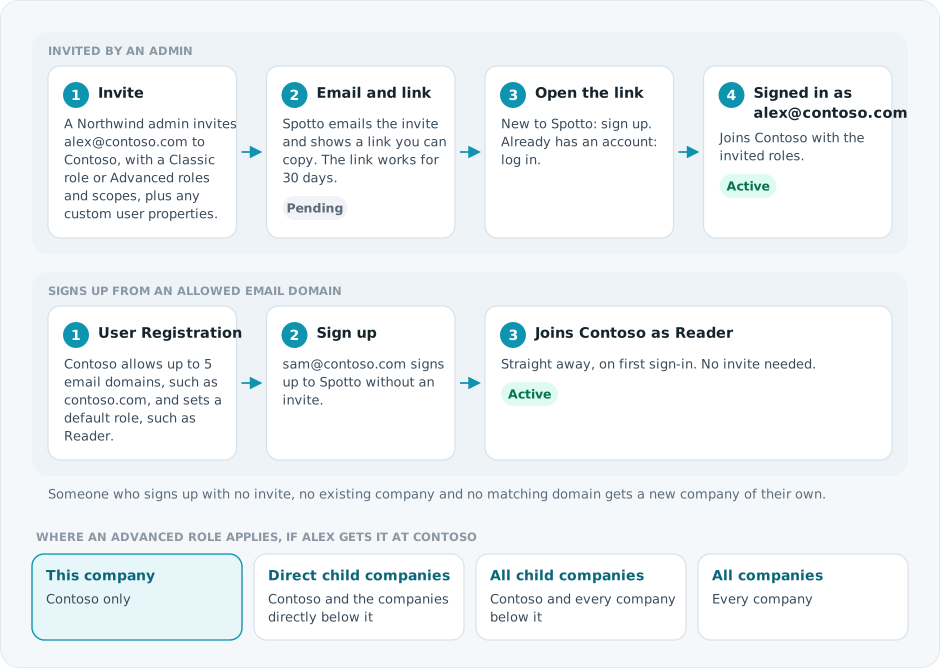
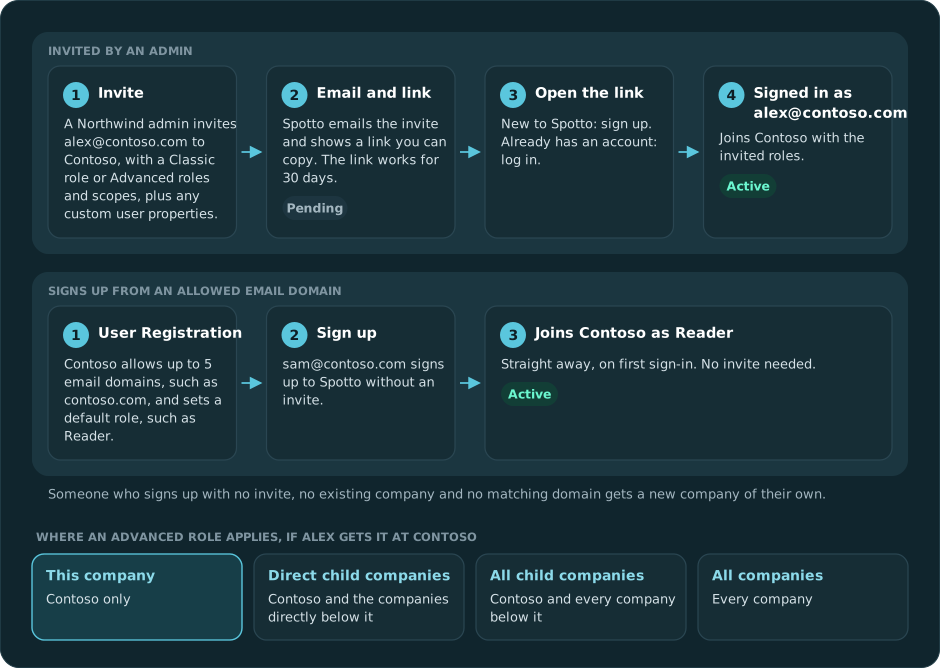
The Users screen is where you invite people to a company, change their roles and scope, fill in custom user properties, and remove access. People join a company either from an invite or by signing up with an email address from one of the company's allowed domains.
Access the Users screen
Open Settings -> Settings -> Users from the Portal navigation. If no company is selected, Spotto prompts you to choose a company first.
If your account has no companies yet, you will see a welcome screen that guides you to invite your first user.
Users list
The list follows the companies selected in the company selector. Each person appears once, even when they have assignments at several selected levels. The Assignments column shows up to two company names and a +n more link opens the complete selected-company list. It does not expose parent companies above the selected scope.
What you can do:
- Search by first name, last name, email, or assigned company
- Sort by name, roles, or status
- Open details by clicking a row (requires user view permission)
- Use Export CSV -> Export users for this company for only the active company.
- Use Export CSV -> Export users for all selected companies for every company selected in the company selector. The export contains one assignment row per company, with a hierarchy path relative to the selected scope plus direct and effective roles.
If you can view users but not manage them, you can open the list and user details, but invite, edit and delete controls are read-only or disabled.
Pending invites have two extra actions: Resend invite (with a 30-second cooldown) and Remove invite.
Invite a user
Click Invite, then enter the email, name, company, any custom user properties, and the roles:
- Classic: the legacy single-role model.
- Advanced: one or more system-defined roles, each with its own scope. Use the narrowest scope that fits the work; This company is the safest default.
Spotto checks what you can assign as well as whether you can manage users. You cannot grant roles beyond your role-assignment authority or a scope broader than the authority remaining at the selected company. For example, direct-child authority from a parent becomes This company when you assign at its child; it cannot be delegated onward to grandchildren. Classic roles with child-company access are checked against that same boundary. Resending an invitation also rechecks its stored role.
If you are unsure which role to use, start with the role quick reference. Some roles are only available to Spotto administrators and are hidden for normal customer companies.
The invite is tied to the email address it was sent to. The person must sign up or sign in with that same email to join the company. An expired or already used link returns them to the Portal sign-in page with a message.
Sign up from an allowed domain
To let people join without an invite, add their email domains on the company's User Registration tab and choose the default role. See Companies. A domain can belong to only one company.
The Require Pending Approval switch on the same tab does not currently hold sign-ups back: people from an allowed domain join with the default role straight away.
Edit a user
Open a user to view or update their roles. Email and Company are read-only. Applicable custom user properties appear before role settings. Classic shows the legacy role selector; Advanced shows assignable roles with a checkbox, description, and delegation scope.
Role changes are saved when you click Update.
Company administrators define custom user properties separately from user values. See Custom Properties for Companies and Users to configure text, checkbox, and dropdown properties and control where they apply in the company hierarchy.
Delete a user
Removing access requires confirmation and is scoped to the assignment you selected. It does not silently remove the same person from a parent, sibling, or unrelated company.
When the user also has assignments below the selected company, the confirmation offers Also remove access from child companies and shows how many descendant assignments are affected. Leave it cleared to remove only the selected assignment.
There are safeguards:
- Pending invites are removed, not deleted as active users
- Descendant companies are calculated by Spotto from the current hierarchy; the browser does not submit an arbitrary company list
- The underlying sign-in identity is retained while the user still belongs to another company
Troubleshooting
I don't see the Invite/Edit/Delete buttons
Likely cause: You can view users for the selected company, but you cannot manage them.
Fix: Ask a company admin to grant a role that allows user management.
I can't open user details
Likely cause: You do not have access to view users for the selected company.
Fix: Ask a company admin to grant a role that allows user viewing.
I can open a user but cannot change roles
Likely cause: You can view users but cannot manage them, or your role does not allow assigning the selected role or scope. Fix: Ask a company admin to review your role and scope.
The resend invite button is disabled
Likely cause: Resend is rate‑limited for 30 seconds after each click.
Fix: Wait a few seconds, then try again.
The invite link says it has expired
Likely cause: Invite links work for 30 days.
Fix: Use Resend invite to send a new link.