Custom Properties for Companies and Users
Overview
Custom properties let company administrators capture organization-specific information on company and user records. Define each field once, decide where it applies in the company hierarchy, and then enter its value alongside the standard company or user details.
Typical examples include a Business ID, CRM ID, customer tier, account classification, or an onboarding confirmation.
Why use custom properties?
Standard company and user fields cover information Spotto needs for normal operation. Custom properties cover information your organization needs for its own onboarding, administration, and integrations without forcing unrelated data into names, notes, or tags.
Custom properties are useful when you need to:
- Record identifiers from CRM, billing, or service-management systems
- Apply a consistent onboarding field across a group of companies
- Require administrators to provide important company or user metadata
- Offer controlled choices instead of accepting inconsistent free text
Custom properties store ordinary administrative metadata. Spotto displays property names, options, placeholders, and values as plain text rather than interpreting markup or scripts. Do not use custom properties for passwords, API keys, secrets, payment information, or other sensitive values.
How property definitions work
Each definition controls three independent decisions:
| Setting | Choices | What it controls |
|---|---|---|
| Field Type | Text, Checkbox, Dropdown | How the value is entered. |
| Property For | Company, User | Whether the field appears on company or user records. |
| Applies To | Everyone, Current Company, Child Companies | Which companies in the hierarchy receive the definition. |
You can also give each property a name, make it required, and configure settings specific to its field type.
Field types
- Text accepts a string and can show placeholder guidance, such as
Enter the CRM account ID. - Checkbox stores a checked or unchecked value. A required checkbox means Spotto records a value; it does not force the checkbox to be checked.
- Dropdown restricts the value to a configured list. Enter one option per line when defining the property; the displayed order matches the definition order.
Company and user properties
- A Company property appears with the standard fields on the company's Configuration screen, directly below Website.
- A User property appears in the existing invite and edit-user workflow.
The definition screen defines the fields only. Actual values are entered on the relevant company or user record.
Hierarchy scope
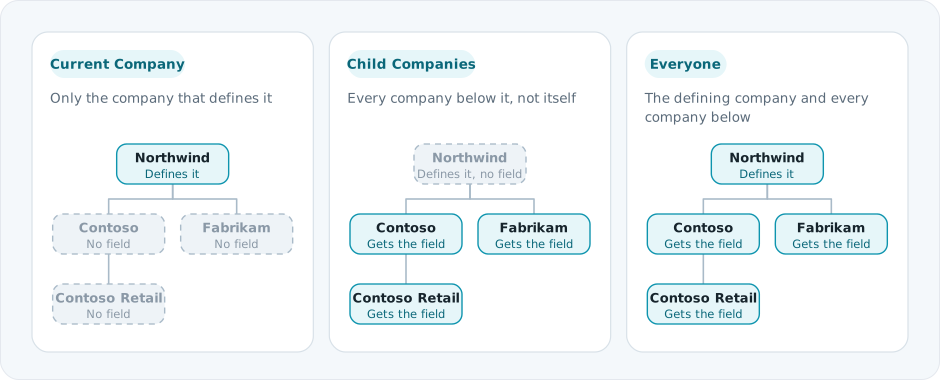
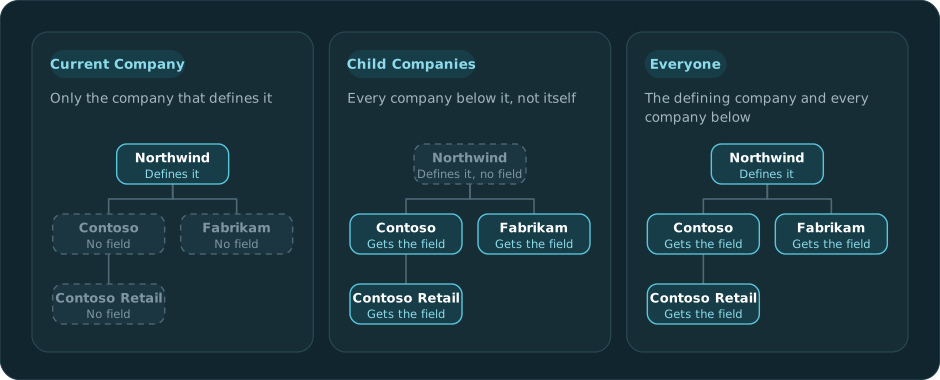
The Applies To setting is evaluated relative to the company where the property is defined:
| Applies To | Defining company | Descendant companies |
|---|---|---|
| Current Company | Included | Not included |
| Child Companies | Not included | Included at every level below it |
| Everyone | Included | Included at every level below it |
Inherited definitions are read-only at child companies. To change or remove one, open Custom Properties in the company where it was originally defined.
Define a custom property
You need permission to manage the selected company's settings.
- Select the company that should own the definition.
- Open Settings -> Settings -> Custom Properties.
- Select Add Property.
- Enter a clear Property Name, such as
Business ID. - Choose the Field Type.
- Choose whether the property is for a Company or User.
- Choose who it Applies To in the hierarchy.
- Configure the placeholder or dropdown options when applicable.
- Enable Required if the record must contain a value.
- Select Save.
You can define up to 50 locally owned properties at a company. A company can have up to 100 effective properties after inherited fields are included, so a large inherited schema can reduce how many additional local properties you can add. Use the arrow controls to set local display order.
Enter company values
- Open Settings -> Settings -> Companies.
- Open the company you want to edit.
- On Configuration, find the additional fields below Website.
- Enter or select the values, then save the company.
Only company properties that apply to that company appear. Required values must be completed before the company can be saved.
Enter user values
- Open Settings -> Settings -> Users for the relevant company.
- Invite a user or open an existing user.
- Complete the additional user fields shown before the role settings.
- Save or send the invitation.
Only user properties that apply to the user's company appear. Company properties do not appear on user records, and user properties do not appear on company records.
Change or remove a definition
Open Custom Properties in the company that owns the definition. You can rename local definitions, change their configuration, reorder them, or remove them.
Changing a field type or dropdown options can make an existing value invalid. When you save a definition, Spotto preserves unrelated values. It clears the defining company's value only when that company property is removed or no longer applies there, its field type changes, or its selected dropdown option is removed. Spotto does not bulk-update descendant companies or users; affected fields stop showing invalid values, which are cleaned up when that record's values are next saved. Review affected company or user records after changing a definition.
Custom-property saves use last-write-wins behavior within the part being edited. If two administrators edit definitions at the same time, the later accepted definition save replaces the earlier definition changes. The same rule applies when two administrators edit values for the same company or user. Saving values does not replace definitions, and saving definitions does not restore older values.
Troubleshooting
A property does not appear on a company or user
What you're seeing: The expected field is missing from the record.
Likely causes:
- Property For targets the other record type.
- Applies To does not include the record's company.
- The definition has not been saved.
How to fix:
- Open the definition in its owning company.
- Check Property For and Applies To.
- Save the definition, then reload the company or user record.
An inherited property cannot be edited
What you're seeing: The property shows its source company but its controls are read-only.
Likely cause: The property is inherited from a parent company.
How to fix: Open Custom Properties in the source company shown on the definition and edit it there.
A dropdown cannot be saved
What you're seeing: Spotto asks you to review the dropdown options.
Likely causes: The dropdown has no options or contains duplicate options.
How to fix: Enter at least one unique option, with one option per line.