Azure Billing Exports: Setup and Fallbacks
Azure Cost Management billing exports give Spotto a durable source of detailed cost history in customer-owned Azure Storage. Exports are strongly recommended: API-only ingestion is slower and more exposed to Azure throttling.
How Spotto Retrieves Billing Data
Spotto reads export files first and asks the Azure Cost Management API only for the dates they don't cover.
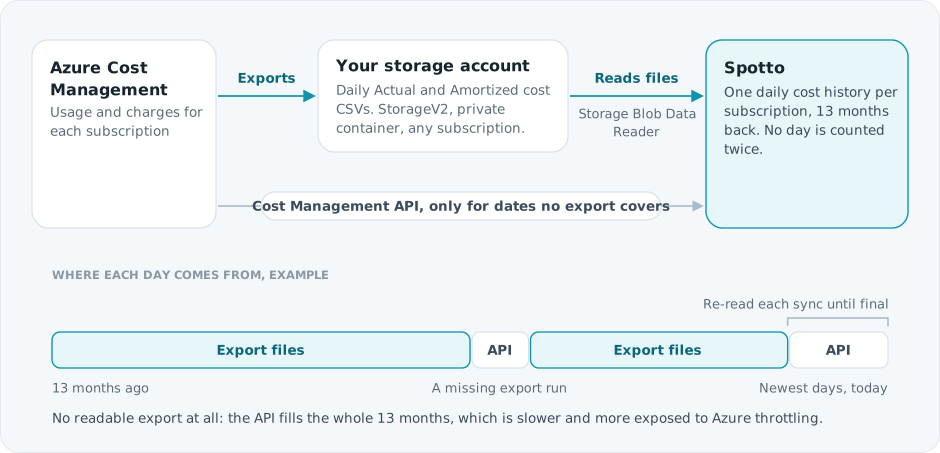
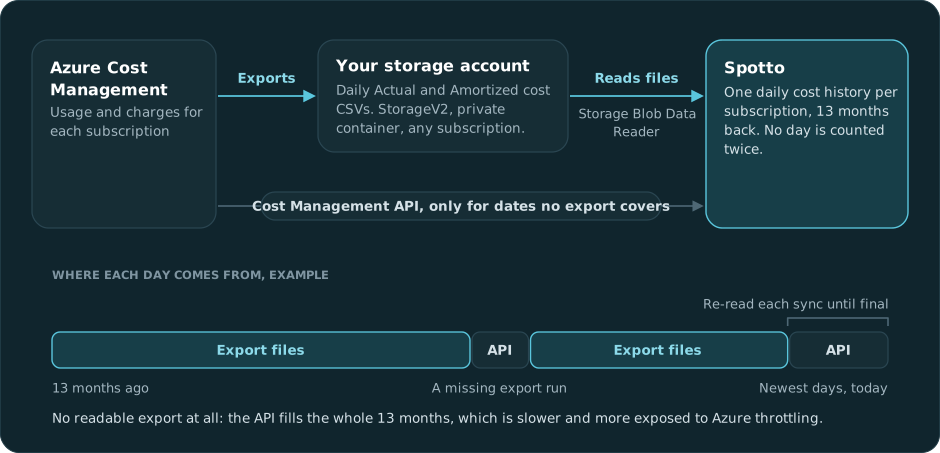
Azure export jobs run asynchronously, so the newest usage reaches the API before its export file reaches storage. Within the export data:
- Subscription Actual Cost exports are preferred for actual-cost reporting. Amortized Cost exports are kept as a separate ledger where Azure supports them.
- Billing-account, billing-profile, invoice-section, or management-group exports can cover many subscriptions at once.
- If Azure provides Actual Cost but not Amortized Cost for a period, Spotto can use actual cost as an explicit fallback rather than treating the period as complete dual-ledger coverage.
Values can change when Azure publishes later usage, credits, negotiated rates, or benefit allocation.
Choose Export Scopes
An export does not have to exist on every subscription if a broader export covers those subscriptions and Spotto can read it.
In Automatic Connect, every broad create target is a separate checkbox. Review those checkbox states before running setup and select a management-group or billing-hierarchy target only when you intend Spotto to create or repair an export at that exact scope. Discovery alone does not authorize creation. Subscription Actual and Amortized targets remain the completeness fallback when a broader export is unsupported, incomplete, or cannot be created.
| Scope | Typical use | Additional access |
|---|---|---|
| Subscription or resource group | Precise Actual and Amortized coverage for one subscription | Reader or Cost Management Reader at the export scope, plus blob access |
| Management group | Broad Usage coverage, including eligible future child subscriptions | Cost Management Reader at the management group, plus blob access; Azure currently supports this for Enterprise Agreement scopes |
| Billing account, billing profile, or invoice section | One export covering multiple subscriptions on a supported agreement | The matching billing reader role at that exact billing scope, plus blob access |
| EA department or enrollment account | Broad Enterprise Agreement coverage | The matching EA billing read role, plus blob access |
Management-group Usage exports improve broad coverage, but they do not replace subscription Actual and Amortized exports where those datasets are available. The PowerShell setup therefore prefers the tenant-root management group, or the topmost visible child groups when root access is unavailable, and retains subscription exports as the completeness fallback.
Configure Export Storage
Exports can share a dedicated customer-owned StorageV2 account and private container. The storage account can be in a different subscription from the subscriptions whose costs are exported.
Spotto needs all of the following:
- The exact export scope and export name, either discovered from Azure or supplied in the cloud-account configuration.
- Storage Blob Data Reader on the destination container or storage account.
- A reachable storage public endpoint. Azure RBAC does not bypass a disabled public endpoint, private endpoint, or blocking storage firewall.
- Read access at the billing or management-group scope when the export exists above subscription scope.
Automatic setup only reuses cross-subscription storage when Azure discovery or the server-generated setup plan identifies that exact destination. Entering an unrelated storage resource ID does not authorize it.
For new Spotto-managed storage, the portal shows the deterministic account name as read-only and limits the region list to locations Azure reports as valid. If Spotto finds more than one storage account with compatible ownership tags, you must choose one explicitly. Existing customer storage is never retagged or has its network configuration changed without explicit consent.
Do not provide a storage account key or SAS token. Spotto reads exported blobs as the cloud account's configured service principal using Azure RBAC.
Configure Sources in the Spotto Portal
After you enter or import service-principal credentials, select Validate Connection. Spotto uses those credentials to discover accessible exports at subscription, management-group, and Azure billing hierarchy scopes. The result shows each exact export definition, its configured storage destination, and whether Spotto could read that destination.
Select the detected, readable sources you want to use, then choose Add Selected Exports. Spotto does not ask you to choose an unrelated storage account because the Azure export definition already identifies its destination.
If an export cannot be detected, expand Enter or Review Billing Export Details. For each manual source, enter:
- Dataset: Actual Cost or Amortized Cost.
- Azure scope type and complete scope resource ID.
- Azure Cost Management export name.
- Optionally, the storage account name, container, and root folder path.
Common manual choices are Subscription, Management Group, Billing Account, and Billing Profile. Less common Azure agreement scopes remain available under Other Azure billing scopes. Management-group exports support Usage/Actual data, not Amortized Cost.
When destination fields are omitted, Spotto resolves the destination from the named Azure export. This requires read access at the export scope. Detection and manual resolution run in the Spotto API; the browser does not call Azure or storage directly.
When you have permission to manage the cloud account, Spotto loads the saved credential-free source coordinates into the editor. Secrets and raw private locators are never returned. Detected sources are appended to the visible list; when you save a non-empty list, that complete visible list replaces the saved source configuration. Review it before saving.
If an older account reports that billing exports are configured but no source coordinates are shown, leave the editor empty to preserve the private existing configuration. Add sources only when you intend to replace it, and accept the replacement confirmation when Spotto displays one.
The portal and API accept at most 100 manually configured sources and 48 KiB of serialized source configuration. Interactive discovery returns at most 50 detected sources and reports when Azure contains more results. The PowerShell handoff uses a stricter limit of 50 sources and 24 KiB so the JSON remains safe to import. It retains non-conventional locators before canonical subscription, tenant-root, and billing-account sources that cloud-engine can rediscover. If anything is still omitted, the script warns you to review it.
Use PowerShell JSON Import
Setup-SpottoAzure.ps1 writes a versioned SpottoAzureOnboarding-*.json file in the current directory. The file contains the tenant and client IDs, a newly created client secret when applicable, and accepted billing export source details.
For a new manual Azure cloud account:
- In Spotto, go to Connectors -> Cloud Accounts.
- Select Add Cloud Account, then Manual Setup.
- At the top of the form, choose PowerShell Setup (marked Recommended), then paste the complete JSON file under Import PowerShell Setup Details. A valid paste imports automatically; if you typed or edited the JSON, select Import Details.
- Confirm that Spotto reports the import as successful.
- Review the imported credentials and billing export sources under Enter or Review Billing Export Details.
- Validate the credentials. Spotto also detects accessible Azure exports and verifies their configured storage destinations.
- Add any additional detected exports you want to use, review the complete source list, then save the account.
The import does not change the account name or selected Spotto company. Treat the JSON as a secret when it contains a client secret, and securely delete the local file when it is no longer needed.
Validate Billing Export Access
After setup:
- Confirm each intended subscription is covered by a subscription, management-group, or billing-scope export.
- Confirm Azure has completed at least one export run and written files to the expected container.
- Confirm the Spotto service principal has Storage Blob Data Reader on that destination.
- Run Spotto sync again after Azure RBAC and export generation have propagated.
If export access remains unavailable, Spotto reports the export issue and continues with Azure billing API fallback where possible. See Azure Cloud Account Troubleshooting for repair steps.