AWS Setup Guide for Your AWS Administrator
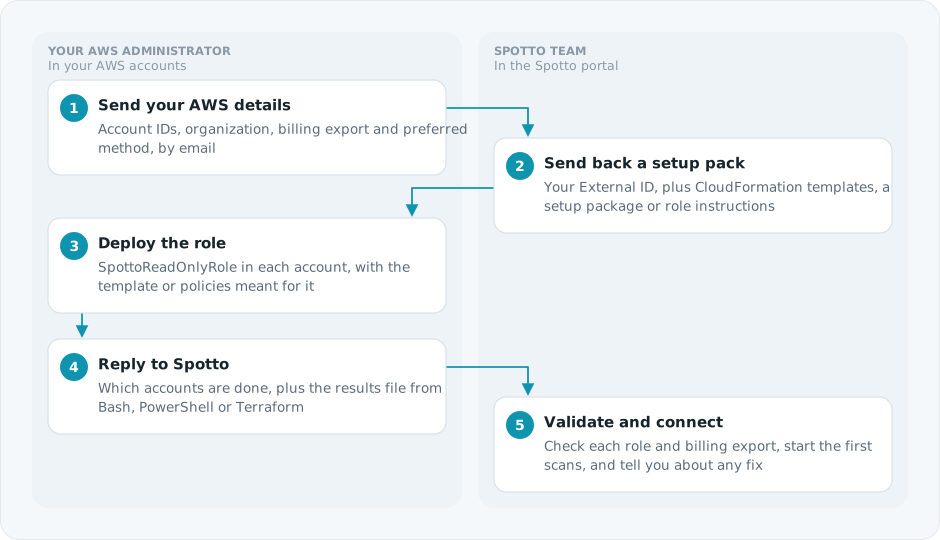
This guide is for the AWS administrator at a company joining the Spotto AWS preview. You don't need a Spotto login. You tell Spotto about your AWS setup, deploy the read-only role Spotto generates for you, and reply. The Spotto team then connects your accounts and tells you if anything needs fixing.
For a single account, deployment is a single CloudFormation stack. For an organization, it depends on how you roll out IAM roles across accounts.
How It Works
Before You Start
You need:
- IAM administrator access in every account you want to connect. Access to the management account doesn't give you IAM administration in member accounts.
- Read access to AWS Billing and Cost Management in the account where your billing export is defined, if you want cost data.
- Knowledge of any service control policies (SCPs) or permissions boundaries that apply to new IAM roles. An explicit deny in either one overrides the role's permissions, and it's a common reason an account fails validation.
Spotto supports the commercial AWS partition only. AWS GovCloud (US) and AWS China Regions are not supported.
Step 1: Send Spotto Your AWS Details
Copy this template into an email to your Spotto contact and fill it in. Leave billing blank if you only want resource and security data for now.
Company name:

Setup type: standalone account / AWS organization
AWS organization ID (o-...):
Management account ID:

Accounts to connect (account ID, optional name):
-
-

Accounts intentionally excluded (account ID, optional reason):
-

Billing export (optional)
  Export type: AWS Data Exports (CUR 2.0) / legacy CUR
  Data Export ARN (Data Exports only):
  Data Export name, or CUR report name:
  Account where the export is defined:
  Payer account whose charges it covers:
  S3 bucket name:
  S3 base prefix (as configured on the export):
  S3 bucket Region:
  Account whose role should read the bucket:
  Bucket owner account, if different from the account above:
  KMS key ARN (only if the files use a customer-managed KMS key):

Commitments planning for the organization (Reserved Instances and Savings Plans): yes / no

Preferred deployment method: CloudFormation / Bash / PowerShell / Terraform / manual IAM
Known SCPs or permissions boundaries that affect new roles:
Find Your Billing Export Details
Follow find your billing export details and copy the values into the template above.
If you don't have a billing export yet, see AWS billing exports. Spotto can connect your accounts first and add billing later.
Step 2: Receive Your Setup Files
Spotto replies with setup files for your company. Depending on the method you chose, it contains:
- Your company External ID. It starts with
spotto-and is the same for all of your accounts. It isn't a secret, but it ties the role to your Spotto company. Don't change it or make up your own. - CloudFormation templates: one member account template, plus a separate template for each account with extra duties, such as the management account (billing definition and commitments) and the billing storage account.
- A setup package (
spotto-aws-setup.json) covering every account you listed, for the Bash wizard, the PowerShell wizard or the Terraform module. - Role instructions in Markdown, with the exact trust policy and permission policies for manual setup.
Review the policies before you deploy them. AWS permissions Spotto needs explains each one.
Step 3: Deploy The Role
Follow the guide for your method:
| Method | Guide | What you need |
|---|---|---|
| CloudFormation | Deploy with CloudFormation | The templates from your setup files |
| Bash | Deploy with the Bash wizard | setup-spotto-aws.sh and the setup package |
| PowerShell | Deploy with the PowerShell wizard | Setup-SpottoAws.ps1 and the setup package |
| Terraform | Deploy with Terraform | The terraform-aws-spotto module and the setup package |
| Manual | The steps below | The role instructions from your setup files |
For manual setup, create the role SpottoReadOnlyRole in IAM with the custom trust policy from the role instructions. Add each inline policy with the exact name shown: SpottoGuardrails, plus SpottoBillingExportRead and SpottoCommitmentsPlanning where listed. The current generated setup does not attach AWS ReadOnlyAccess or SecurityAudit. For an existing role, follow the policy migration steps.
Deploy only the template or policies meant for each account. The management and billing storage accounts get different policies from member accounts. See what each account's role contains.
Step 4: Reply To Spotto
Reply to your Spotto contact with:
- The accounts where you deployed the role, and any you skipped.
- The role ARN, only if you used a role name or path other than
SpottoReadOnlyRole. - For Bash, PowerShell or Terraform: the results file. It's
SpottoAwsOnboarding-<timestamp>-<suffix>.jsonfrom the wizard, or the output ofterraform output -raw aws_manual_onboarding_json. It contains your Spotto company ID, the account and billing configuration from the setup package, and each account's role ARN and outcome. It contains no credentials and no External ID. - Any SCP or permissions boundary that might still block read-only access.
Never send AWS access keys, secret access keys, session tokens or KMS key material. Spotto doesn't need them.
Step 5: Spotto Validates And Connects
Spotto connects the accounts and checks each one:
- It assumes the role with your External ID and confirms that AWS returns the expected account.
- It reads the billing export definition, then lists and reads the delivered files.
- It starts the first scan.
If an account fails, Spotto tells you which account, which permission was denied, and the exact change to make. Typical fixes are an SCP exception for SpottoReadOnlyRole, an S3 bucket policy or KMS key policy that needs to allow the role, or a role that was deployed to the wrong account. Other accounts carry on connecting in the meantime.
Once your company has Portal access, you'll see the same accounts and status under Connectors > Cloud Accounts. You can add accounts or change billing there yourself. See configure AWS accounts in Spotto.
Troubleshooting
Role creation fails with an access denied error
Likely cause: Your session can't create IAM roles in that account. Organization management access doesn't extend to member accounts.
How to fix: Sign in to the member account with an IAM administrator role, such as OrganizationAccountAccessRole or an IAM Identity Center permission set.
The role already exists
Likely cause: A previous attempt, another tool or another team created SpottoReadOnlyRole.
How to fix: Don't create a second role. Update the existing one to match the setup files, with the tool that owns it:
- Created by a CloudFormation stack: update that stack with the new template. CloudFormation can't take over a role it didn't create, so for any other role, delete it first or use another method.
- Managed by Terraform: apply the new setup package with Terraform.
- Created by hand and unmanaged: review and explicitly adopt it with the Bash wizard (
--repair-existing-role) or PowerShell (-RepairExistingRole), or add Terraformimportblocks. Roles tagged for another manager are verify-only; update them through their owning tool.
If the existing role trusts a different External ID, the wizard refuses to change it. Check with Spotto before changing it.
Spotto reports an access denied error after deployment
Likely cause: An SCP, permissions boundary, S3 bucket policy or KMS key policy blocks a read that the role allows. An IAM Allow never overrides an explicit deny.
How to fix: Ask your AWS governance owner to scope an exception to the exact SpottoReadOnlyRole ARNs rather than weakening the control for everyone. See AWS setup troubleshooting.
Get Help
Reply to your Spotto contact, or contact us with your company name and the AWS account IDs involved.