Deploy the Spotto AWS Role with CloudFormation
CloudFormation is the simplest way to create SpottoReadOnlyRole. You download a template from Spotto, upload it in the AWS console, and Spotto checks the role. You don't need any tools on your computer.
Setting up one account takes three steps:
- Download the template from the Deploy Access step in Spotto.
- Create the stack in that AWS account.
- Tell Spotto the role is ready.
Before You Start
- Add the accounts in Spotto first. Templates are generated for your accounts, so enter them on the Accounts step before you download anything. See configure AWS accounts in Spotto. If you're working with the Spotto team without Portal access, your templates come in your setup files; skip to step 2.
- Add billing first, if you want cost data. Enter the billing export on the Billing step before you download templates for the accounts that define or store the export. Their templates then include billing access, so you deploy them once. See AWS billing exports.
- IAM administrator access in each AWS account, including permission to create CloudFormation stacks and IAM roles.
- No existing
SpottoReadOnlyRolein the account. If one exists, see the role already exists.
Step 1: Download The Template
There are two kinds of template. The account's own template always works. The member account template saves time when you have many plain member accounts:
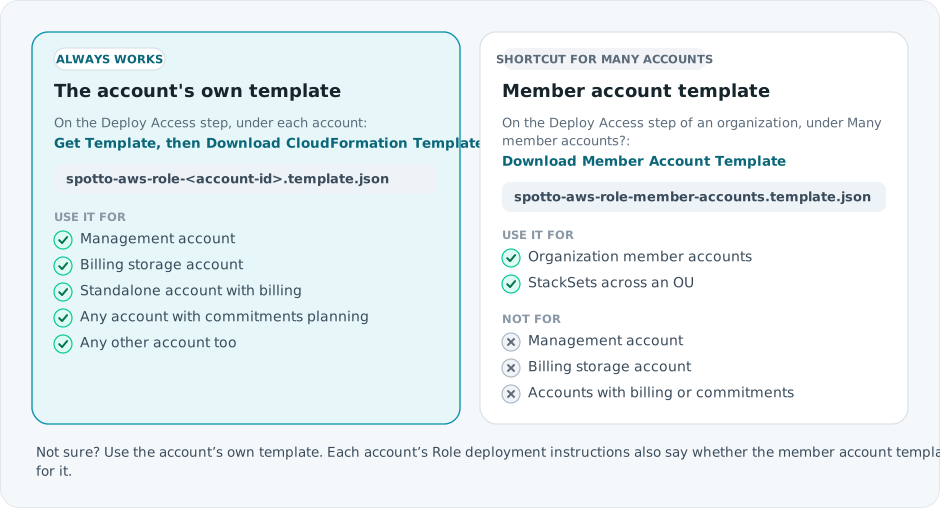
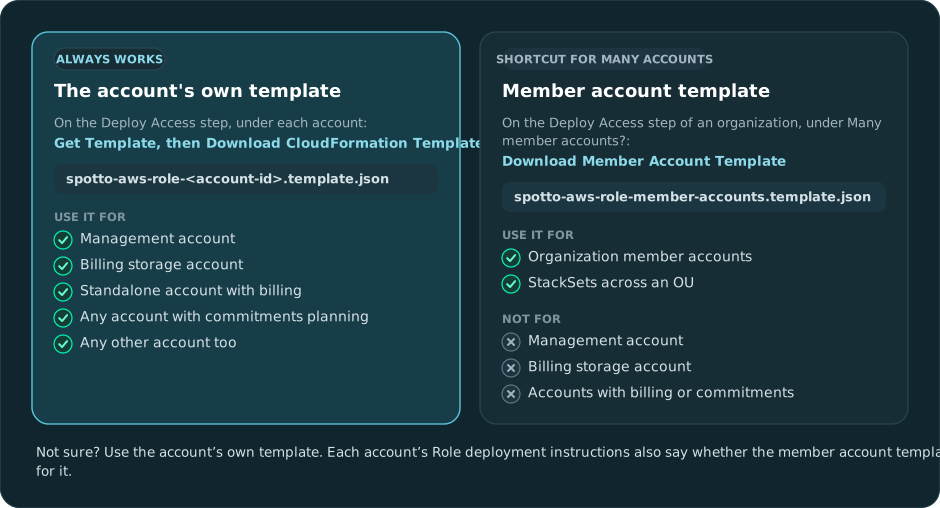
To download an account's own template:
- In Spotto, open Connectors > Cloud Accounts.
- Open the AWS setup: select Create, then AWS. For accounts you've already saved, select the edit icon on the AWS account or organization row instead.
- Go to Deploy Access and keep CloudFormation selected under How do you want to create the role?.
- Under the account, select Get Template, then Download CloudFormation Template.
Repeat for each account. Each file is named after its account ID, so you can tell them apart.
Step 2: Create The Stack
Do this in each AWS account, with that account's template:
- Sign in to the AWS account and open CloudFormation. Any Region works, because IAM roles are global.
- Select Create stack, then With new resources (standard).
- Choose Upload a template file, select the template, then select Next.
- Enter a stack name, such as
spotto-readonly-role, then select Next. - Leave the stack options as they are and select Next.
- Under Capabilities, tick the box that acknowledges CloudFormation might create IAM resources with custom names, then select Submit.
- Wait for the status
CREATE_COMPLETE. On the Outputs tab,RoleArnshowsarn:aws:iam::<account-id>:role/SpottoReadOnlyRole.
Step 3: Tell Spotto
- In the Portal: back on the AWS setup page, select Create, or Update for a saved configuration. Spotto checks each role and starts the first scans. If you'd already saved, and an account shows AWS Role Could Not Be Used, select Retry Validation.
- Working with the Spotto team: reply to your Spotto contact with the accounts you've deployed. See reply to Spotto.
Roll Out Across An Organization
For many member accounts, you can deploy the member account template with CloudFormation StackSets or your own account-vending tooling. Spotto doesn't manage StackSets for you, but the template works with them:
- Deploy to one Region only. The role is global, so a second Region fails because the role already exists.
- Deploy the management account's own template there as a normal stack. Service-managed StackSets don't deploy to the management account anyway.
- Deploy the billing storage account's own template as a normal stack too.
- With automatic deployment, new accounts in a targeted OU get the role straight away, but Spotto connects them only after you add them on the AWS setup page.
Update The Role
When you add billing or commitments planning to an account, or Spotto's permissions change:
- Download the account's new template, as in step 1.
- In CloudFormation, select the stack, then Update.
- Choose Replace existing template, upload the new file and continue through the wizard.
Update the stack rather than editing the role in IAM, or the next stack update reverts your change. The Bash and PowerShell wizards only verify a CloudFormation-owned role: an exact match succeeds without writes, and drift requires a stack update. Their repair options cannot adopt it. Keep Terraform changes out of that stack-owned role too.
If you deployed the member account template to an account that later gets billing or commitments, update its stack with the account's own template.
Remove The Role
Deleting the stack deletes the role. Remove the account from Spotto first; otherwise Spotto reports that the role can't be used.
Troubleshooting
The stack fails because the role already exists
What you're seeing: CREATE_FAILED, with an error that the AWS::IAM::Role SpottoReadOnlyRole already exists.
How to fix: Another tool or an earlier attempt created the role. Either delete the old role and create the stack again, or keep it and update it from the role instructions. Don't create a second role with another name unless you also give Spotto its ARN.
The stack fails with a capabilities error
What you're seeing: Requires capabilities : [CAPABILITY_NAMED_IAM].
How to fix: Tick the IAM acknowledgement on the review page. From the CLI, add --capabilities CAPABILITY_NAMED_IAM.
Billing fails for an account deployed with the member account template
What you're seeing: Billing Source Needs Attention for the management or billing storage account.
How to fix: That account needs its own template. Download it as in step 1 and update the stack.
The stack is created but Spotto can't use the role
See AWS setup troubleshooting. The usual causes are the wrong template in an account, or an SCP or resource control policy blocking Spotto's access.