Configure AWS Accounts and Organizations
Use this guide if you manage cloud accounts in the Spotto Portal. Each run connects one standalone AWS account or one AWS organization. The setup page has numbered steps, Accounts, Billing, Deploy Access and Strategy, and Next takes you through them in order:
- Open the AWS setup.
- Enter the account or organization.
- Add billing, if you want cost data.
- Deploy the role in each AWS account.
- Create and check the status.
If you don't have Portal access and you're working with the Spotto team, follow the setup guide for AWS administrators instead.
Before You Start
- Permission to manage cloud accounts for the Spotto company, with AWS enabled for the company. Without it, Create shows no AWS choice. See the AWS option isn't shown.
- The 12-digit account IDs to connect. For an organization, also its ID (
o-...) and the management account ID. - Someone with IAM administrator access in each AWS account, to deploy the role in step 4.
- Your billing export details, if you want cost data. See find your billing export details.
Step 1: Open The AWS Setup
- Open Connectors > Cloud Accounts and select + Create.
- In Connect a cloud account, select AWS.
- In Connect AWS, select Add Account for one standalone account, or Add Organization for an AWS Organizations management account and its member accounts.
This opens the New AWS Account or New AWS Organization page at 1 Accounts. To add another account or organization later, select + Create again. Saved ones aren't changed. To change a saved one, select the edit icon on its row in Cloud Accounts; the same steps then appear as tabs.
The last step, 4 Strategy, is the optional cloud account survey, the same one used for Azure.
Step 2: Enter The Account Or Organization
A Standalone Account
- On 1 Accounts, enter the 12-digit AWS Account ID. Spotto fills in the standard IAM Role ARN,
arn:aws:iam::<account-id>:role/SpottoReadOnlyRole. - Only if the role has a different name or path, select Use a Custom Role ARN and enter it. The Bash and PowerShell wizards and Terraform module support only the standard role.
An Organization
- Under Organization Details, enter an Organization Name, such as the customer's name, and the AWS Organization ID. Cloud Accounts shows the name, or the organization ID if you leave it blank.
- Enter the management account ID first. Then add member accounts with Add Organization Account, or paste many at once with Paste Account IDs, separated by new lines, commas or spaces.
- With more than one account, choose the Management Account ID.
- Optionally:
- Give each account an Account Name. Cloud Accounts shows it until Spotto reads the native AWS account name.
- Select Organization Commitments Planning under Role Purposes on the management account, for Reserved Instance and Savings Plans planning across the organization.
- Under Excluded Accounts, below the account list, select Add Exclusion for accounts you're leaving out on purpose, such as sandboxes, so the gap is explained later.
Spotto connects only the accounts you list; it doesn't read the account list from AWS Organizations. When the organization gains an account, add it here and deploy the role in it. An organization can have up to 100 accounts, and a company up to 250 AWS accounts in up to 25 standalone accounts and organizations.
Step 3: Add Billing
Billing is optional: without it, Spotto shows resources, security and recommendations, but no costs. Add it now if you can, because the roles then get billing access the first time you deploy them.
Select Next: Billing. On 2 Billing, select Add Billing Source and enter the export details. See add a billing source for each field and where to find it in AWS.
Step 4: Deploy The Role In Each Account
Spotto never creates IAM roles in your AWS accounts. Someone with IAM administrator access deploys SpottoReadOnlyRole in each account. Select Next: Deploy Access, then choose how under How do you want to create the role?. The page then shows only that method:
| Method | What to do on this page | Then |
|---|---|---|
| CloudFormation (recommended) | For each account, select Get Template, then Download CloudFormation Template. | Create the stack in that account. |
| Bash, PowerShell or Terraform, for many accounts | Select Check Details, then Download Setup Package. | Run the Bash wizard, PowerShell wizard or Terraform module. Paste its results into Setup Results JSON and select Read Setup Results. |
| Manual IAM | For each account, select Generate Role Instructions, then Copy Role Instructions. | Create the role by hand. |
For an organization with many member accounts, CloudFormation also offers Download Member Account Template under Many member accounts?: one template to roll out with StackSets.
Each account's role differs slightly, depending on what that account does:
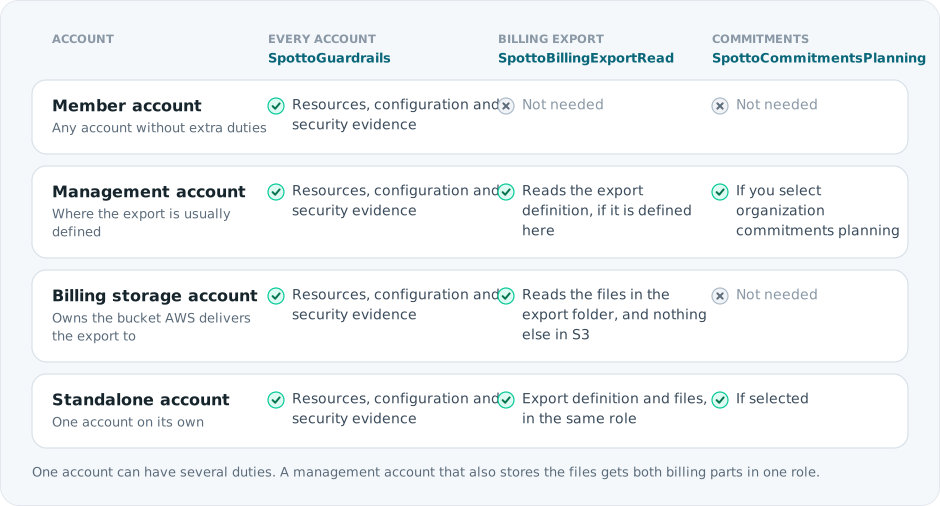
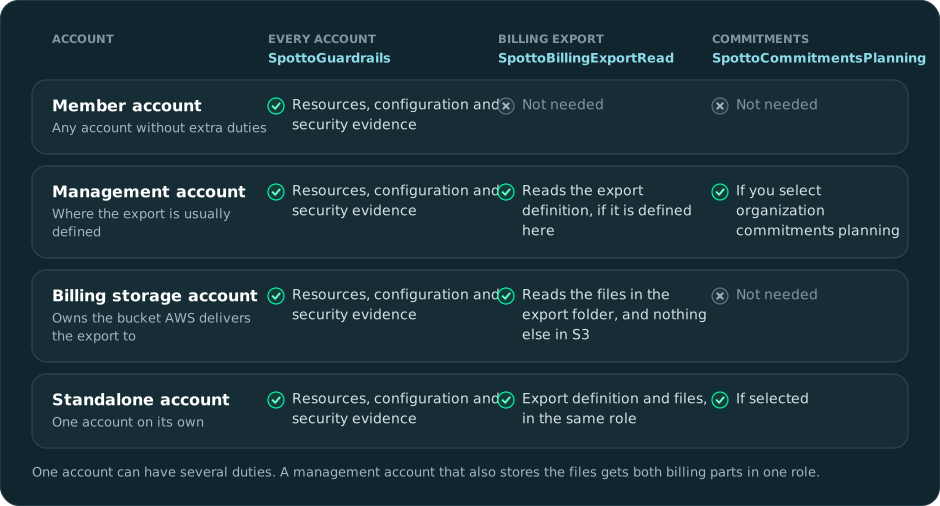
All roles trust the same Spotto External ID. CloudFormation templates and the setup package already include it; with Manual IAM it's shown under Read-Only Role Details. It's fixed for your company, so roles you've already deployed don't change when you add more accounts.
Deploy The Role Manually
- In the IAM console of the account, create a role named
SpottoReadOnlyRolewith Custom trust policy, and paste the trust policy from the role instructions. - Create each inline policy with the exact name and JSON shown, including
SpottoGuardrails. No AWS managed policies are needed.
If you later change an account's purposes or billing, generate its role instructions again and replace the policies. Replace SpottoGuardrails rather than adding a second copy, because its S3 rules change with billing. An existing role that still has ReadOnlyAccess or SecurityAudit attached: see update an existing role.
Bash, PowerShell Or Terraform Results
After you select Read Setup Results, each account shows one of these:
| Outcome | Meaning |
|---|---|
| IAM access configured; awaiting validation | The role was set up. Spotto tests it when you select Create. |
| IAM configuration matches; awaiting validation | The role already matched. |
| IAM configuration needs changes | A check-only run found differences. Run the tool again in configure mode. |
| Changes were not applied | A preview run (Bash --dry-run or PowerShell -WhatIf) made no changes. |
| Setup failed; review the Bash, PowerShell or Terraform output and retry | AWS refused a change, or another tool owns the role. |
Reading results doesn't save anything. If you change the configuration afterwards, download a new package and run the tool again.
Step 5: Create And Check The Status
Select Create, or Update for a saved account or organization. Check Details checks your entries first without saving, including that no account is already connected to another company. If an entry needs attention, the page opens the step that holds it.
Spotto saves the configuration and returns you to Cloud Accounts. It then checks each account in the background:
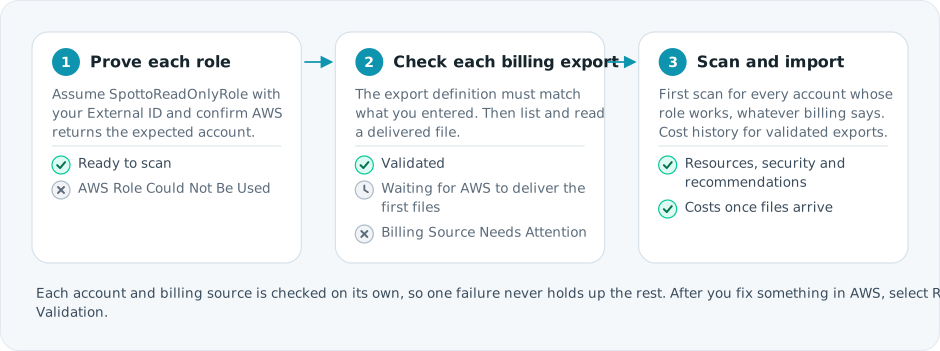
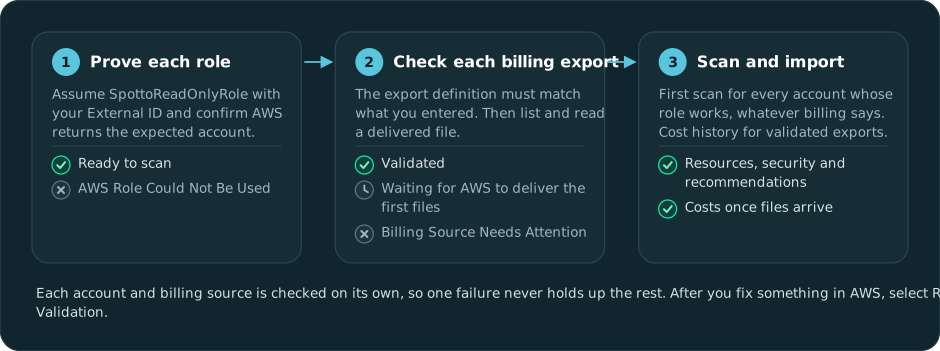
To see the result, open the account or organization again from its row. AWS Setup Status shows one of:
| Status | Meaning |
|---|---|
| Not Started or Validating | Spotto is still checking. The panel refreshes on its own. |
| Ready | Every role and billing source passed. |
| Partially Ready | Some accounts or billing sources need attention. They're listed with the fix for each. |
| Failed | Nothing passed yet. The fix is listed for each account. |
After you fix something in AWS, select Retry Validation. You don't need to re-enter anything. For each message and its fix, see AWS setup troubleshooting. To change, sync or remove accounts later, see manage connected AWS accounts.