Recommendation Management: Prioritize and Share
Overview
Recommendation Management is the workflow layer on top of cloud optimization. It helps you triage, prioritize, document, and share Spotto recommendations and enhanced provider recommendations such as Azure Advisor recommendations, so a "we should probably do this" becomes a decision: prioritize or dismiss, record why, and send it to the right channel (email, Slack, Teams, Jira, Autotask, Halo, or ConnectWise).
For the list view and filtering basics, start with Recommendations. For tracked delivery and Spotto's automatically ranked priorities, see the Kanban Board.
AWS preview workflow
For an AWS account with preview access, open a recommendation and choose Prioritize to save it on the Kanban Board. Current recommendation evidence supplies its Statement of Work details; an older saved card does not supply new financial claims. Prioritization requires permission to manage both recommendations and the board.
After prioritizing, choose Share to use an available email or configured ticket destination. A queued request confirms submission; it does not confirm delivery. A rejected request leaves the dialog open with an error so you can correct it or retry.
For a complete AWS finding with several collected resources, choose an affected resource to open its management panel. Dismiss, Restore, snoozing, assignment and configured ticket creation apply only to that selected resource. The selection stays locked while a change is awaiting confirmation. A summary finding without collected resource details can still be prioritized, but resource-specific management is unavailable. Recommendation comments are not yet supported for AWS; that limitation is separate from your role permissions. AWS remediation execution, Azure Advisor suppression and Azure scheduling controls are not enabled by these tracking actions.
Compute Optimizer and Cost Optimization Hub can suggest different configurations for the same resource. Review the current configuration, both source options, architecture changes and migration effort together. Their standalone savings estimates are alternatives and are not added together. Trusted Advisor's flagged-resource count can exceed the number of resource records collected for the finding.
Why use this? (Jobs, pains, gains)
Jobs to be done
- When I’m building an optimization backlog, I want to prioritise recommendations and add context, so the work is actionable and doesn’t get re-litigated next week.
- When a recommendation is noise (or not worth it right now), I want to dismiss it with a reason (and optionally a time window), so it stops distracting everyone but stays auditable.
- When a recommendation needs an owner, I want to share it into the team’s workflow (ticketing or chat), so it turns into work instead of a dashboard screenshot.
- When stakeholders need a decision, I want the risk/effort/benefit context on the same page, so we can say “yes/no/not yet” without a separate meeting.
Common pains
- Provider-native recommendations are often correct but not backlog-ready: limited context, scattered across subscriptions, and hard to route.
- “Why did we ignore this?” gets lost when decisions live in Slack threads or someone’s notes.
- Low-value recommendations crowd out high-value work unless you can filter, prioritise, and record intent.
What you gain
- A repeatable triage workflow: filter → decide → document → route.
- Better decision signals than “High/Medium/Low”: effort, risk, cost impact, performance impact, confidence, and considerations when available.
- An audit trail (history + comments) so recommendation status changes are explainable, not mysterious.
Key capabilities
Inbox-style triage (Outlook interface)
Recommendations behave like an inbox:
- A fast list/table view optimized for scanning and sorting.
- A detail view that answers “what is this, why does it matter, what do we do next?”.
- Defaults that bias toward impact-first triage (higher impact, lower effort, cost-first categories).
Tracked board and Highest-impact priorities
Use All in Recommendations for manual discovery. Switch to Prioritized to open the Kanban Board: your Team board sits above Spotto's Highest-impact priorities, which show up to five ranked, untouched candidates per system track. Dragging a candidate out of Backlog turns it into tracked work. See Tracked Recommendations for columns, card scope, Focus Mode, and Return to Backlog.
Filtering for triage
The Recommendations view supports filtering and slicing by common routing and prioritisation signals, including:
- Category (Cost, Performance, Security, Reliability, Operational Excellence)
- Impact and effort
- Resource type, location, and tags (ownership slicing)
- Created window (for “what’s new?” triage)
- Thresholds like minimum cost and minimum affected resource count
- A “From Spotto” filter for Spotto-generated recommendations
Prioritise, dismiss, restore, and implement
Each action on the recommendation detail view moves the recommendation to a new state:
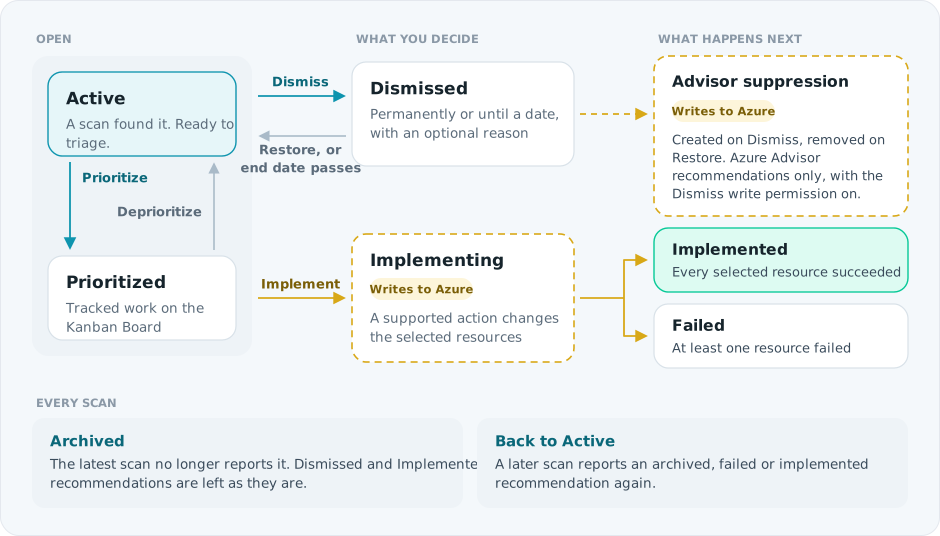
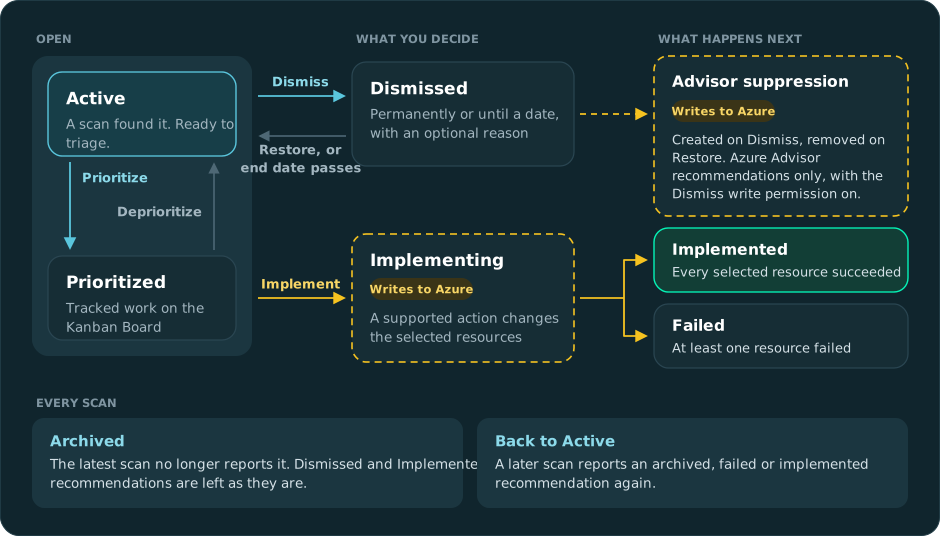
- Scope: dismiss and implement can apply to this resource, selected resources, or all affected resources.
- Implement appears only for recommendations with a supported action. You can run it now or schedule a one-time run; scheduled runs appear on Schedules. See Remediation Actions.
- Advisor suppression needs the optional Dismiss write permission. See Advisor Recommendations. If the Azure sync fails for some resources, the dismissal still applies in Spotto and you get a notification.
- A dismissed, archived, or implemented recommendation can't be prioritized.
Apart from the Advisor suppression and Implement, these states are workflow signals in Spotto. They don't change your cloud resources.
Dismissal has no column on the Kanban Board. Dismissing a recommendation suppresses its generated candidates in that subscription scope. Dismissing one resource suppresses that exact resource candidate; if an indivisible compact candidate contains the resource, the compact candidate is suppressed instead. The next eligible candidate may then fill the five-card window.
Comments and rationale
Comments keep “why did we do/ignore this?” from turning into archaeology:
- Add comments to capture business context, constraints, and decisions.
- Pin a comment when there’s one “source of truth” note you want everyone to read first.
- See who said what and when, without searching old chat logs.
History (audit trail)
The detail view shows a recommendation’s history: each prioritise, deprioritise, dismiss, restore, and implement action, with the actor and any reason. It’s intentionally boring, which is exactly what you want when someone asks “why is this dismissed?” six weeks later.
Share to the tools teams actually use
You can share a recommendation through the channels configured for your company:
- Email (always available)
- Slack and Microsoft Teams
- The company's active ticketing provider: Jira, Autotask, Halo, or ConnectWise
Sharing takes a message and recipients and, when a ticketing provider is configured, can create a ticket from the recommendation. Tickets are recorded under Tasks -> Review -> Tickets so you can review history and status later.
In an MSP / parent-child company setup, Spotto can also offer the parent company's share channels when the customer company has no integration configured.
Better signals than provider-native recommendations
Provider recommendations like Azure Advisor are a useful starting point, but they tend to be lightweight. Spotto adds context when available, such as:
- Savings range and/or cost context
- Effort (sometimes with an approximate hours hint)
- Risk and “why this risk” reasoning
- Cost impact, performance impact, and confidence signals
- Considerations (tradeoffs, prerequisites, “check this before you touch prod”)
- Resource-level context like relevant settings notes/warnings when Spotto has enough configuration data to call them out
For stakeholder alignment, use the Business & Technical Toggle on the detail view to switch between decision-ready and implementation-ready language.
Supporting evidence and source links
Keep the decision trail close to the source data: affected resource links, provider descriptions, remediation notes, comments, and history sit together on the detail view. If the evidence is thin, say so in a comment or dismissal reason. "Validated in Azure, no owner found" is much more useful than silence pretending to be certainty.
Technical reference
| Component | Details |
|---|---|
| Inputs | Provider recommendations (for example Azure Advisor), provider detail fields such as affected resources and extended properties when available, Spotto-generated recommendations, and Spotto resource context (type, location, tags, spend) plus any available impact/effort/risk metadata. |
| Outputs | Recommendation state (Active, Prioritized, Dismissed, Implementing, Implemented, Failed, Archived), durable Kanban workflow state, comments (including pinned comment), history entries, optional Azure Advisor suppressions, and share actions to email/chat/ticketing integrations. |
| Defaults | Manual recommendations are de-duplicated by recommendation ID across selected subscriptions. Dismissal is permanent unless you pick an end date. System tracks show at most five ranked untouched candidates per track. |
| Limitations | Sharing beyond email depends on integration configuration and permissions. Advisor suppression applies to Azure Advisor recommendations only. Savings, score, impact, effort, and risk fields may be missing or unknown depending on the source. Treat ranking signals as prioritization inputs, not guarantees. |
How it differs from Azure Advisor (and similar tools)
Azure Advisor tells you what it thinks you should do for a subscription. Recommendation Management makes recommendations usable across a real organisation:
- Cross-subscription triage with de-duplication (one recommendation, many affected resources).
- Extra decision context (risk, effort, savings ranges, considerations) when available.
- Workflow support: prioritise/dismiss/restore with rationale, comments, history, and sharing into ticketing/chat.
It’s not a replacement for validating changes. It’s the missing layer that turns recommendations into a backlog you can execute.
How it works (high level)
- Select one or more subscriptions in Recommendations.
- Filter All recommendations, or switch to Prioritized and review Highest-impact priorities on the Kanban Board.
- Open a recommendation to view details, affected resources, and decision context.
- Prioritize, dismiss, restore, or implement it (or drag a curated candidate out of Backlog).
- Add comments, and pin the “read this first” comment if you need a single source of truth.
- Share it to the right place (email/chat/ticketing) so it becomes work, not a screenshot.
Troubleshooting
I only see Email as a share option
What you’re seeing: The share dialog only offers Email (or ticketing/chat options are disabled). Likely causes:
- Jira, Autotask, Halo, ConnectWise, Slack, or Teams is not configured for the company.
- A different ticketing provider is active for the company.
- You don’t have permission to view company integration settings (some environments return
403 Forbiddenfor integration detail reads). How to fix:
- Confirm the integration is configured (see Jira Integration, Autotask Integration, Halo Integration, and ConnectWise Integration).
- If you expect an integration to be available but it isn’t, contact your Spotto admin/support and include the company name and the channel you’re trying to use.
I can’t prioritise, dismiss, or restore a recommendation
What you’re seeing: Actions fail, or the status doesn’t update. Likely causes:
- Your Spotto role doesn’t have permission to manage recommendation state (you may see
403 Forbidden/ “Permission denied”). - The recommendation is dismissed, archived, or implemented, so it can't be prioritized.
- Temporary API error. How to fix:
- Refresh and try again.
- If you keep seeing
403 Forbidden, ask your Spotto admin to confirm your role/permissions for that company. - If the dismissal didn't reach Azure Advisor, review Advisor Recommendations write permissions.
Savings / impact / risk fields are blank or inconsistent
What you’re seeing: Some recommendations show rich context; others show -/empty.
Likely causes: Data quality depends on the source recommendation and available resource context; not every recommendation has savings, confidence, or risk signals.
How to fix: Use the fields you do have to prioritise, then validate changes against resource-level cost and your operational constraints before implementing.
A curated priority is missing from the Kanban Board
What you're seeing: You expected a recommendation under Highest-impact priorities, but it is not visible.
Likely causes: Focus Mode or the subscription selection excludes it; it was dismissed; it is already tracked, completed, or linked to a matching external ticket; the latest scan is incomplete; or it isn't in its track's top five.
How to fix: Change Focus to All, check the recommendation's history for a dismissal, and see Kanban Board troubleshooting.
Looking to enhance your cloud setup for cost efficiency, performance, reliability, or security?
Talk to a cloud specialist. Email us or schedule a 30-minute consultation and let's optimize your cloud environment together.
Book a Free Consultation