Remediation Actions: Run Supported Fixes
Overview
Remediation Actions let you apply supported Azure fixes from the recommendation detail view. Instead of only telling you what to change, Spotto can show an Implement button, let you choose the affected resources, run the change with scoped permissions, and keep the decision context with the recommendation.
This page covers the operator workflow, safety model, and permission model. For every supported action with its permission set, risk, and rollback support, see the Remediation Action Catalog. For recommendation triage without remediation, start with Recommendations. For workflow status, comments, and sharing, see Recommendation Management.
What happens when you click Implement?
Implement opens a two-step dialog, Schedule then Review + Implement, and the change then runs in Azure:
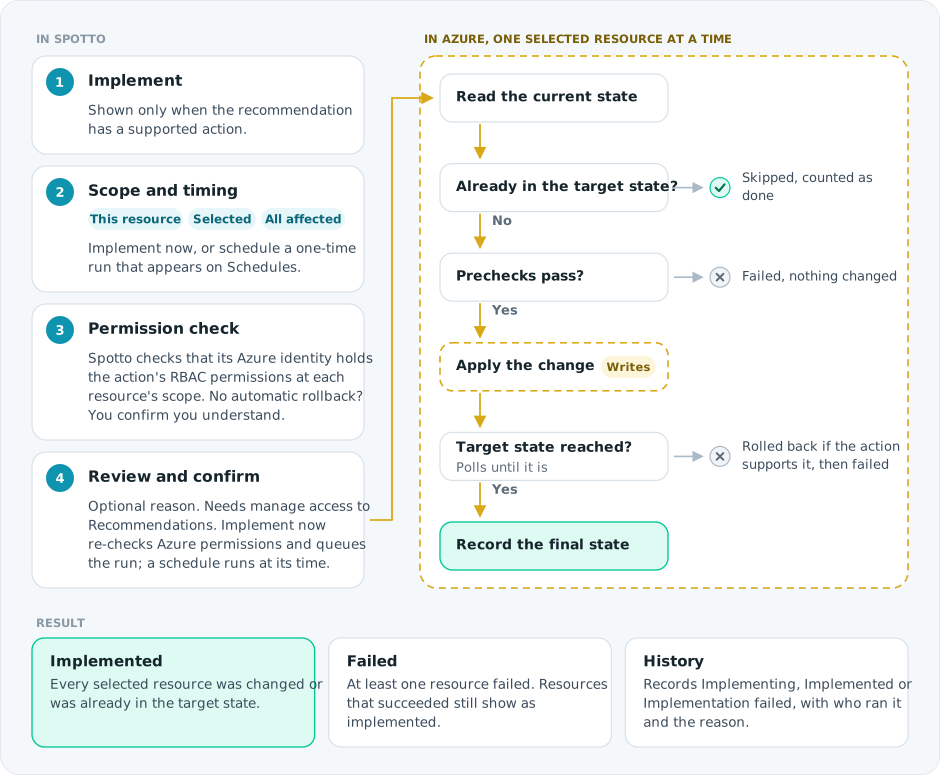
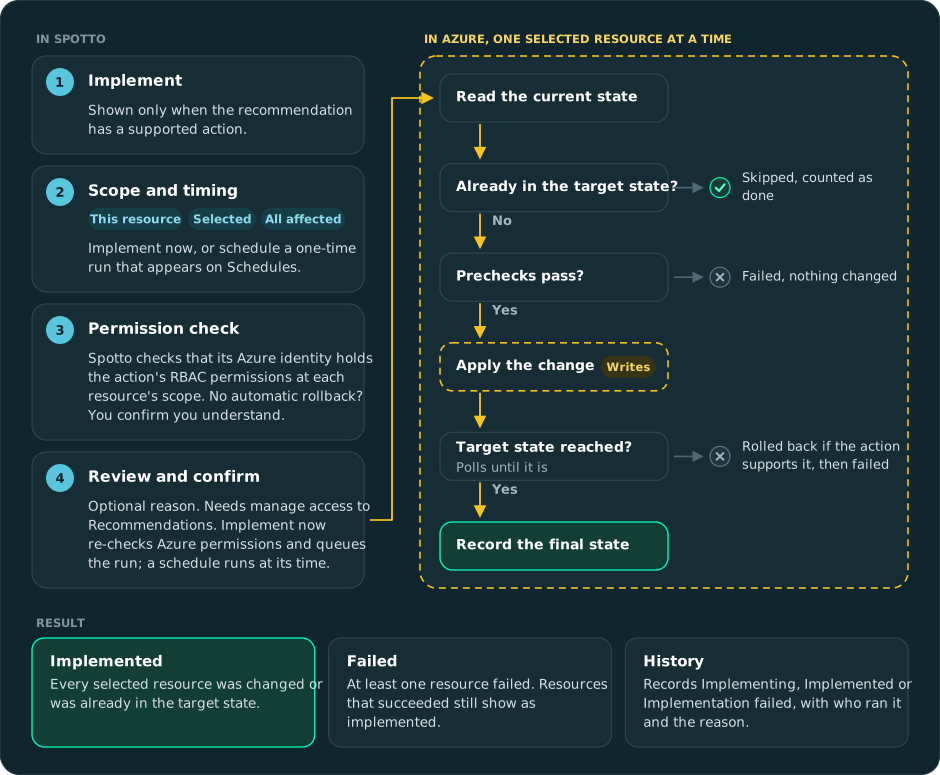
After you confirm, the dialog follows the run through requested, processing, and then completed, partially completed, or failed, followed by the validation steps.
If the recommendation has no supported action, the Implement button is not shown. You can still use the recommendation guidance to complete the work manually. Scheduled runs are listed on Schedules under Tasks -> Review -> Schedules.
Why use this?
Common jobs
- When I approve a recommendation, I want to apply the supported fix directly, so I do not have to rebuild the same Azure Portal steps for every resource.
- When a recommendation affects many resources, I want to choose one resource, selected resources, or all affected resources, so I can control rollout scope.
- When security asks what the automation can do, I want a least-privilege permission list, so write access is narrow and reviewable.
- When a change is risky, I want pre-checks, impact, rollback notes, and post-validation, so implementation is based on clear change context.
Common pains
- Recommendations pile up because the final step still requires manual Portal work.
- Broad contributor permissions are hard to justify for narrowly scoped remediation.
- Bulk changes are useful, but only when the affected resources and failure handling are explicit.
- Rollback is often assumed until someone discovers the cloud provider does not support undo for deleted resources. That is a poor time to learn.
Key capabilities
Change context in the dialog
Each action defines what it changes, which permissions it needs, its pre-checks, how the final state is validated, and whether automated rollback is available. When available, the dialog shows:
- Estimated duration and risk level.
- Pre-checks to review before you confirm.
- An impact assessment covering downtime, data loss, access impact, and dependencies.
- The expected result, post-validation steps, and reference links.
Remediate one or many resources
The target scope can include one or more affected resources, which suits a staged rollout:
- Run the action on one low-risk resource.
- Validate the result and monitoring signals.
- Apply the same action to selected resources.
- Expand to the remaining affected resources only after the change pattern is proven.
Use least-privilege write permissions
Actions use explicit permission sets. You can use them to build a custom Azure role that grants only the write or delete actions for the remediation you enable.
Read-only access still powers recommendation discovery. Write permissions are only needed when you want Spotto to change Azure resources. Spotto uses the cloud account's write credentials when they are configured. For setup details, see Azure Write Permissions and Custom Roles for Least Privilege.
Remediation actions are not available for cloud accounts connected through GDAP or delegated user access.
Validate changes after execution
A successful API call is not always a good production outcome. Validate:
- The resource setting or state that the action intended to change.
- Application or workload health where the resource supports live traffic.
- Cost, security, or reliability signals that prove the recommendation is actually resolved.
- Follow-up owner notes for anything that still needs manual review, recorded through comments, prioritisation, sharing, or ticketing.
Technical reference
| Component | Details |
|---|---|
| Inputs | Recommendation ID, affected resources, resource provider state, action details, and configured Azure write permissions. |
| Outputs | Implementation request, resource change for supported actions, recommendation and resource state (Implementing, Implemented, Failed), and history entries for audit/review. |
| Defaults | Actions are recommendation-specific. The Implement button is shown only when the recommendation has a supported action. Resources are processed one at a time. |
| Limitations | Most recommendations do not yet have executable actions. Rollback support depends on the individual action and the cloud provider operation. Not available for GDAP or delegated-user cloud accounts. |
Safety model
Pre-checks
Review pre-checks before confirming the action. Common pre-checks include ownership, maintenance window, workload dependency, network allowlist, and monitoring readiness checks. Spotto also runs the action's own prechecks against each resource before changing it.
Risk and impact
Risk level is action-specific. For example, deleting an orphaned resource can be low risk when the resource is genuinely unused, but still irreversible if the resource was misclassified. App Service changes may be reversible, but can still restart apps or affect downstream systems.
Rollback
Rollback support is action-specific:
- Yes means the action includes automated rollback rules. Spotto runs them if the resource does not reach the target state.
- No means recovery is manual, such as recreating a deleted resource from infrastructure code or scaling a plan back manually. You must confirm you understand this before the action runs.
Treat rollback notes as operational guidance, not a substitute for change planning.
Post-validation
After an action completes, validate both the resource state and the business outcome. If the resource state changed but the recommendation still appears, allow for sync delay, then refresh the recommendation data.
Troubleshooting
I do not see the Implement button
What you're seeing: A recommendation has guidance, but no Implement button. Likely causes:
- The recommendation does not have a supported action.
- The recommendation source has no executable remediation yet.
- You are looking at a recommendation/resource combination that is not supported by the action. How to fix:
- Check whether the recommendation appears in the Remediation Action Catalog.
- Use the recommendation guidance to remediate manually if no action is available.
- If you expected the button to appear, contact support with the company, subscription, recommendation name, and resource ID.
The action fails with a permission error
What you're seeing: The permission check lists missing Azure actions, or the request fails with 403 Forbidden or Permission denied.
Likely causes:
- The write credential does not include the required RBAC action.
- The role assignment is scoped too narrowly for the selected resource.
- Azure role propagation has not completed yet.
- Your Spotto role doesn't have manage access to Recommendations.
- The cloud account is connected through GDAP or delegated user access. How to fix:
- Match the recommendation's permission set to the RBAC action in the catalog permission reference.
- Confirm the custom role is assigned at the correct subscription, resource group, or resource scope.
- Wait 5-10 minutes after role assignment changes, then select Re-check permissions.
Some resources were not remediated
What you're seeing: The action worked for one resource but failed or was skipped for others. Likely causes:
- A resource was already in the target state, so it was skipped.
- A resource did not pass pre-checks.
- The resource state changed after the recommendation was generated.
- Permissions cover some selected resources but not all of them. How to fix:
- Reopen the recommendation and review the affected resource list.
- Validate the failed resource directly in Azure.
- Retry only the resources that still need remediation after fixing state or permission issues.
Rollback is not available
What you're seeing: The action catalog shows Rollback: No, and the dialog asks you to confirm before running. Likely causes:
- The cloud provider operation is destructive or does not support undo.
- The action has no automated rollback rules. How to fix:
- Confirm infrastructure code, exports, or manual recovery steps exist before running the action.
- Use selected-resource rollout instead of remediating every affected resource at once.
- For delete actions, validate ownership and dependency signals before confirming the change.
Looking to enhance your cloud setup for cost efficiency, performance, reliability, or security?
Talk to a cloud specialist. Email us or schedule a 30-minute consultation and let's optimize your cloud environment together.
Book a Free Consultation