Autotask PSA: Ticketing Integration Setup
Overview
The Autotask PSA integration lets you create an Autotask ticket straight from a recommendation or a Kanban board card, so cloud work lands in the queue your service desk already uses.
Time: 10 to 15 minutes, depending on how quickly you can confirm queue access and API user permissions. Cost: whatever your Autotask licensing and API access already cost. Spotto adds no fees.
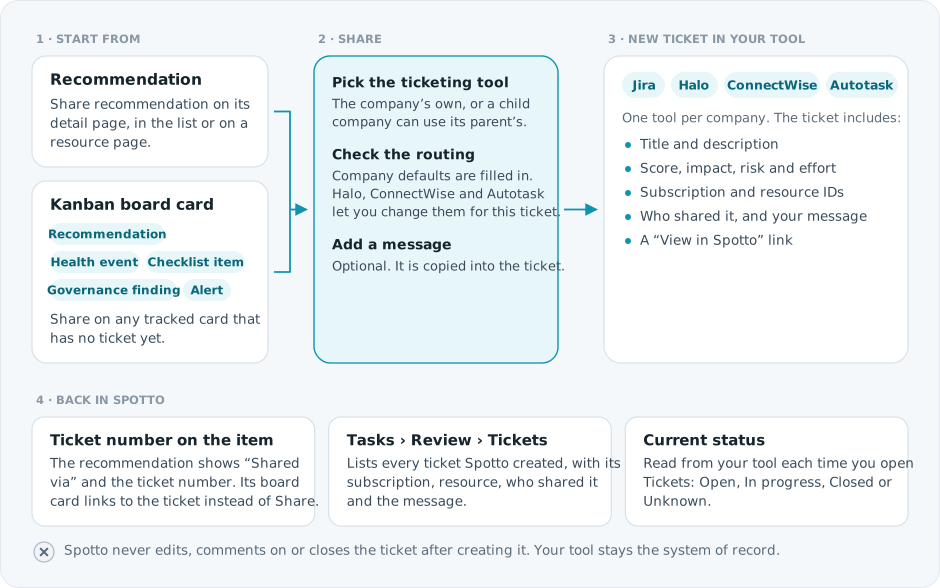
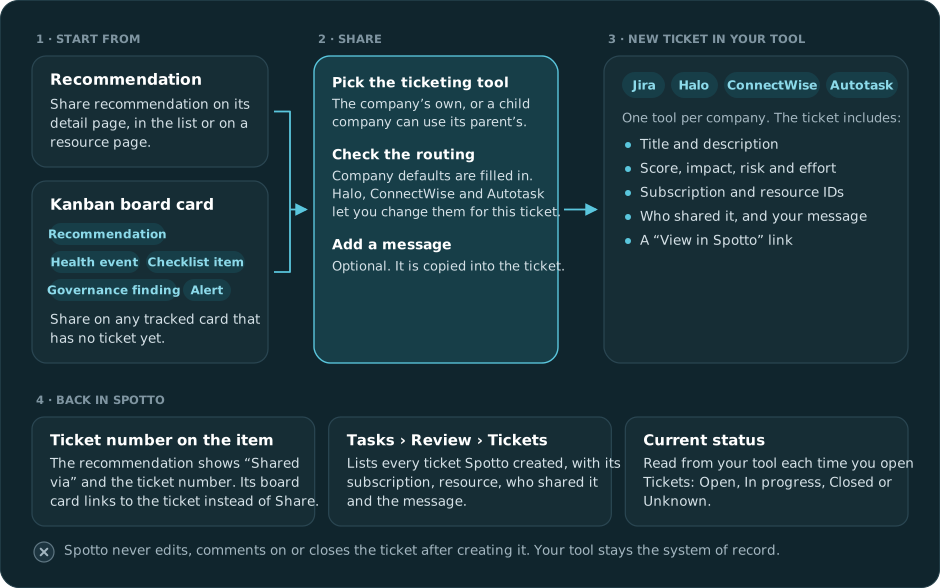
A company has one ticketing tool at a time. If it is set to Jira, Halo or ConnectWise, Autotask is not offered when sharing.
What you enter
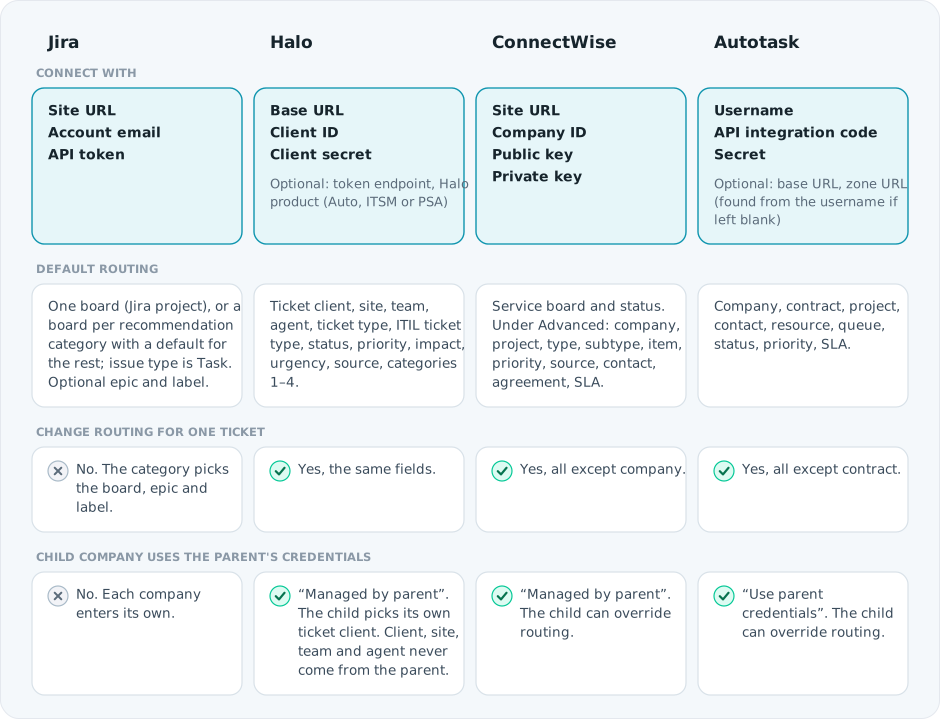
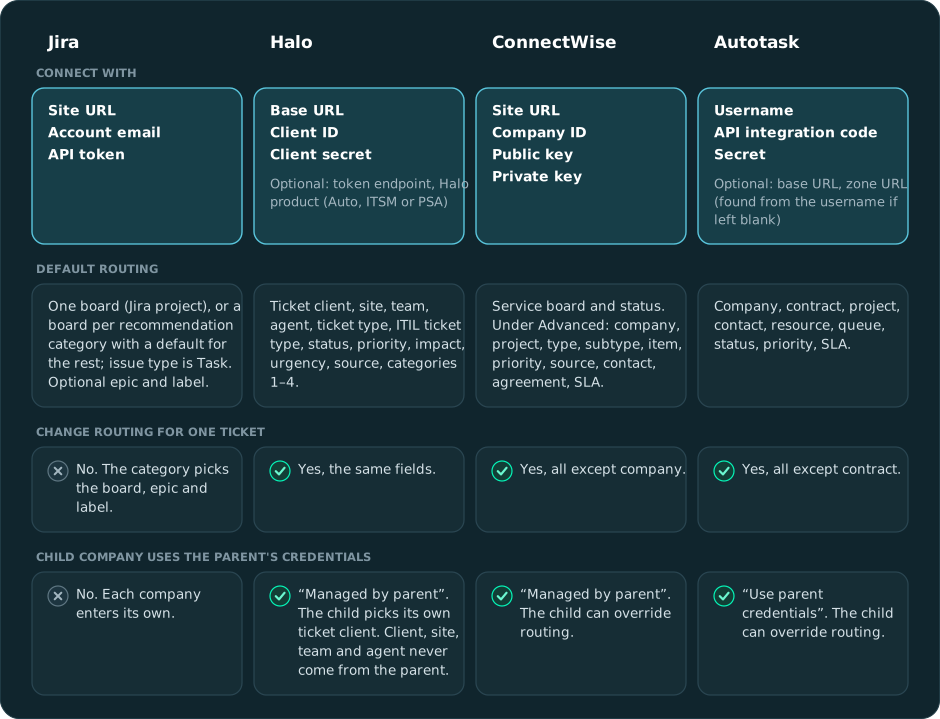
The Autotask column shows what Spotto needs. The other tools are shown for comparison.
Prerequisites
- Access to Connectors -> PSA Integration in Spotto for the company you are configuring.
- An Autotask API user (username, secret and API integration code).
- Permission in Autotask to create tickets and read the metadata Spotto loads into the selectors: companies, contacts, projects, contracts, queues, statuses, priorities and SLAs. Contract visibility is controlled by the API user's security level.
- For a specific queue, the API user must be allowed to create tickets in it and be a member where Autotask requires it.
Configure Autotask in Spotto
- Open Connectors -> PSA Integration and confirm the right company is selected.
- Turn on Enable ticketing integration and select Autotask.
- Enter the username, API integration code and secret. Add the base URL (for example
https://ww3.autotask.net) or zone URL only if you need to. If you leave the zone URL blank, Spotto looks it up from the username and saves it. - Optionally choose routing defaults. Contract loads after you pick a company.
- Click Test Autotask connection and fix any permission or queue errors.
- Click Update.
Spotto stores the secret securely and does not show it again. Leave the field blank to keep it, or enter a new one to rotate it.
Search for the company and choose a returned option. Spotto does not save typed text that matches nothing, because Autotask needs the ID to create a ticket. The contract is saved for the company and cannot be changed per ticket.
Parent and child companies (MSPs)
Store the credentials once on the parent company and run Test Autotask connection there. On a child company, turn on Use parent credentials and save routing overrides such as company, contract, project, queue, status, priority, contact, resource or SLA. Per-ticket choices win over child overrides, which win over parent defaults.
Validation
A passing connection test does not prove tickets can be created. Run one real share:
- Open Investigate -> Overview -> Recommendations, open a recommendation and click Share recommendation.
- Choose Autotask, check the routing fields and submit.
- In Autotask, confirm the ticket is in the expected queue.
- In Spotto, confirm it appears on Tasks -> Review -> Tickets.
- If your workflow allows it, move the ticket to a status such as In Progress in Autotask to confirm the API user has the operational permissions you need.
During rollout testing, a ticket for Public IP Address Orphaned succeeded only after the API user had higher-level Autotask permissions and was added to the target proactive queue. Treat queue membership as part of setup.
Troubleshooting
A company does not appear in search
Likely causes: the company is inactive, the API user cannot view it, or a legacy configuration holds a name without an Autotask ID.
How to fix:
- Enter at least two distinctive characters of the name, or its numeric Autotask ID.
- Confirm the company is active and visible to the API user.
- Select the returned option and save again to repair a name-only value.
Contracts cannot be loaded
Likely cause: the API user's security level does not allow Contracts queries.
How to fix:
- Give the API user read access to Contracts.
- Confirm the contract belongs to the selected company and has not expired.
- Select the company again and retry the Contract selector.
Test connection passes, but no ticket is created
Likely causes: the API user can sign in but cannot create tickets, is not a member of the target queue, or the queue has workflow or membership rules that are not met.
How to fix:
- Confirm the API user can create tickets directly in the target area.
- Add the user to the target queue.
- Share again and check where the ticket lands.
The ticket lands in the wrong queue
Likely causes: the API user is not a member of the selected queue, or an Autotask workflow rule moves the ticket because a required field is missing.
How to fix: add the user to the queue, check whether your workflow needs extra queue or classification defaults, then test again.
Do we need Type, Subtype or Source in Spotto?
Not necessarily. If your Autotask workflows already set ticket type, subtype or source, let Autotask handle them.
Child company users cannot edit credentials
The child uses parent credentials. Edit the credentials on the parent company and use the child only for routing overrides.
Need help?
Contact the Spotto team via your Customer Success Manager or Contact Us if you want help checking the Autotask values, queue access or rollout before enabling it for users.
Looking to enhance your cloud setup for cost efficiency, performance, reliability, or security?
Talk to a cloud specialist. Email us or schedule a 30-minute consultation and let's optimize your cloud environment together.
Book a Free Consultation