Tracked Recommendations: Manage Work in Kanban
Overview
The Kanban Board combines work your team already owns with a small set of recommendations that Spotto ranks automatically. Use it to decide what to take on next, move accepted work through delivery, record blockers, and organize related work into user-defined lanes.
Spotto's ranking is a triage aid, not an instruction to change production. Validate the recommendation, affected scope, expected value, and operational risk before implementation.
During the AWS preview, prioritized recommendations appear as saved work items on the Team board. They support the saved-card stages Prioritized, To do, In progress and Completed, plus authorized sharing and removal. Completing an AWS card records workflow progress; it does not execute or verify a change in AWS. Azure-specific blockers, system-track controls and remediation remain available only where their provider supports them.
Where to find the Kanban Board
In the Spotto Portal, go to Tasks -> Review -> Kanban Board. You can also open Recommendations and switch from All to Prioritized.
The page is access-controlled. View access lets you inspect tracked work and curated priorities. Manage access is required to add work, move cards, change board organization, or record blockers.
Understand the board layout
The page has two ownership regions:
- Your Team board appears first. It contains Unassigned and any user-defined lanes, with durable work your team has chosen to track.
- Highest-impact priorities appears below it. Spotto creates these system track rows from the latest successful recommendation scan.
The initial system tracks are:
- Resource Hygiene for unused, disconnected, or independently removable resources.
- Capacity and Rightsizing for underused capacity and resource-sizing opportunities.
- Security Posture for security controls that can reduce risk or improve Secure Score.
- Backup and Recovery for recommendation-backed unprotected or stale resources.
The available tracks depend on the selected subscriptions and current scan data. A track with no current cards may be omitted.
Move work through five workflow columns
Every board row uses the same five columns, except that a system track starts with Backlog.
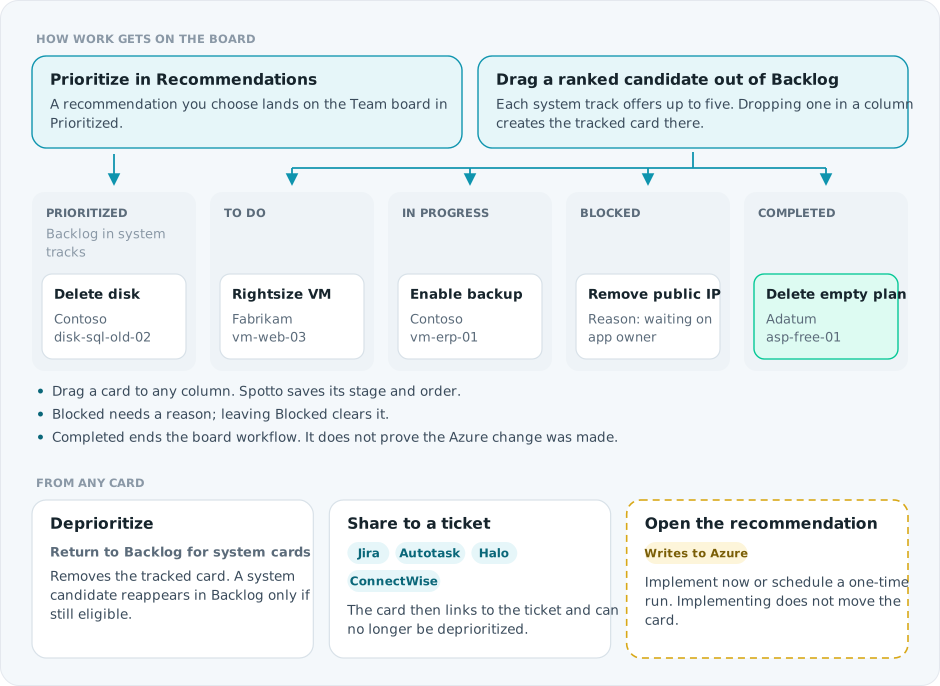
- Prioritized holds durable, team-owned work. Backlog holds untouched generated candidates, which keep their generated rank until you drag one out.
- You can also reorder durable cards within a column.
- Dragging durable system work back to Backlog starts the separate Return confirmation; it is not an ordinary column change.
- With a mouse or touch screen, use the card's drag handle. With a keyboard, focus the drag handle, press Space to pick up the card, use the arrow keys to choose the destination, then press Space again to drop it. Press Escape to cancel.
Review highest-impact priorities
Spotto ranks eligible work using your Cloud Strategy, Spotto Score, and track-specific evidence such as savings, risk reduction, or Secure Score impact. Each system track shows at most five untouched candidates. The count in its header is the visible candidate count, not the total number of matching recommendations in the environment. Durable cards in To do, In progress, Blocked, or Completed are not included in that count.
System tracks are collapsed by default. Expand a track to see its five columns. Your expanded or collapsed choices are remembered for that company in the current browser.
Use View all matching recommendations to investigate the broader matching set in Recommendations. The system track itself remains limited to the highest-ranked five candidates.
Spotto uses different recommendation families in those five positions when enough distinct families qualify. If fewer than five families qualify, the remaining positions are filled with the next-highest-ranked resources. Several cards can therefore have the same recommendation wording while naming different resources. They are separate resource-level decisions, not duplicate cards.
Understand card scope
System tracks can contain two kinds of cards. Use the scope text under the title to tell whether the action covers a recommendation bundle or one named resource:
| Scope shown on the card | What accepting it means | What opens from the title |
|---|---|---|
| A resource count or subscription scope | Accepts the recommendation for its affected scope in the subscription. | The recommendation details modal with the affected-resource context. |
| A named resource | Accepts work for that resource. Other independently actionable resources can remain as separate candidates. | The same recommendation details modal, focused on that resource. |
The current system tracks use these scopes:
| System track | Current candidate scope | What you normally see |
|---|---|---|
| Resource Hygiene | Resource-level | One card for each independently removable, unattached, or idle resource. |
| Capacity and Rightsizing | Resource-level | One card for each currently supported resource-specific sizing opportunity. |
| Security Posture | Recommendation-level | One policy or control card with the number of affected resources. |
| Backup and Recovery | Resource-level | One card for each independently actionable unprotected or stale resource. |
Recommendation-level cards with the same recommendation identity are combined across the selected subscriptions. Their affected-resource and subscription counts show the combined scope. Resource-level cards remain separate because each resource can have different evidence, savings, ownership, or remediation timing.
Cards show the standard 0-100 Spotto Score when the latest scan provides it. Savings, Secure Score uplift, urgency, and affected-resource counts are separate evidence; Spotto does not relabel them as the Spotto Score. Older scan data can show the score as unavailable until the next successful scan regenerates the candidate.
Turn a candidate into tracked work
An untouched candidate in a system track's Backlog is not yet a durable workflow item. Backlog cards have no Add button or ellipsis movement menu. Opening one to review details clears its Unread priority marker but does not add it to your team's workflow; drag it to a workflow column to accept it at that stage.
The durable item then replaces the generated card. Active work remains in its originating system track. Completed work follows the Team board's completed/history presentation instead. If durable system-origin work already has a user-defined lane assignment, that lane takes visual precedence, so the same scoped work is not shown in both regions.
Accepting a resource-level card initially selects only its named resource. If you later accept another resource card for the same recommendation in the same subscription, Spotto adds that resource to the existing durable workflow item instead of creating a second workflow record. Accepting a recommendation-level card covers its currently affected recommendation scope.
For a recommendation covering several selected subscriptions, an action can succeed for some scopes and fail for others. Successful scopes become tracked work; failed scopes can remain untouched candidates until retried.
Add work manually from Recommendations
Automatic curation does not replace manual discovery:
- Open Recommendations and stay in All.
- Open a recommendation, verify its affected scope, and select Prioritize.
- Switch to Prioritized to open the Kanban Board.
- Find the durable card on the Team board, normally under Unassigned unless it already has a user-defined lane.
The durable card keeps a workflow snapshot so it can remain on the board even when the recommendation is absent from the latest detected dataset.
Understand recommendation states
An untouched curated priority is not a durable workflow item. It sits in a system track's Backlog with an unread marker until someone opens it, then stays there without the marker. Accepted cards, including Blocked cards with their blocker reason, stay where your team placed them, and later scans don't recreate them. Completed cards are not re-added as untouched candidates. Dismissal has no Kanban column; it is managed from recommendation details. See Recommendation Management for the full recommendation lifecycle.
A recommendation-level dismissal suppresses that recommendation's candidates in the dismissed subscription scope. A resource-level dismissal suppresses the exact resource candidate. If that resource is part of a compact candidate that cannot be split safely, Spotto suppresses that compact candidate rather than presenting dismissed work.
Generated candidates are also suppressed when the same scoped work already has durable workflow ownership, is Completed, or is owned by an exact matching external ticket. These rules affect generated intake only; they do not delete the durable card, completed history, or ticket. When a candidate is suppressed, the next eligible item can move into the track's five-card window.
Return to Backlog is a separate, confirmed action for system-origin work. Ordinary moves between columns never remove workflow ownership.
Organize and collapse Team board lanes
User-defined lanes group work into delivery packages, teams, customers, or other planning contexts. The Team board always keeps an Unassigned lane for cards that do not belong to a custom lane.
Anyone with view access can collapse or expand Unassigned and user-defined lanes without changing their cards or workflow state. With manage access, you can also:
- Add, rename, reorder, or delete a user-defined lane.
- Move cards between user-defined lanes.
A collapsed Team board lane keeps its header visible and shows its total visible card count plus every non-zero workflow-column count. Columns with no visible cards are omitted from the collapsed summary. Collapsing does not change workflow state. Deleting a user-defined lane moves its cards to Unassigned without changing their workflow column.
A collapsed system track uses a different summary: it shows only the number of untouched visible candidates, capped at five. Durable cards in the track's workflow columns do not increase the collapsed system count.
Use Focus Mode and the Priority Dashboard
Use the Portal header's Focus selector to show the system tracks relevant to FinOps, Security, Operational Health, Optimization Delivery, or Service Delivery. Focus Mode filters and reorders untouched curated candidates only. It does not hide Team board lanes or accepted durable work.
Tracked-board search, category, impact, ticket, and completed-time filters apply to Team board work. System candidates are controlled by Focus Mode, selected subscriptions, and their track classification.
The Priority Dashboard answers which domain needs attention. Its work-theme actions can open the matching system track with the selected subscription scope preserved. Opening that link does not accept or create workflow work.
Switch between Business and Technical titles
The page-wide Business / Technical toggle changes system-card titles without changing the underlying recommendation or workflow state:
- Business uses customer-outcome wording.
- Technical uses implementation-oriented wording.
Every system card carries both titles. If a card does not change when you switch modes, refresh after a successful scan and use the troubleshooting guidance below. See Business vs Technical View for the broader behavior.
Share or export work
Share a card from its footer, as shown in the board flow.
Where recommendation export access is enabled, every Team board lane and system track has Export to SOW. The Statement of Work selector shows Team board lanes first and system tracks afterward as separate collapsible groups. You can select a whole group or individual cards. Exporting a row opens the selector with that row's eligible cards preselected.
The board and its actions are authorized independently:
- Kanban Board availability controls whether the board can be opened.
- Tracked-work view permission controls whether cards and lanes can be read.
- Tracked-work manage permission controls actions such as moving cards and editing lanes.
- Recommendation export permission controls whether Export to SOW is hidden, shown as unavailable, or enabled. Seeing the board does not automatically grant export access.
This separation means a company can use Cost Optimization without the Kanban Board, or use the board while keeping Statement of Work export disabled.
Understand empty, incomplete, and unavailable results
- A complete result with no eligible cards means Spotto found no current priorities for the selected subscriptions.
- A Focus-specific empty result means no current priorities match that Focus Mode; it does not claim that every track is healthy.
- If usable cards exist for a partial result, Spotto keeps those cards actionable. A failed subscription scope does not add generic warning chrome to every otherwise usable row.
- If a scan is incomplete or unavailable and no trustworthy cards can be shown, the page displays an incomplete or unavailable message instead of a healthy empty result. Existing Team board work and accepted system-track work remain available.
If Highest-impact priorities is disabled, untouched generated candidates and their system rows are unavailable. Durable work is not removed: accepted cards remain available with Team board work or completed history, so disabling the generated view does not undo team ownership.
Troubleshooting
A priority disappeared after I moved it
What you're seeing: A generated card no longer appears where it did before.
Likely cause: Spotto replaced the untouched Backlog candidate with the durable workflow item in the destination system column. If that durable item already had a user-defined lane assignment, the user lane takes precedence over the system track.
How to fix:
- Check the destination workflow column in the originating system track. If the work was already assigned to a user-defined lane, check that lane instead.
- Clear Team board filters that may hide the durable card.
- Search by recommendation or resource name.
A priority disappeared or another card took its place
What you're seeing: An untouched candidate disappeared without being moved, and a different candidate may now appear in the track.
Likely causes:
- The recommendation or exact resource was dismissed.
- The same scoped work became durable, was completed, or received an exact matching external ticket.
- Removing that ineligible candidate allowed the next ranked item to backfill the five-card window.
How to fix:
- Check recommendation history, the Team board, completed history, and ticket history for the same recommendation and resource scope.
- Open View all matching recommendations if you need to inspect the broader detected set.
- Restore a dismissal only when the decision has genuinely changed; backfilled cards do not indicate that the earlier action failed.
The same recommendation appears for more than one subscription
What you're seeing: Similar cards remain after one card was accepted.
Likely cause: Workflow ownership is subscription-scoped. Accepting work for one subscription does not claim the same recommendation in another subscription.
How to fix: Open each card and check its subscription and resource scope before taking an action.
Highest-impact priorities are missing or empty
What you're seeing: No system tracks appear, or the page reports incomplete or unavailable priorities.
Likely causes:
- The current Focus Mode has no matching candidates.
- The selected subscriptions have no eligible current priorities.
- A selected subscription has not completed a compatible recommendation scan.
- Priority-track data could not be loaded.
How to fix:
- Change Focus to All.
- Confirm the intended company and subscriptions are selected.
- Use All recommendations to check the latest detected data.
- Refresh after the next successful subscription scan, or retry after a temporary error.
Business and Technical titles look the same
What you're seeing: Switching the page-wide title mode does not change a system card.
Likely cause: The latest generated system-track data did not load correctly or contains invalid title data.
How to fix: Refresh after confirming the subscription scan completed successfully. If the titles still match, report the subscription and card to Spotto support; Technical mode must not silently substitute the Business title.
A Spotto Score is unavailable
What you're seeing: A system card has no numeric Spotto Score.
Likely cause: The source recommendation or older scan data did not provide the score.
How to fix: Use the other available evidence to review the card and recheck it after a successful scan. Do not treat a track-specific metric as a substitute score.
The board refreshed instead of saving my change
What you're seeing: Your move, blocker update, or Return action was not saved, and the board refreshed to a newer state.
Likely causes:
- Your role has view access but not workflow management.
- Another user or an automated action changed the workflow item before your action was saved. Spotto kept the newer state and refreshed the board.
- The save request failed.
How to fix:
- Review the card's current column, lane, blocker details, and ownership after the refresh.
- Retry the action from that current state if it is still appropriate.
- Ask an administrator to check your tracked-work permission if the action remains unavailable, or retry after a temporary service error clears.
A completed card disappeared
What you're seeing: A card moved to Completed is no longer visible.
Likely cause: The default completed-time filter shows only recent work.
How to fix: Change the completed-time filter to include all completed items.