Review Checklists: Best-Practice Coverage
Overview
Review Checklists in Spotto assess selected Azure subscriptions or AWS accounts for best-practice coverage. They combine automated evidence with manual verification, guidance, and comments so you can run consistent reviews across teams and environments.
AWS checklists come from the open-source AWS Custom Lens Hub and cover service and workload reviews such as Amazon S3, Amazon ECS, DynamoDB, and Operational Readiness. A checklist's provider determines which selected accounts or subscriptions contribute to its results.
How it works
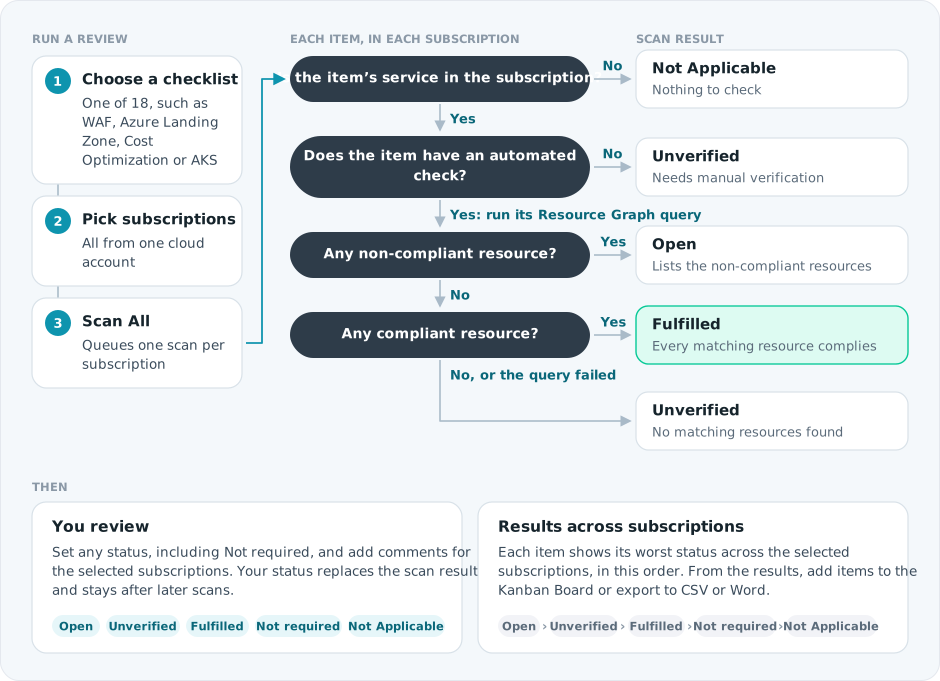
For Azure, Spotto checks every item against each selected subscription, then lets you confirm or override the result.
Why use this? (Jobs, pains, gains)
Jobs to be done
- When I need a WAF or landing-zone review, I want a repeatable checklist that shows coverage across subscriptions, so I can report on readiness and risk.
- When I see an open item, I want to know the likely effort and why it matters, so I can prioritize work.
- When checks cannot be automated, I want a place to document manual verification, so the review is still auditable.
Common pains
- Reviews get trapped in spreadsheets and never stay consistent across subscriptions.
- Best-practice guidance is scattered across docs, and context is missing when you need it.
- Manual checks are hard to track and easy to lose.
Turn the evidence into a decision
After selecting a checklist, select the labelled briefcase Business Value button beside Notes. The brief combines live open/unverified, fulfilled, high-priority, and non-compliant results with a priority body of work.
Live results are not replaced by AI. Generate tailors only the narrative and saves it for that checklist and exact subscription scope, so another checklist retains its own brief. Clear removes only that checklist's saved narrative and immediately restores its standard Business Value content without deleting Customer Context or changing live results. Regenerate when evidence changes. Above 100 subscriptions, the curated live brief remains available without tailoring.
Current position and priority work
Resolve high-severity open or unverified findings that affect foundational controls or multiple services. Classify the remaining items as remediation, accepted trade-off, or deferred work and sequence them against the delivery roadmap.
Business outcomes
A review makes architecture trade-offs explicit before more workloads depend on them. WAF reviews test workload decisions across the five pillars, while Landing Zone reviews validate the identity, networking, policy, security, and operations foundation used by the wider estate.
Cost of delay
Unreviewed foundations can lead to inconsistent controls, slower delivery, audit gaps, hidden resilience problems, and retrofit work that is more expensive and disruptive later. Not every failed item warrants remediation; some are legitimate, documented trade-offs.
Decision required
Agree which findings will be remediated, accepted, or deferred, with an owner and target date for every priority group.
Validate with stakeholders
When you can manage Company Notes, select any question in the portal to retain the answer in the relevant Customer Context note.
- Which business outcome, audit, migration, or growth event prompted the review?
- Which findings represent accepted design trade-offs or compensating controls?
- Who can accept residual risk and fund the agreed improvements?
Key capabilities
Where to find it
In the Spotto Portal, open your company and navigate to Generate -> Generate -> Review Checklists.
Checklist catalog
Besides WAF, Azure Landing Zone, Cost Optimization and AKS, the catalog includes API Management, Front Door, SQL, Azure Virtual Desktop, SAP, Azure Arc and other platform and workload checklists.
Choose a checklist and its account scope
Pick a checklist from the catalogue and select one or more matching Azure subscriptions or AWS accounts. Provider labels distinguish the catalogues. When your selection includes both clouds, only scopes matching the selected checklist contribute to its review, manual updates, and exports.
Track scan coverage
Use Scan All to queue checks for the matching selected scopes. The summary shows each scope's status (such as Queued, Running, Completed, Failed or Not run) and last run time.
AWS manual items are available before the first evidence refresh. AWS scans assess the supported controls against stored Security Hub CSPM evidence; they do not start a new live AWS scan. Refresh your AWS data sources when current evidence is needed.
Review items
Results are aggregated by checklist item. The overview charts show status by severity and services by Well-Architected pillar. The table can be searched, filtered by Category and Status, and sorted by fields like Pillar, Service, or Severity. The status filter also lists Error; current scans record a failed check as Unverified instead.
Effort and business context
Each item can include an effort estimate (hours) and a short explanation of what drives that effort, plus a plain-language headline and summary for stakeholder reviews.
Manual verification and comments
Items without an automated check say Manual verification required. Items whose check was written with AI say so, because AI can make mistakes. Update status and comments in the item's detail view. If the matching selected scopes have different values, saving overwrites them all. Comments support @mentions, which notify the people you mention.
Manual updates are stored separately from AWS scan results, so a refresh preserves them.
If an AWS checklist definition changes, a status saved against the earlier definition requires verification again. Its comments remain available to explain the previous review.
Resource lists, links and export
Item details list compliant and non-compliant resources, with search and direct links to resource details, plus links to supporting documentation or training modules when available. Export the displayed items to CSV or to a branded Word report for audit trails, customer review, or follow-up work.
AWS starting points include Amazon S3, Amazon ECS, DynamoDB, and AWS Operational Readiness Review. These are Custom Lens reviews; they do not constitute a complete general AWS Well-Architected Framework assessment.
Automated AWS evidence
The initial automated mappings cover six practices:
| Checklist | Practice | Stored control evidence |
|---|---|---|
| Amazon S3 | Block public access | S3.8 |
| Amazon S3 | Require secure transport | S3.5 |
| Amazon S3 | Enable server access logging | S3.9 |
| Amazon ECS | Use a read-only root filesystem | ECS.5 |
| Amazon ECS | Avoid privileged containers | ECS.4 |
| Amazon ECS | Configure container logging | ECS.9 |
S3 controls cover general-purpose buckets. ECS controls evaluate the latest active task-definition revision; they do not prove the configuration of every running container. The detail view includes the assessment reason and available evidence. AWS S3 control guidance, AWS ECS control guidance.
An item is fulfilled automatically only when explicit passing evidence is no more than 24 hours old and coverage is complete for the account's expected Regions. The account's Region context must also be current. Missing, stale, disabled, or incomplete evidence leaves the item Unverified. Empty findings alone cannot prove compliance. The remaining AWS practices require manual verification.
Automated mappings apply to the reviewed checklist versions. A changed upstream version requires a mapping review; affected items return to manual verification until that review is complete.
How it differs from cloud-native reviews
Cloud-native assessments often live in separate portals or spreadsheets. Spotto keeps the review in one place and adds cross-subscription roll-ups, effort estimates with rationale, and manual verification and comments as first-class data.
Limitations (honest, boring, useful)
- Not real-time: results appear after a scan completes and data syncs.
- Azure scan connection: Azure subscriptions must belong to the same cloud account to run a scan. AWS requests use each account's verified connection.
- Some items are manual: not every best practice can be automated, and those items require verification.
- AWS evidence is collected separately: refreshing a checklist assesses the stored Security Hub data. Unsupported controls and incomplete coverage remain unverified.
Troubleshooting
Scan button is disabled
What you're seeing: Scan All is disabled.
Likely causes:
- No checklist selected.
- No subscriptions selected.
- Selected subscriptions belong to multiple cloud accounts.
- Your role lacks scan permissions.
How to fix:
- Select a checklist from the catalog.
- Select subscriptions from a single cloud account.
- Ensure your assigned role includes review checklist scan permission.
No results yet
What you're seeing: The page shows an empty state or pending scan banner.
Likely causes:
- A scan has not been run yet.
- The scan is still processing.
How to fix:
- Run Scan All and wait a few minutes.
- Check the subscription scan status summary to confirm progress.
- Refresh the page after the scan completes.
Manual verification required
What you're seeing: A checklist item says manual verification is required.
Likely causes:
- No automated check exists for that item.
How to fix:
- Verify the item manually.
- Update status and comments in the detail view.
Looking to enhance your cloud setup for cost efficiency, performance, reliability, or security?
Talk to a cloud specialist. Email us or schedule a 30-minute consultation and let's optimize your cloud environment together.
Book a Free Consultation